As an Amazon Associate, we earn from qualifying purchases. Some links on this site are affiliate links at no extra cost to you. Our recommendations are based on thorough research and editorial judgment.

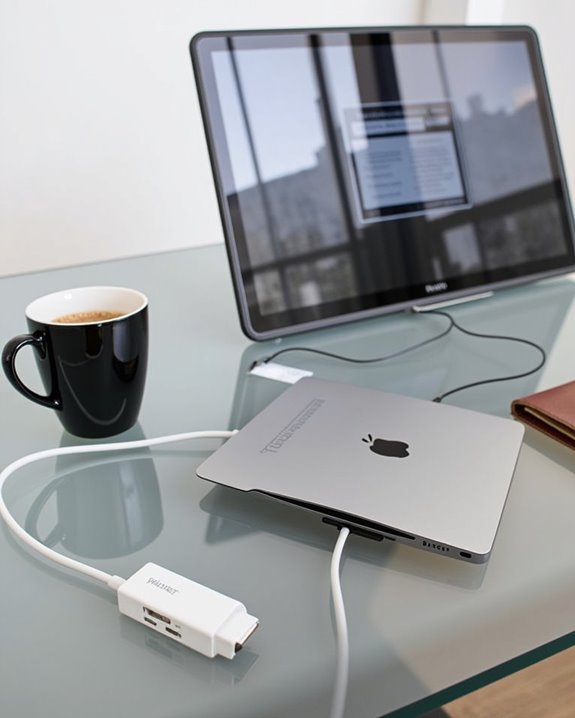
How to Connect Your Ipad to a Projector for Easy Presentations

When you find yourself in need of sharing your iPad content with a larger audience, connecting to a projector can save the day. You’ll discover that both wired and wireless options offer reliable solutions, depending on your specific circumstances and available equipment. Whether you’re delivering a business presentation, teaching a class, or sharing family photos, the right connection method guarantees your iPad’s vibrant display transfers seamlessly to the big screen. The following sections will guide you through each connection type, helping you determine which approach best suits your particular presentation needs.
Key Takeaways
- Use USB-C to HDMI adapters for newer iPads or Lightning to HDMI adapters for older models.
- For wireless projection, ensure iPad and Apple TV are on the same Wi-Fi network, then use Screen Mirroring.
- Some modern projectors have built-in AirPlay, allowing direct wireless connection without additional hardware.
- Keep iOS and projector firmware updated to prevent compatibility issues during presentations.
- Monitor iPad battery life during presentations or connect to power for extended use.
Wired Connection Options for Ipad to Projector Setup
When you’re preparing to share content from your iPad in a professional setting, understanding the wired connection options is essential for a seamless presentation experience. Your iPad requires specific adapter options depending on its port type—newer models use USB-C to HDMI adapters, while older versions need Lightning to HDMI connections. For *ideal* results, select high-quality cable types that match your requirements, ensuring sufficient length for your setup environment.
The connection process involves plugging your adapter into the iPad, connecting the HDMI or VGA cable between the adapter and projector, then selecting the appropriate input source on your display device. Remember that HDMI supports both video and audio transmission, whereas VGA connections require separate audio equipment for sound output. Choosing a projector with multiple HDMI ports can simplify connectivity and enhance flexibility during presentations.
Recommended Products

Versatile 3-in-1 USB C Hub: Upgrade your laptop's connectivity with the Acer USB C Hub. It offers a HDMI 4K@30Hz output port, a PD charging port (Charging function only), and a USB-A 3.0 port. Effortlessly mirror your iPhone or iPad screen to a TV, projector & monitor. Ideal for enhancing your home theater experience, optimizing office productivity, facilitating travel, and more.

[Effortless Plug & Play] Crystal-clear and vibrant 4K@60Hz resolution backward compatible for 1440P/2K@144Hz and 1080P@240Hz. Instantly mirror or extend UHD content from your Type-C phone, tablet, laptop, and desktop computer to larger displays like monitors, TVs, and projectors. Leave behind the worries of unstable WiFi and the hassle of drivers. HDCP compliance lets you enjoy media streaming without any limitations.𝗣𝗹𝗲𝗮𝘀𝗲 𝗡𝗼𝘁𝗲: 𝗧𝗵𝗶𝘀 𝗶𝘀 𝗮 𝗼𝗻𝗲-𝘄𝗮𝘆 𝗰𝗮𝗯𝗹𝗲, 𝗱𝗲𝘀𝗶𝗴𝗻𝗲𝗱 𝗲𝘅𝗰𝗹𝘂𝘀𝗶𝘃𝗲𝗹𝘆 𝗳𝗼𝗿 𝘁𝗿𝗮𝗻𝘀𝗺𝗶𝘀𝘀𝗶𝗼𝗻 𝗳𝗿𝗼𝗺 𝗨𝗦𝗕-𝗖 𝗵𝗼𝘀𝘁 𝗱𝗲𝘃𝗶𝗰𝗲𝘀 𝘁𝗼 𝗛𝗗𝗠𝗜 𝗱𝗶𝘀𝗽𝗹𝗮𝘆𝘀.
Wireless Projection Using Apple TV
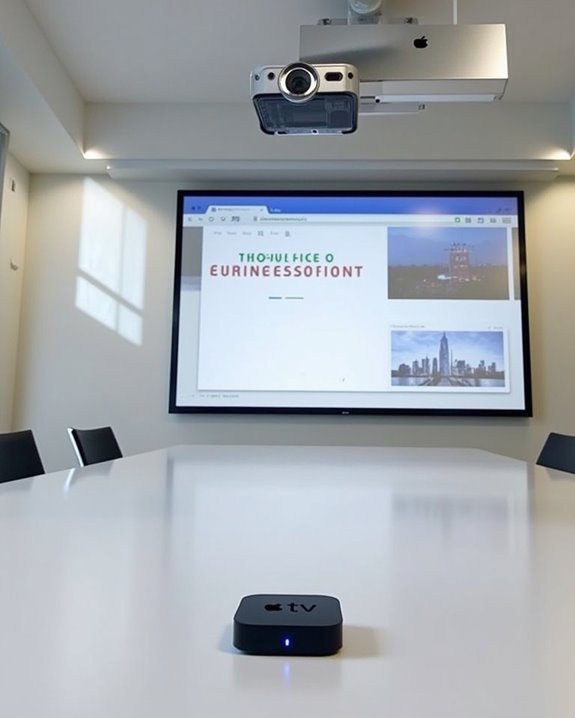
Beyond the wired options, Apple TV offers a cable-free solution that many iPad users prefer for presentations and media sharing. To set up this wireless connection, confirm both your iPad and Apple TV are connected to the same Wi-Fi network and updated with the latest software updates for maximum compatibility.
To begin screen sharing, simply swipe down from the upper-right corner to access Control Center, tap Screen Mirroring, and select your Apple TV device. When prompted, enter the displayed code to authenticate your connection. You’ll enjoy high-quality video with minimal latency, allowing you to control presentations directly from your iPad without cables restricting movement.
If you encounter connection issues, verify both devices are on the same network, restart your equipment, or check Apple TV settings to enable AirPlay Display Underscan for any image distortion problems. For enhanced ambiance during presentations, consider pairing your setup with a star projector to transform your room into an immersive galaxy experience.
Recommended Products

【iPhone 15 HDMI ADAPTER TO TV】- The 2-in-1 iPhone to HDMI adapter for tv helps iPhone15/16/iPad/MacBook expand a HDMI 4K@60Hz port and a charging port, enjoy crystal-clear audio and high-definition video experience, just share happiness with your family or friends. This apple HDMI to USB C adapter allows for faster charging, stable connections and high-definition output, which means you can enjoy home-theater, live streaming ,working report and playing while charging for your apple USB C to HDMI adapter.

The USB-C digital AV multiport adapter lets you connect your USB-C enabled Mac or iPad to an HDMI display, while also connecting a standard USB device and a USB-C charging cable. This adapter allows you to mirror your Mac Display to your HDMI-enabled TV or display.

【Lightning to HDMI Cable for iPhone to TV】 Elevate your viewing experience with our Lightning to HDMI cable supporting a resolution of up to 1080P (HD). Mirror what's displayed on your iPhone or iPad screen, including images, movies, games, apps, presentations, websites, slide shows, and more, on your HDMI-equipped TV, display, projector, or other compatible screens. Enjoy stunning visuals with crystal-clear clarity.
Direct Airplay Connections With Compatible Projectors
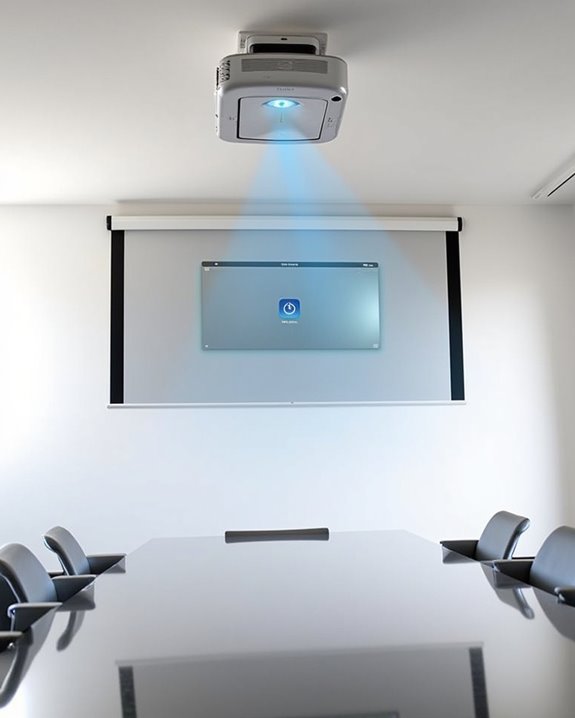
Modern technology has revolutionized how you can connect your iPad to projectors, as many newer projector models now offer built-in AirPlay compatibility for direct wireless connections. Popular options like the Xgimi MoGo Pro and LG CineBeam feature 1080p resolution or higher, transforming any space into a Smart Home presentation center without intermediary devices. For successful mirroring, verify both your iPad and projector connect to the same Wi-Fi network, with updated firmware and iOS for peak performance.
Regular Projector Maintenance includes keeping firmware current as AirPlay protocols evolve. While convenient, be mindful that network congestion may cause lag, and some DRM-protected content won’t display properly. Test your connection before important presentations, confirming image quality and audio synchronization to avoid technical difficulties during your delivery. Many modern projectors also incorporate Wi-Fi 6 technology, which supports fast, stable streaming and reduces latency for smoother presentations.
Recommended Products
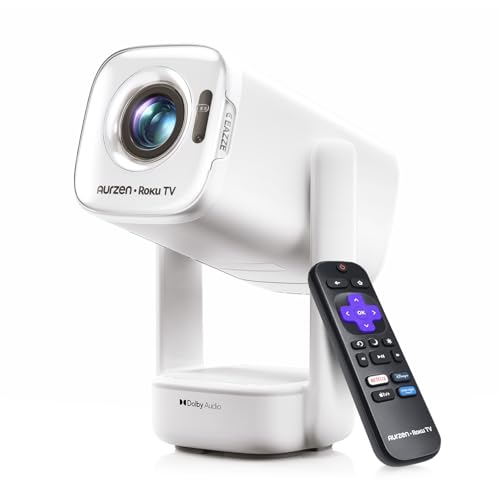
A Roku account and internet connection are required for activation (Creating an account is free)

【The Latest WIFI 6 Technology And Bluetooth 5.3】This projector with Wi-Fi and Bluetooth is equipped with the latest Wi-Fi 6 technology, compatible with Wi-Fi 6, 5G and 2.4G, offering faster connection speed and stronger stability, eliminating buffering and disconnection issues, and ensuring smoother online content playback. Additionally, it is fitted with the latest Bluetooth 5.3 chip, allowing for easy connection to Bluetooth speakers, headphones or other Bluetooth audio devices, providing a more efficient and stable transmission channel, and enabling users to enjoy higher audio quality with ease

【Compatibe with Netflix, No Extra Devices Needed】This isn’t just a projector—it’s your "Hollywood Digital Pass." Instantly access a global library with pre-installed YouTube/Prime Video, offering 1000,000+ titles at your fingertips. Enjoy officially licensed content, secure and regularly updated, with stunning 4K HDR clarity.
Essential Settings and Software for Seamless Screen Mirroring
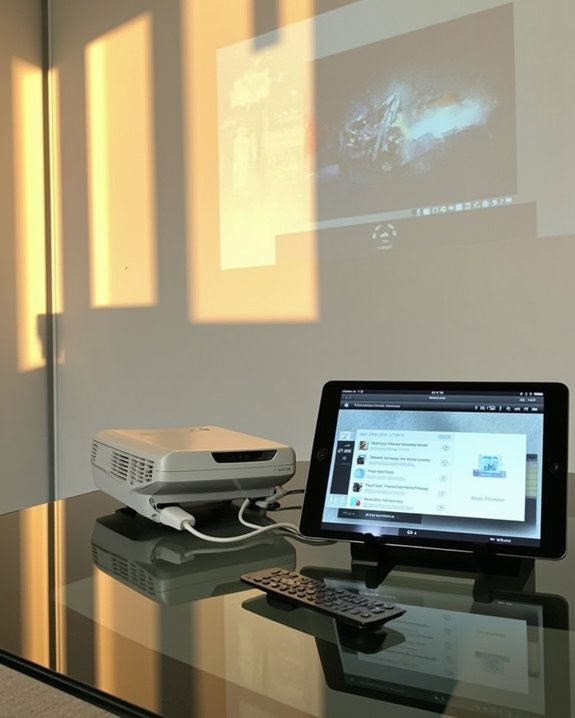
To achieve flawless iPad-to-projector connections, you’ll need to configure several critical settings and utilize appropriate software tools. Ensure both your iPad and AirPlay-compatible device connect to the same Wi-Fi network, then access Control Center to initiate screen mirroring. For superior screen resolution, keep your iOS updated to the latest version, which supports advanced display options and prevents compatibility issues.
When presenting wirelessly, monitor your battery life closely, as screen mirroring consumes power rapidly. Connect your iPad to a power source during lengthy presentations to maintain performance. For the best results, configure AirPlay & Handoff settings in your iPad’s General settings menu, and consider using high-quality adapters for wired connections when wireless options aren’t available or reliable.
Recommended Products

【USB-C to HDTV Adapter 3-in-1 】 USB type-c to hdtv / usb-c/ usb 3.0 multiport adapter convenient for home-theater entertainment, office, exhibition, presentation, teaching etc. Good product solution allows you to charge faster, more stable and more HD, with perfect size to carry around in pocket
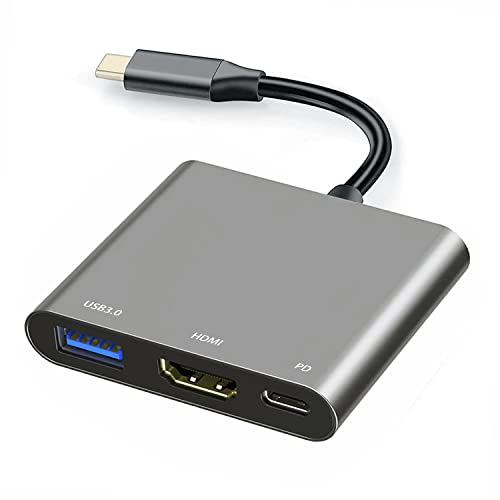
【Specification】Gray aluminum alloy shell LWH 60*55*10mm (2.3*2.1*0.4 inch), cable 130mm (0.5 inch), Mini size and multi-function.
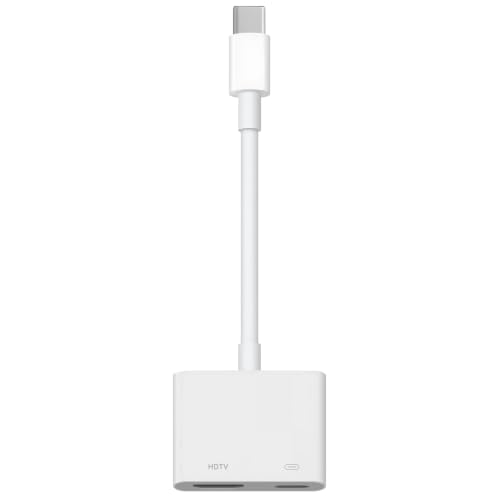
【Never Worry About Power】 Enjoy uninterrupted entertainment with 4K HDMI video output and USB-C 100W charging, ensuring you're always powered up and ready to go
Troubleshooting Common Connection Issues
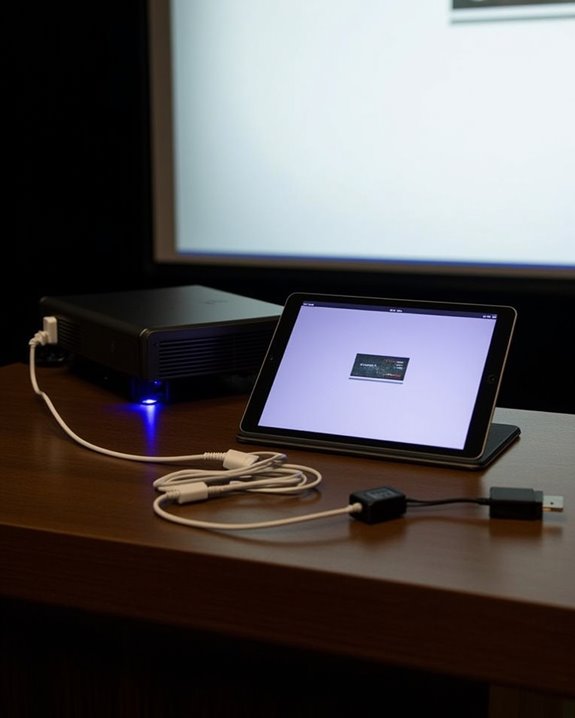
Even when you’ve followed all the recommended steps, you’ll occasionally encounter connection problems between your iPad and projector that require troubleshooting. First, check all physical connections, ensuring your HDMI or VGA cables are securely attached at both ends, as loose connections are a primary cause of display failures. Cable quality substantially impacts performance, so using high-grade cables will minimize signal degradation and interference that cheaper alternatives often exhibit.
Verify your power supply is functioning properly, as insufficient power to either device can prevent proper communication between your iPad and projector. If issues persist, restart both devices, check that the projector is set to the correct input source, and inspect cables for visible damage. For wireless connections, confirm both devices are connected to the same network with adequate signal strength.
Recommended Products

All-in-One Compatibility for iPhone 15/16/17: Seamlessly for Phone, MacBook, iPad, Galaxy S24, Switch and USB-C laptop to HDMI TVs/Monitors/Mini Projector. No extra adapters required—stream, mirror, or present in seconds while keeping your device charged.
![[Apple MFi Certified] USB C to HDMI Adapter for iPhone 17 16 15 to TV](https://m.media-amazon.com/images/I/31Kyo8oWbRL._SL500_.jpg)
【USB-C to HDMI Adapter】 Adopt MFi certified Chip, this usbc to hdmi cable supports Mirroring/Expanding of what is displayed on your iPhone 16 15 series/Computer/Macbook/iMac/iPad Pro/Smartphone screen (including apps, videos, pictures, presentations, websites, slideshows and more) to your HDMI-equipped TV, Monitor, Projector. Convenient for home-theater entertainment, office work, exhibition, presentation, teaching etc.

4K UHD Visual Feast: This USB C to HDMI cable supports up to 4K@30Hz resolution. It can seamlessly transmit at 3840x2160 resolution, providing crystal-clear images and smooth video, suitable for high-definition monitors, TVs and projectors, meeting the needs of various devices and use cases.(Note: Please make sure that your USB-C device supports the video transmission function (DP Alt Mode). If you're not sure, please consult your device retailer or contact us.)
Frequently Asked Questions
Can I Connect My Ipad to Multiple Projectors Simultaneously?
Standard iPads don’t directly support connecting to multiple projectors for simultaneous display. You’ll need specialized apps like Epson iProjection or Panasonic Multi Mode that allow multiple device connections through their specific wireless systems.
Will Ipad Screen Mirroring Work in Areas Without Wi-Fi?
Yes, despite Wi-Fi limitations, you can still mirror your iPad screen offline. Use HDMI adapters for direct cable connections or peer-to-peer AirPlay. Offline mirroring apps like AirDroid Cast also work without Wi-Fi networks.
Can I Project Only Specific Apps Instead of My Entire Screen?
Standard screen sharing mirrors your entire display. You can’t natively select specific apps to project. Consider using smart projectors with direct app installation or third-party solutions that offer more app selection control.
Does Projecting Drain My Ipad Battery Faster Than Normal Use?
Yes, projecting considerably increases battery drain compared to normal use. Your iPad’s power consumption rises due to running the display processor continuously and transmitting video signals, especially when using wireless projection methods.
Can I Use Third-Party Screen Mirroring Apps for Non-Airplay Projectors?
Yes, you can! Like using AirServer to mirror your classroom iPad to an Epson projector. Third-party apps enable screen mirroring to non-AirPlay projectors—just make certain your iPad and projector are on the same network.