As an Amazon Associate, we earn from qualifying purchases. Some links on this site are affiliate links at no extra cost to you. Our recommendations are based on thorough research and editorial judgment.
How to Connect Your Phone to a Projector for Easy Viewing

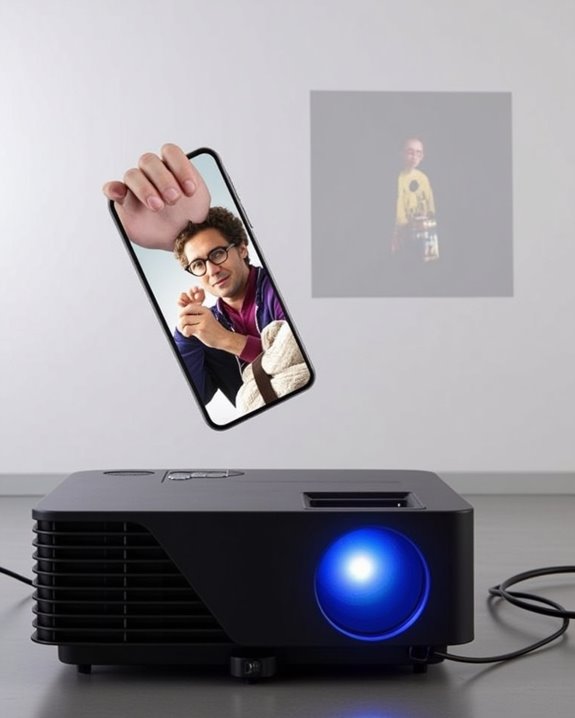
Contrary to what many believe, connecting your phone to a projector doesn’t require advanced technical expertise. You’ll find several options available depending on your device type, from straightforward HDMI adapters to wireless solutions like Miracast or AirPlay. The key lies in identifying your phone’s output capabilities and matching them with compatible projection methods, which can transform how you share content in meetings or enjoy media at home. The right connection method guarantees your presentations appear crisp and professional, while preventing those awkward technical delays that undermine your credibility.
Key Takeaways
- Use a wired connection via USB-C/Lightning to HDMI adapter for the most reliable, high-quality signal transmission.
- Connect wirelessly through Chromecast, Miracast (Android) or AirPlay (iPhone) when supported by your projector.
- Verify device compatibility before purchasing adapters, especially when using MHL technology.
- Match your phone’s output resolution to the projector’s native resolution for optimal image quality.
- Reduce interference by keeping devices close together and test all connections before important presentations.
Understanding Your Phone’s Connectivity Options
Before connecting your phone to a projector, you’ll need to understand what options are available to you based on your device’s capabilities. Most modern smartphones support multiple connection methods, including Bluetooth, Wi-Fi, Chromecast, Miracast, and AirPlay, each with distinct advantages for different scenarios. Your phone’s battery life can be profoundly impacted during prolonged projection sessions, especially when using wireless methods that drain power quickly.
When selecting a connection method, consider potential privacy concerns, as some mirroring technologies broadcast all screen activity to the projector. Wi-Fi connections are ideal for video streaming, while Bluetooth works best for audio-only content. If you have an iPhone, AirPlay offers seamless integration with compatible projectors, whereas Android users might prefer Miracast or Chromecast for ideal performance and compatibility. Additionally, projectors with WiFi 6 connectivity provide more stable and lag-free streaming for enhanced viewing experiences.
Wired Connection Methods: HDMI, USB-C, and MHL
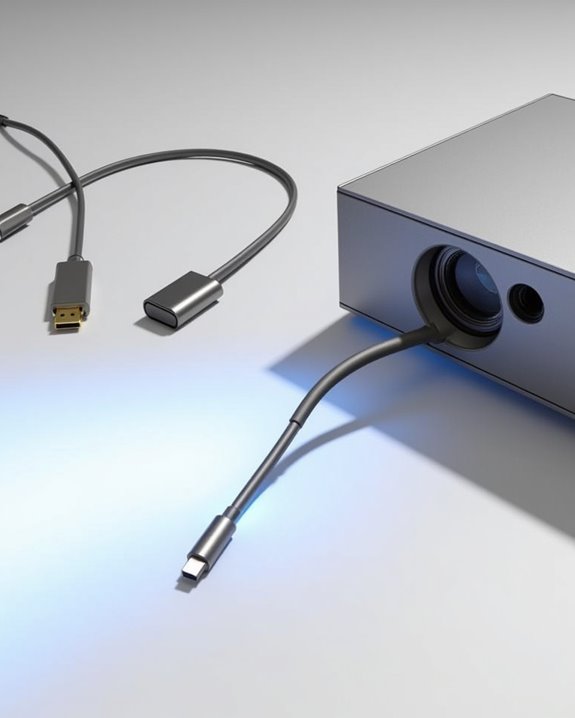
While wireless connections offer convenience, wired methods provide more reliable, higher-quality connections between your phone and projector. HDMI connections deliver excellent video quality but require USB-C to HDMI adapters for most phones, with prices ranging from $10 to $80 depending on cable durability. USB-C connections support high-resolution output (up to 4K at 60Hz) while preserving battery life through simultaneous charging, but require cables that support DisplayPort Alternate Mode.
For older devices, MHL adapters convert Micro-USB or USB-C signals to HDMI, supporting 1080p resolution and charging while projecting. When choosing adapters, verify compatibility with your specific phone model, and select certified options that support Power Delivery. If you experience signal issues, check cable connections and ensure your projector is set to the correct input source. For the best image and signal quality, select cables with gold-plated connectors and braided shielding to reduce interference and maintain stable projection.
Recommended Products

【iPhone 15 HDMI ADAPTER TO TV】- The 2-in-1 iPhone to HDMI adapter for tv helps iPhone15/16/iPad/MacBook expand a HDMI 4K@60Hz port and a charging port, enjoy crystal-clear audio and high-definition video experience, just share happiness with your family or friends. This apple HDMI to USB C adapter allows for faster charging, stable connections and high-definition output, which means you can enjoy home-theater, live streaming ,working report and playing while charging for your apple USB C to HDMI adapter.

All-in-One Compatibility for iPhone 15/16/17: Seamlessly for Phone, MacBook, iPad, Galaxy S24, Switch and USB-C laptop to HDMI TVs/Monitors/Mini Projector. No extra adapters required—stream, mirror, or present in seconds while keeping your device charged.
Wireless Solutions: Wi-Fi Direct and Miracast
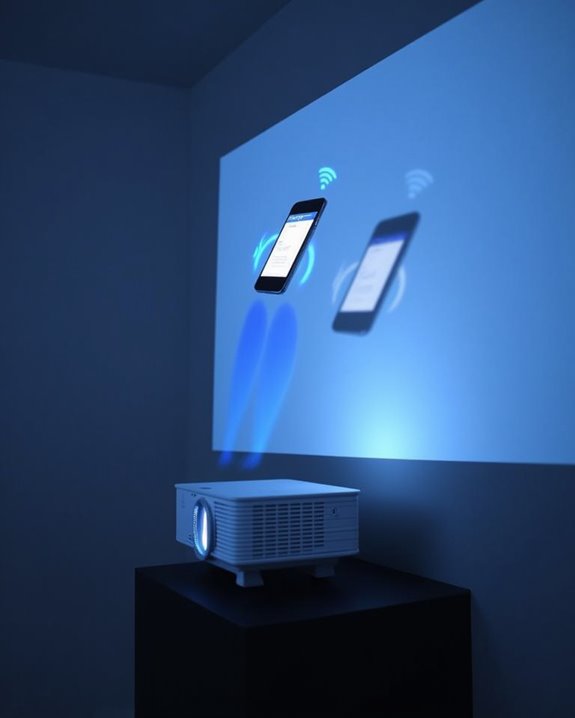
When you’re looking for a cable-free connection between your phone and projector, wireless solutions offer considerable flexibility and convenience. Wi-Fi Direct creates a peer-to-peer connection without requiring a router, though your projector must support this functionality for it to work. Miracast, built on Wi-Fi Direct technology, specifically enables screen mirroring between compatible devices, appearing as “Screen Mirroring” or “Smart View” on many Android phones.
Be mindful of wireless security when establishing these connections, as unprotected networks can pose risks. Signal interference from nearby electronics can disrupt your connection, so keep other devices at a distance. If you experience dropped connections or compatibility issues, try restarting both devices, reducing interference sources, or updating firmware to guarantee ideal performance and compatibility between your phone and projector. Utilizing projectors with WiFi 6 connectivity can further enhance connection stability and speed for a smoother wireless experience.
Recommended Products

4K Decoding & 1080P Full HD Output at 60Hz: Enjoy crisp, vivid visuals powered by 4K decoding and 1080P/60Hz Full HD output—great for home movies, gaming, and clear presentation displays in office or meeting room settings. Supports HDMI 1.3 and HDCP 1.2 standards with wireless compatibility for AirPlay. Optimal for personal media and web content. Incompatibility App: Due to HDCP copyright restrictions, Netflix, hulu, Amazon Prime videos, Chromecast TV, HBO GO, Honda motor, Vudu, DIRECTV, Xfinity, Skygo, BT sport, Comcast TV.

Seamless HD Wireless Streaming: Experience crisp, high-definition visuals with our wireless HDMI display dongle adapter, supporting 4K and delivers an impressive 1080P/60Hz Full HD output.
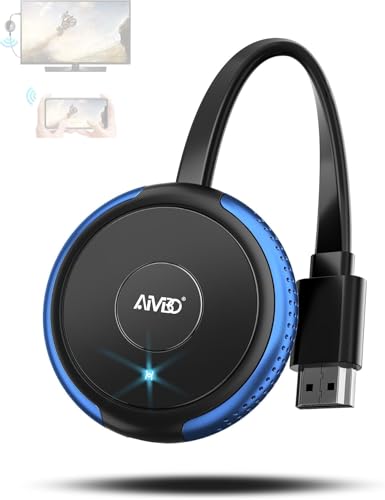
【Truly Plug & Play】AIMIBO’s latest wireless display adapter with genuine plug-and-play functionality. No complicated setup, no apps, no WiFi, and no Bluetooth needed—simply connect and mirror your screen instantly, even on iOS and Mac devices. Easily cast content from your laptop, PC, tablet, or smartphone to your HDTV, projector, or monitor. Mirroring the big screen with zero hassle.
Apple-Specific Connection Methods for Ios Devices
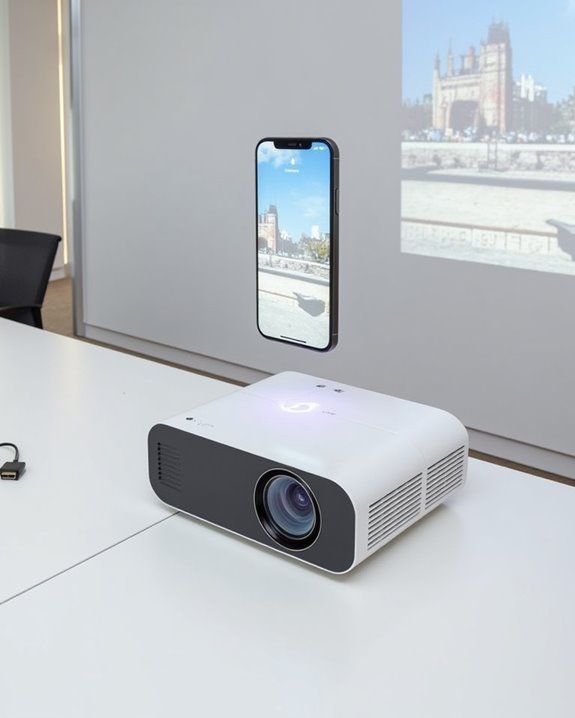
Connecting your iPhone to a projector requires different methods than Android devices, as iOS operates within Apple’s unique ecosystem of compatible technologies. Due to AirPlay limitations, most projectors can’t receive the iPhone’s signal directly, necessitating alternative approaches.
The most seamless wireless option involves Apple TV setup, where you connect the Apple TV to your projector via HDMI, then mirror your iPhone through AirPlay. Both devices must be on the same Wi-Fi network. For direct connections, use Lightning to HDMI adapters for older iPhones or USB-C to HDMI adapters for newer models.
For greater flexibility, consider apps like ApowerMirror or TeamViewer that enable mirroring when both devices share a network. Remember to select the correct input source on your projector after establishing the connection.
Setting Up Chromecast for Seamless Projection
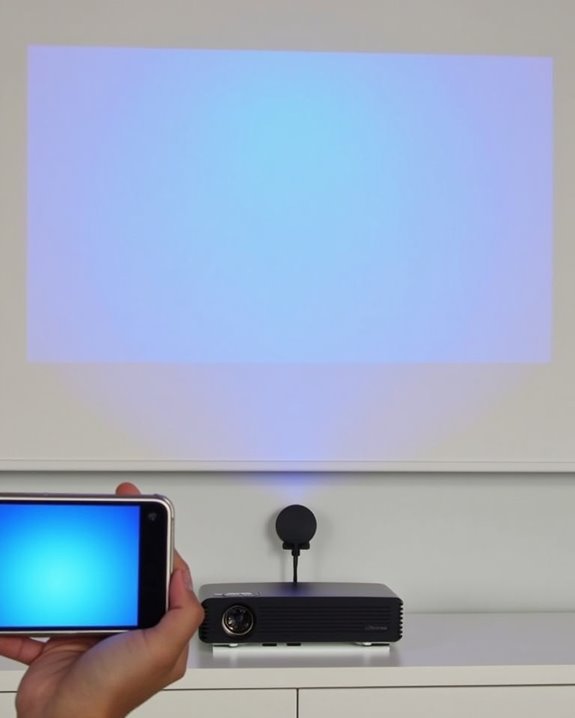
Google’s Chromecast represents one of the most versatile solutions for projecting content from your phone, offering a streamlined approach to wireless casting. To begin, connect the Chromecast dongle to your projector’s HDMI port and plug the power cable into an outlet. Next, power on your projector and select the appropriate HDMI input source using the remote control.
For Chromecast setup, install the Google Home app on your smartphone, ensuring both devices connect to the same Wi-Fi network. Follow the app’s prompts to complete configuration, naming your device for easy identification. Once connected, you can utilize screen mirroring by tapping the cast icon in compatible apps or mirror your entire screen through the Google Home app. If issues arise, verify power connections, HDMI input selection, and network status before restarting the device.
Recommended Products

FLEXIBLY SOLVES DISTANCE ISSUES: This HDMI extender easily extends hard-to-reach HDMI ports in the tight spaces behind your TV, reducing strain on your TV’s HDMI port and protecting your device’s ports from wear and tear

COMPACT DESIGN - The compact-designed portable Benfei HDMI to VGA adapter connects a computer, desktop, laptop, or other devices with HDMI port to a monitor, projector, HDTV, or other devices with VGA port; Tuck this lightweight gadget into your bag or pocket to do a business presentation with your laptop and projector, or extend your desktop screen to a monitor or TV; A VGA cable is required.

The VCE short HDMI adapter is ideal for connecting a TV Stick to a compatible HDTV. It solves the problem of being unable to plug the TV Stick directly into the TV due to limited space or overheating issues. There is no need to bend or hide the device like ordinary HDMI dongles to save space
Optimizing Display Resolution and Settings
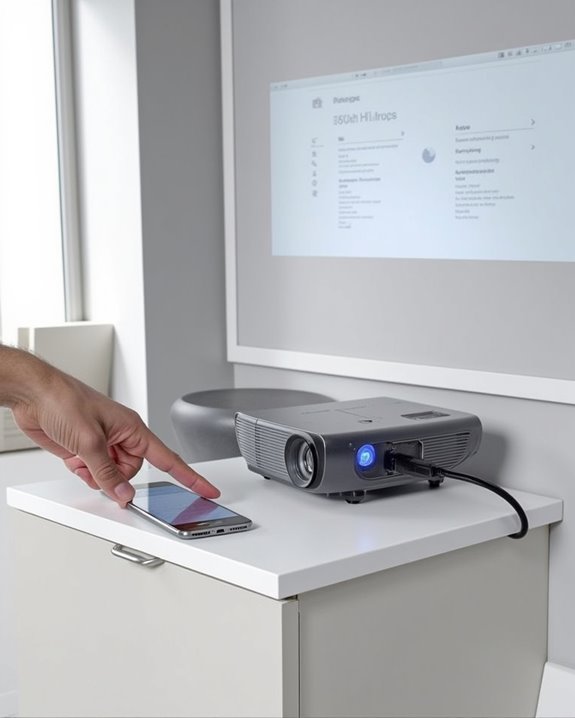
Once you’ve established a connection between your phone and projector, the quality of your displayed content depends heavily on enhancing resolution and display settings. For best results, set your phone’s output resolution to match the projector’s native resolution, typically 1280×720 pixels, which provides ideal clarity and compatibility for most systems.
Perform resolution calibration by selecting 1080p at 60Hz for smooth motion, while disabling HDR on budget projectors to improve brightness. For color adjustment, set color depth to 8-bit and use YCbCr format rather than RGB to align with projector capabilities. Fine-tune the projector’s brightness and contrast settings to preserve detail in both shadows and highlights, and ensure you’re projecting onto a smooth, light-colored surface in a dimly lit room for maximum visual impact.
Troubleshooting Connection Problems and Signal Loss
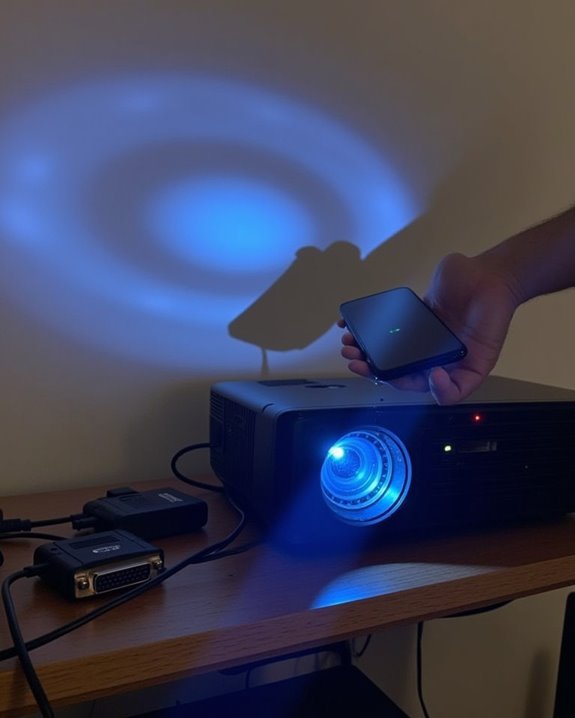
Despite your best setup efforts, you’ll likely encounter connection problems or signal loss when linking your phone to a projector. The simplest fix is often restarting both devices, which clears temporary glitches that interfere with connectivity. Battery issues can considerably impact connection stability, so ensure your phone maintains adequate power throughout your presentation.
Check that both devices support compatible wireless technologies like Miracast or Wi-Fi Direct, and keep them in close proximity to maintain signal strength. App conflicts frequently cause projection problems, so close unnecessary applications running in the background. If wireless connections fail, consider using a direct USB connection as an alternative. Regular software updates for both your phone and projector will resolve compatibility bugs, while reducing electronic interference by positioning your devices away from other wireless sources can prevent signal degradation.
Best Adapters and Cables for Different Phone Models
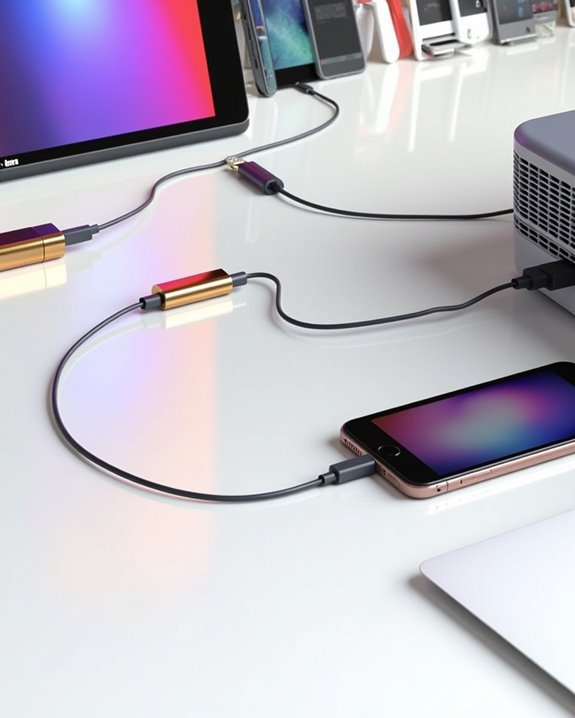
Selecting the right adapters and cables for your phone-to-projector connection depends entirely on which ports your devices have available. For USB-C Android phones, HDMI adapters offer the most reliable screen mirroring experience, supporting common video codecs without quality loss. iPhone users should choose Apple’s certified Lightning to HDMI adapters, which ensure proper signal conversion for presentations and media playback.
If you’re using an older phone with Micro-USB, verify MHL compatibility before purchasing an adapter, as not all devices support this technology. Multi-format adapters that include various connectors (USB-C, Lightning, and Micro-USB) provide flexibility when working with different phones, though dedicated single-type adapters typically deliver superior performance. For extended presentations, consider adapters with power delivery capability to keep your device charged while maintaining a stable connection to your projector.
Recommended Products

【4K UHD Visual Feast】This USB-C to HDMI cable supports up to 4K@60Hz resolution and is backward compatible with 1440P@60Hz and 1080P@120Hz. It can seamlessly transmit at 3840x2160 resolution, providing crystal-clear images and smooth video, suitable for high-definition monitors, TVs, and projectors, meeting the needs of various devices and use cases. 📌𝐍𝐨𝐭𝐞: 𝐔𝐒𝐁-𝐂 𝐩𝐨𝐫𝐭 𝐦𝐮𝐬𝐭 𝐬𝐮𝐩𝐩𝐨𝐫𝐭 "𝐃𝐢𝐬𝐩𝐥𝐚𝐲𝐏𝐨𝐫𝐭 𝐀𝐥𝐭𝐞𝐫𝐧𝐚𝐭𝐞 𝐌𝐨𝐝𝐞". 𝐍𝐎𝐓 𝐬𝐮𝐩𝐩𝐨𝐫𝐭 𝐏𝐨𝐫𝐭𝐚𝐛𝐥𝐞 𝐌𝐨𝐧𝐢𝐭𝐨𝐫 𝐨𝐫 𝐔𝐥𝐭𝐫𝐚 𝐖𝐢𝐝𝐞 𝐌𝐨𝐧𝐢𝐭𝐨𝐫.

[Effortless Plug & Play] Crystal-clear and vibrant 4K@60Hz resolution backward compatible for 1440P/2K@144Hz and 1080P@240Hz. Instantly mirror or extend UHD content from your Type-C phone, tablet, laptop, and desktop computer to larger displays like monitors, TVs, and projectors. Leave behind the worries of unstable WiFi and the hassle of drivers. HDCP compliance lets you enjoy media streaming without any limitations.𝗣𝗹𝗲𝗮𝘀𝗲 𝗡𝗼𝘁𝗲: 𝗧𝗵𝗶𝘀 𝗶𝘀 𝗮 𝗼𝗻𝗲-𝘄𝗮𝘆 𝗰𝗮𝗯𝗹𝗲, 𝗱𝗲𝘀𝗶𝗴𝗻𝗲𝗱 𝗲𝘅𝗰𝗹𝘂𝘀𝗶𝘃𝗲𝗹𝘆 𝗳𝗼𝗿 𝘁𝗿𝗮𝗻𝘀𝗺𝗶𝘀𝘀𝗶𝗼𝗻 𝗳𝗿𝗼𝗺 𝗨𝗦𝗕-𝗖 𝗵𝗼𝘀𝘁 𝗱𝗲𝘃𝗶𝗰𝗲𝘀 𝘁𝗼 𝗛𝗗𝗠𝗜 𝗱𝗶𝘀𝗽𝗹𝗮𝘆𝘀.

Compatibility & Functionality Overview: This durable USB-C to HDMI adapter is compatible with Windows, smartphones, and gaming consoles for video and audio streaming, but it requires DP Alt Mode support, is strictly for one-way video output, and does not support charging.
Comparing Wired vs. Wireless Connection Stability
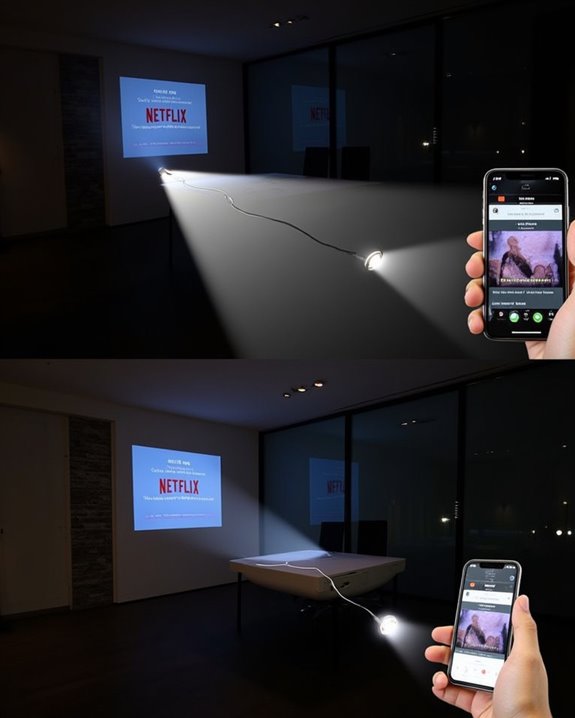
When choosing between wired and wireless connections for your phone-to-projector setup, stability and reliability should be your primary concerns. Wired connections offer consistently faster data transfer rates and lower latency, with cable durability being a key factor in long-term performance. These connections aren’t susceptible to signal interference that commonly affects wireless options.
Wireless connections provide convenience and mobility but come with stability trade-offs. Environmental factors like walls and distance can weaken signals, potentially disrupting your presentation. Wireless security is another consideration, as these connections are more vulnerable to unauthorized access than their wired counterparts. To improve wireless stability, position your devices closer together, minimize interference from other electronics, and ensure your projector’s firmware is updated regularly.
Recommended Products

【Lightning to HDMI Cable for iPhone to TV】 Elevate your viewing experience with our Lightning to HDMI cable supporting a resolution of up to 1080P (HD). Mirror what's displayed on your iPhone or iPad screen, including images, movies, games, apps, presentations, websites, slide shows, and more, on your HDMI-equipped TV, display, projector, or other compatible screens. Enjoy stunning visuals with crystal-clear clarity.

【Up to 4K@30Hz】Plug & play, allow you to connect one or even two HDMI monitors/displays with this USB C to HDMI cable, up to 4K@30Hz resolution. No additional software is required. Offers a convenient solution for directly connecting your USB-C laptops to HDMI-compatible displays(TVs/Monitors/Projectors). 📌𝐍𝐨𝐭𝐞: 𝐨𝐧𝐞-𝐰𝐚𝐲 𝐜𝐨𝐫𝐝, 𝐞𝐱𝐜𝐥𝐮𝐬𝐢𝐯𝐞𝐥𝐲 𝐟𝐫𝐨𝐦 𝐔𝐒𝐁-𝐂 𝐡𝐨𝐬𝐭 𝐝𝐞𝐯𝐢𝐜𝐞𝐬 𝐭𝐨 𝐇𝐃𝐌𝐈 𝐝𝐢𝐬𝐩𝐥𝐚𝐲𝐬. NOT support Portable Monitor.

New Upgrade: Portable Design, HDMI/Type C and charging port into one, completely replacing the Switch dock and HDMI cable. When traveling, it completely replaces the Nintendo Switch dock. lightweight and portable.
Business Presentation Tips When Using Phone Projection
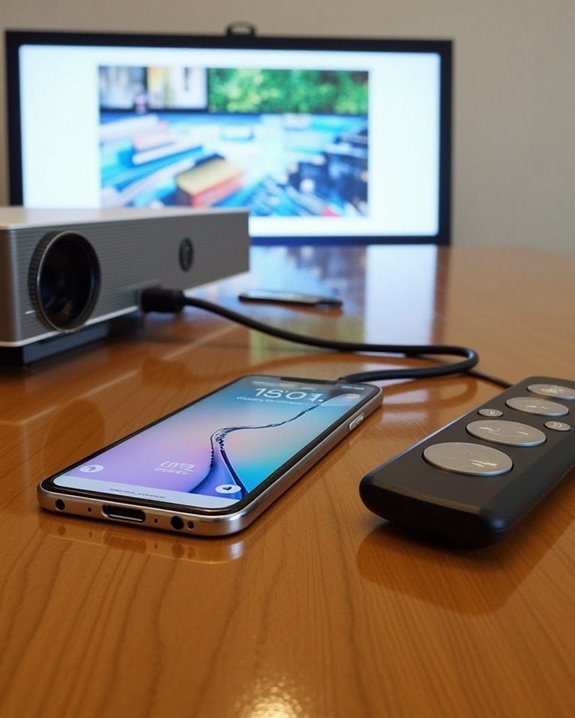
Successfully projecting from your phone requires thoughtful preparation in both content design and delivery techniques. When designing your slides, use larger text sizes, high-contrasting colors, and fewer words per slide to ensure visibility on all screen sizes. Simple layouts with high-quality images will enhance your visual communication while maintaining professional aesthetics for remote collaboration.
Your presentation design should accommodate both portrait and landscape orientations, with intuitive navigation controls that work seamlessly during delivery. Incorporate interactive elements like real-time polling or AR features to boost audience engagement, particularly useful during hybrid meetings. Consider implementing QR codes that provide supplementary materials without disrupting your flow. Before your presentation, thoroughly test all wireless connections or adapters, and always prepare a backup plan should technical difficulties arise, ensuring your message reaches your audience regardless of unexpected challenges.
Frequently Asked Questions
Can I Charge My Phone While It’s Connected to a Projector?
Yes, you can charge your phone while projecting. USB-C connections often support simultaneous charging and video output. For other connections, you’ll need separate charging solutions. Consider power management to prevent overheating during extended use.
Will Projecting Drain My Phone Battery Quickly?
Yes, projecting will considerably increase your phone’s power consumption. You’ll experience faster battery drain due to constant display usage, wireless connections, and increased processor activity. Consider charging while projecting to maintain battery levels.
Can I Project Streaming Services With Copyright Protection?
Yes, you can project copyright-protected streaming services, but you’ll face streaming restrictions. Be aware of copyright issues as most services permit personal viewing only. Check your subscription terms for specific limitations.
How Do I Prevent My Phone From Locking During Projection?
While your screen craves darkness, your audience needs light. Extend your phone’s screen timeout in settings or disable the lock screen altogether. You’ll need to balance battery life with uninterrupted projection.
Can Conference Call Participants See My Projected Content?
Conference call participants can only see your projected content if you’re actively screen mirroring within the call software. Check your privacy settings to control what’s shared, as they won’t see what’s only on your local projector.