As an Amazon Associate, we earn from qualifying purchases. Some links on this site are affiliate links at no extra cost to you. Our recommendations are based on thorough research and editorial judgment.
How to Watch Movies on a Projector From Your Iphone

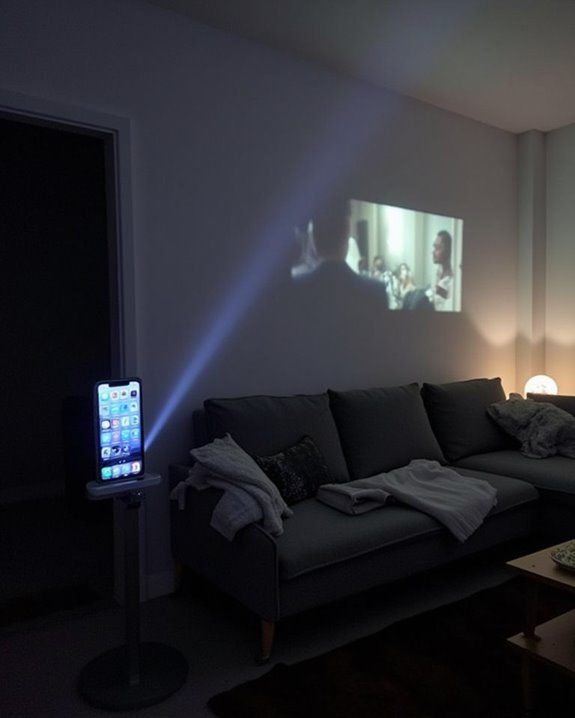
Picture your favorite movie projected onto a large screen, all controlled from your iPhone with just a few precise steps. To achieve this setup, you’ll need to understand which connection methods your projector supports, whether that’s a wired link using a Lightning Digital AV adapter or USB-C to HDMI, or a wireless solution like AirPlay. As you consider factors such as compatibility, cable quality, and network stability, let’s examine the technical process to guarantee seamless playback and superior audio-visual performance.
Key Takeaways
- Use a compatible adapter (Lightning or USB-C to HDMI/VGA) to connect your iPhone directly to the projector for stable playback.
- For wireless connection, enable screen mirroring via AirPlay and select your projector or Apple TV on the same Wi-Fi network.
- Ensure both devices are powered, updated, and the projector is set to the correct input source for your connection method.
- Adjust projector settings for brightness, focus, resolution, and connect external speakers if needed for better audio.
- Choose a projector that supports your preferred connection method and matches your resolution and brightness requirements.
Preparing Your Equipment
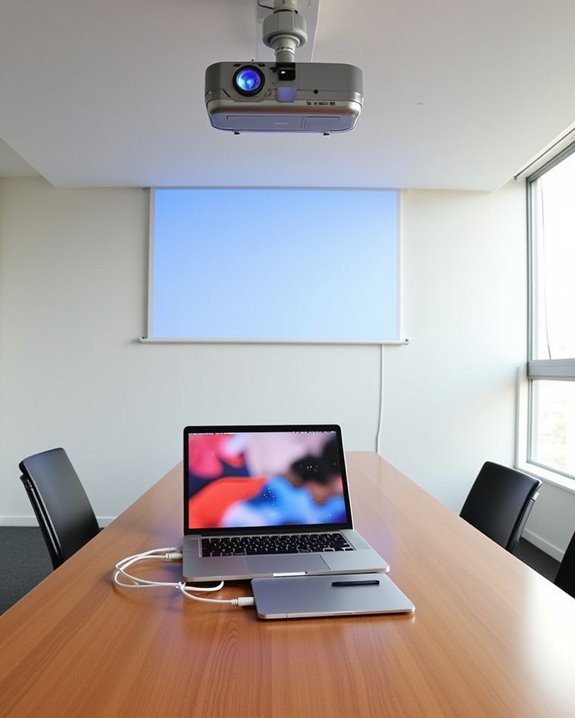
Before you start watching movies on a projector from your iPhone, it’s important to make sure your equipment is prepared carefully, as this guarantees a smooth viewing experience and prevents technical issues. Begin by checking that your projector supports AirPlay or screen mirroring if you plan to use a wireless connection, and adjust the brightness and resolution for ideal clarity. Use the projector’s remote or settings menu to select the appropriate input source, then fine-tune the lens focus and position the projector at the correct distance to achieve the desired image size on your screen. For the best image quality, ensure your projector meets the recommended brightness standards suitable for your viewing environment. Confirm your iPhone has enough battery life, storage space for the movie, and that AirPlay or screen mirroring is enabled. Adjust your volume settings and consider using external speakers for enhanced audio. If you are unable to use WiFi, you can connect your iPhone directly to the projector using a compatible adapter and HDMI or VGA cable for a stable and reliable setup.
Recommended Products

All-in-One Compatibility for iPhone 15/16/17: Seamlessly for Phone, MacBook, iPad, Galaxy S24, Switch and USB-C laptop to HDMI TVs/Monitors/Mini Projector. No extra adapters required—stream, mirror, or present in seconds while keeping your device charged.

【iPhone 15 HDMI ADAPTER TO TV】- The 2-in-1 iPhone to HDMI adapter for tv helps iPhone15/16/iPad/MacBook expand a HDMI 4K@60Hz port and a charging port, enjoy crystal-clear audio and high-definition video experience, just share happiness with your family or friends. This apple HDMI to USB C adapter allows for faster charging, stable connections and high-definition output, which means you can enjoy home-theater, live streaming ,working report and playing while charging for your apple USB C to HDMI adapter.
Connecting Your Iphone to a Projector With Cables
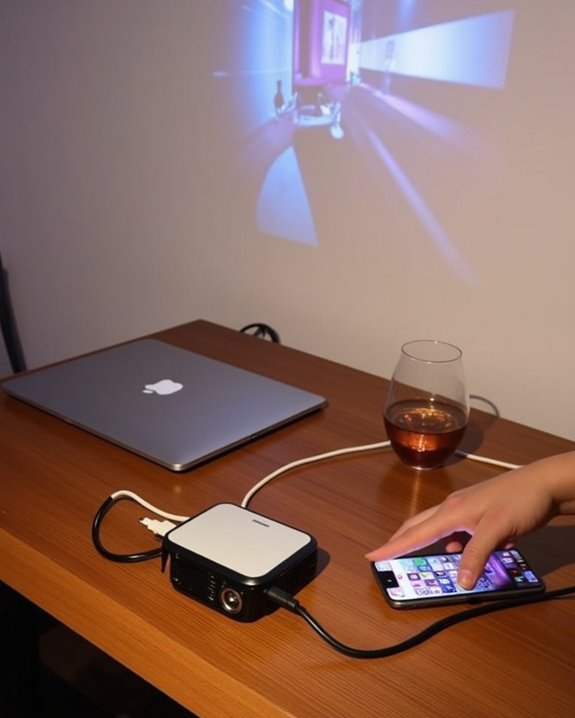
When you’re ready to connect your iPhone to a projector using cables, it is crucial to choose the correct adapter based on your iPhone model and the projector’s available ports, as this determines both compatibility and video quality. For iPhones with Lightning ports, use a Lightning Digital AV Adapter for HDMI connections or a Lightning to VGA Adapter for older projectors, ensuring the adapter is compatible with both your phone and the projector. If you have a newer iPhone with a USB-C port, select a USB-C to HDMI or VGA adapter, or connect directly with a USB-C to USB-C cable if supported. Many modern projectors also feature multiple HDMI ports to support various input sources simultaneously. Always connect the adapter to your iPhone first, then attach the cable to the projector, and switch the projector’s input source to match the chosen connection type. Many adapters include an extra port that allows you to charge your iPhone while it’s connected to the projector, which is especially useful for longer viewing sessions.
Recommended Products

【Lightning to HDMI Cable for iPhone to TV】 Elevate your viewing experience with our Lightning to HDMI cable supporting a resolution of up to 1080P (HD). Mirror what's displayed on your iPhone or iPad screen, including images, movies, games, apps, presentations, websites, slide shows, and more, on your HDMI-equipped TV, display, projector, or other compatible screens. Enjoy stunning visuals with crystal-clear clarity.

[Device Compatibility Note] Designed for USB-C ports that support DisplayPort Alternate Mode (DP Alt Mode) or Thunderbolt 3/4/5. Before purchasing, please check if your device supports video output over USB-C. This cable does not support devices with Lightning ports or USB-C ports limited to data transfer and charging only (such as older Android phones and specific entry-level tablets).
Using Wireless Methods for Movie Playback
Although wired connections provide a straightforward solution, using wireless methods to play movies from your iPhone on a projector offers greater flexibility and convenience, allowing you to control content remotely and reduce cable clutter. To set up wireless playback, verify both your iPhone and the projector—or an intermediary device like Apple TV—are connected to the same Wi-Fi network, since AirPlay relies on this connection. Activate screen mirroring from your iPhone’s Control Center, selecting the projector or Apple TV as the display. Many modern projectors support dual-band WiFi for enhanced streaming performance. If your projector doesn’t support AirPlay, connect an Apple TV via HDMI. Some projectors feature Wi-Fi Direct, while third-party screen mirroring apps and wireless adapters like Chromecast provide additional options. Always confirm network stability, compatible content formats, and proper audio output for ideal viewing. It’s important to keep all devices updated with the latest software to prevent compatibility issues when setting up wireless movie playback.
Recommended Products

328FT/100M Ultra-Long Range & 5G+2.4G Dual-Band Transmission:The FUTUREAGLE S8 Wireless HDMI Transmitter and Receiver delivers a powerful wireless range of up to 100 meters (328 feet), allowing you to break free from cable clutter and arrange your devices with flexibility. The advanced LDS technology significantly enhances signal penetration and reception, ensuring stable transmission even in large spaces like conference rooms, classrooms, or spacious living rooms. Furthermore, our versatile hdmi transmitter supports 5GHz & 2.4GHz dual-band transmission, providing strong anti-interference capability and reliable signal performance for both indoor and outdoor use.

【No Need HDMI Cable,Easy Use】This wireless HDMI transmitter and receiver,easy installation, plug and play, no need for WiFi/APP/Bluetooth, say goodbye to the traditional cable connection can be audio and video signal transmission, make your office or room more neat.Use Delay <0.01s, almost 0 delay. Great for business meetings, teaching, churches, live broadcasts, business presentations home theater, parties, outdoor movie screenings, weddings, and more to use

Plug and Play with ZeroDrop Tech: Wireless HDMI transmitter and receiver 4k offers true plug and play functionality—no messy cables, Wi-Fi, apps, Bluetooth, or complex settings required. Bluetooth hdmi connect devices effortlessly in under 10 seconds. ZeroDrop Technology ensures zero latency for smoother operation, keeping your workspace tidy while delivering seamless, high-quality streaming
Choosing the Right Projector and Accessories
Choosing the right projector and accessories is crucial for a seamless movie-watching experience from your iPhone, since technical compatibility, image quality, and practical setup all play essential roles. Start by confirming the projector supports your preferred connection method, such as HDMI or AirPlay, and matches your content’s resolution and brightness needs. If portability is important, consider a pico projector, but guarantee it still offers adequate screen size and lamp life for your viewing habits. When selecting accessories, focus on reliable adapters and cables, as well as cable management solutions and a stable power supply. Wired connections offer a more stable and reliable projection experience, especially in environments where Wi-Fi may be unavailable or unstable. To guide your choices, review this essential checklist:
- Confirm projector-iPhone compatibility and connection options.
- Choose appropriate screen size, brightness, and resolution.
- Select high-quality adapters and cables.
- Prepare a suitable projection surface and setup area.
Recommended Products
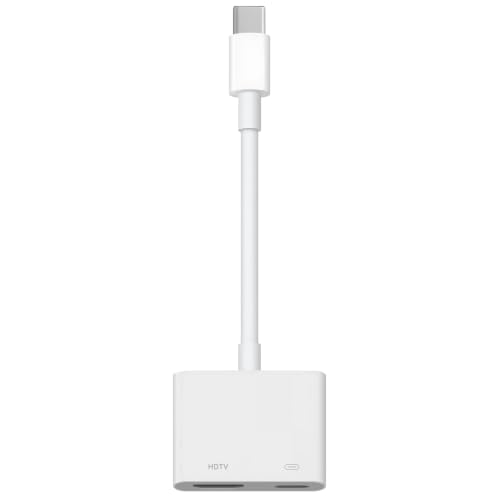
【Never Worry About Power】 Enjoy uninterrupted entertainment with 4K HDMI video output and USB-C 100W charging, ensuring you're always powered up and ready to go
![[Apple MFi Certified] USB C to HDMI Adapter for iPhone 17 16 15 to TV](https://m.media-amazon.com/images/I/31Kyo8oWbRL._SL500_.jpg)
【USB-C to HDMI Adapter】 Adopt MFi certified Chip, this usbc to hdmi cable supports Mirroring/Expanding of what is displayed on your iPhone 16 15 series/Computer/Macbook/iMac/iPad Pro/Smartphone screen (including apps, videos, pictures, presentations, websites, slideshows and more) to your HDMI-equipped TV, Monitor, Projector. Convenient for home-theater entertainment, office work, exhibition, presentation, teaching etc.
![BENFEI USB C to HDMI Adapter 4K@60Hz, USB Type-C to HDMI Adapter [Thunderbolt 3/4/5 Compatible] with iPhone 15 Pro/Max, MacBook Pro/Air 2023, iPad Pro, iMac, S23, XPS 17, Surface Book](https://m.media-amazon.com/images/I/31kTmzsrThL._SL500_.jpg)
COMPACT DESIGN - The compact-designed portable BENFEI USB-C to HDMI adapter connects a computer, desktop, laptop, or other devices with USB-C port to a monitor, projector, HDTV, or other devices with HDMI port; Tuck this lightweight gadget into your bag or pocket to do a business presentation with your laptop and projector, or extend your desktop screen to a monitor or TV;
Troubleshooting Common Issues
Successfully streaming movies from your iPhone to a projector can sometimes present technical challenges, so it’s important to comprehend the most common issues and how to resolve them efficiently. First, confirm both your iPhone and projector are compatible with your chosen connection method, whether you’re using AirPlay or an HDMI adapter, and check that all devices are powered properly. If you’re using cables, inspect them for any visible damage and ensure the projector is set to the correct HDMI input. For wireless connections, verify that both devices are on the same Wi-Fi network and that AirPlay-compatible equipment, such as an Apple TV, is in use. If your projector lacks speakers, you may need to use an external audio solution or play sound directly from your iPhone, as not all adapters transmit audio through HDMI. To address video or audio issues, adjust projector settings for resolution, aspect ratio, and audio source, and consider firmware updates as needed.
Frequently Asked Questions
Can I Stream Netflix or Disney+ From My Iphone to a Projector?
Yes, you can stream Netflix or Disney+ from your iPhone to a projector if you’ve got an Apple TV for AirPlay or use a Lightning to HDMI adapter. Just make sure everything’s updated and connected to the same Wi-Fi.
Will Audio Play Through the Projector or My Iphone Speakers?
As the saying goes, “the devil’s in the details.” Whether audio plays through your projector or iPhone speakers depends on your setup. Check your connection method and device settings—what you choose determines where the sound comes from.
Can I Use Bluetooth Speakers With My Projector Setup?
Yes, you can use Bluetooth speakers with your projector setup if your projector supports Bluetooth or you use an external transmitter. Just pair the devices, adjust the audio settings, and you’ll enjoy wireless sound for your movies.
How Do I Adjust Movie Aspect Ratio on the Projector?
Picture your movie filling the screen perfectly—no awkward bars or stretched faces. You’ll adjust aspect ratio in the projector’s menu, pick presets like 16:9 or 4:3, then fine-tune with zoom, keystone, and positioning controls.
Is It Possible to Project Movies Outdoors Using My Iphone?
Yes, you can project movies outdoors using your iPhone. Just make sure you’ve got a bright enough projector, the right adapters, a proper screen, and a strong power supply. Don’t forget to set up external speakers!