As an Amazon Associate, we earn from qualifying purchases. Some links on this site are affiliate links at no extra cost to you. Our recommendations are based on thorough research and editorial judgment.

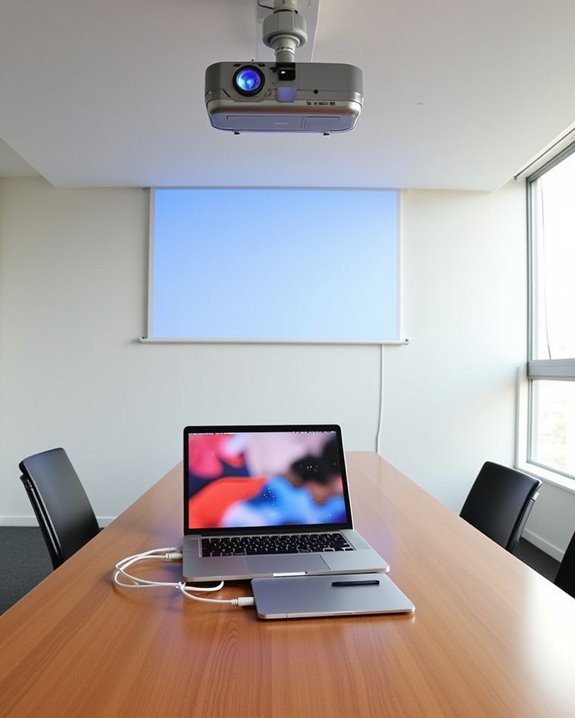
How to Connect Your Mac to a Projector for Easy Presentations

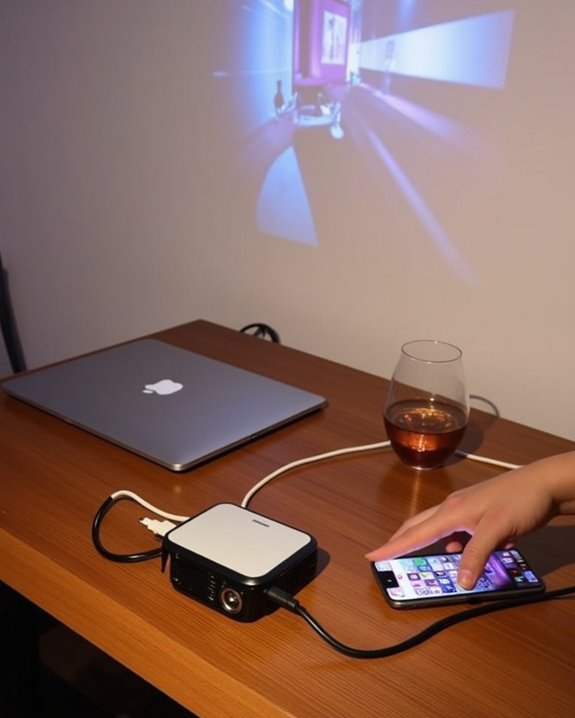
You might find yourself in a bit of a pickle when facing that important presentation without proper Mac-to-projector knowledge. When you’re standing in front of colleagues or clients, the last thing you need is technology troubles disrupting your flow. Your Mac offers several connection pathways to projectors, depending on your specific model and the projector’s inputs available. Will you choose the reliability of a wired connection with the appropriate adapter, or explore wireless options that free you from cable constraints? The answer depends on your specific setup and presentation requirements.
Key Takeaways
- Connect your Mac using the appropriate adapter (USB-C to HDMI for newer models, Mini DisplayPort for older ones).
- Power on both devices, then select the correct input source on your projector.
- Configure display settings through System Preferences > Displays to mirror or extend your screen.
- Use AirPlay for wireless projection if your projector is compatible or connected to Apple TV.
- Adjust resolution and brightness settings to ensure optimal visibility in your presentation environment.
Understanding Mac-to-Projector Connection Options
When you’re preparing to share content from your Mac on a larger screen, understanding the various connection options between your Mac and a projector is essential for a successful presentation. Modern MacBooks typically feature USB-C ports, requiring specific adapter types for different projector inputs, including USB-C to HDMI adapters for newer projectors or USB-C to VGA adapters for older models. Cable compatibility depends largely on your Mac’s age and available ports, with older Macs often utilizing Mini DisplayPort connections that need appropriate adapters.
For maximum flexibility, consider investing in a USB-C hub that provides multiple output options, allowing you to connect to virtually any projector you might encounter. Always verify the cable quality and proper connection to guarantee suitable display performance during your presentation. Choosing projectors with dual HDMI ports can enhance compatibility and ease of setup with various Mac models.
Recommended Products

【4K UHD Visual Feast】This USB-C to HDMI cable supports up to 4K@60Hz resolution and is backward compatible with 1440P@60Hz and 1080P@120Hz. It can seamlessly transmit at 3840x2160 resolution, providing crystal-clear images and smooth video, suitable for high-definition monitors, TVs, and projectors, meeting the needs of various devices and use cases. 📌𝐍𝐨𝐭𝐞: 𝐔𝐒𝐁-𝐂 𝐩𝐨𝐫𝐭 𝐦𝐮𝐬𝐭 𝐬𝐮𝐩𝐩𝐨𝐫𝐭 "𝐃𝐢𝐬𝐩𝐥𝐚𝐲𝐏𝐨𝐫𝐭 𝐀𝐥𝐭𝐞𝐫𝐧𝐚𝐭𝐞 𝐌𝐨𝐝𝐞". 𝐍𝐎𝐓 𝐬𝐮𝐩𝐩𝐨𝐫𝐭 𝐏𝐨𝐫𝐭𝐚𝐛𝐥𝐞 𝐌𝐨𝐧𝐢𝐭𝐨𝐫 𝐨𝐫 𝐔𝐥𝐭𝐫𝐚 𝐖𝐢𝐝𝐞 𝐌𝐨𝐧𝐢𝐭𝐨𝐫.

[Effortless Plug & Play] Crystal-clear and vibrant 4K@60Hz resolution backward compatible for 1440P/2K@144Hz and 1080P@240Hz. Instantly mirror or extend UHD content from your Type-C phone, tablet, laptop, and desktop computer to larger displays like monitors, TVs, and projectors. Leave behind the worries of unstable WiFi and the hassle of drivers. HDCP compliance lets you enjoy media streaming without any limitations.𝗣𝗹𝗲𝗮𝘀𝗲 𝗡𝗼𝘁𝗲: 𝗧𝗵𝗶𝘀 𝗶𝘀 𝗮 𝗼𝗻𝗲-𝘄𝗮𝘆 𝗰𝗮𝗯𝗹𝗲, 𝗱𝗲𝘀𝗶𝗴𝗻𝗲𝗱 𝗲𝘅𝗰𝗹𝘂𝘀𝗶𝘃𝗲𝗹𝘆 𝗳𝗼𝗿 𝘁𝗿𝗮𝗻𝘀𝗺𝗶𝘀𝘀𝗶𝗼𝗻 𝗳𝗿𝗼𝗺 𝗨𝗦𝗕-𝗖 𝗵𝗼𝘀𝘁 𝗱𝗲𝘃𝗶𝗰𝗲𝘀 𝘁𝗼 𝗛𝗗𝗠𝗜 𝗱𝗶𝘀𝗽𝗹𝗮𝘆𝘀.

Compatibility & Functionality Overview: This durable USB-C to HDMI adapter is compatible with Windows, smartphones, and gaming consoles for video and audio streaming, but it requires DP Alt Mode support, is strictly for one-way video output, and does not support charging.
Essential Hardware and Adapters for Mac Projection
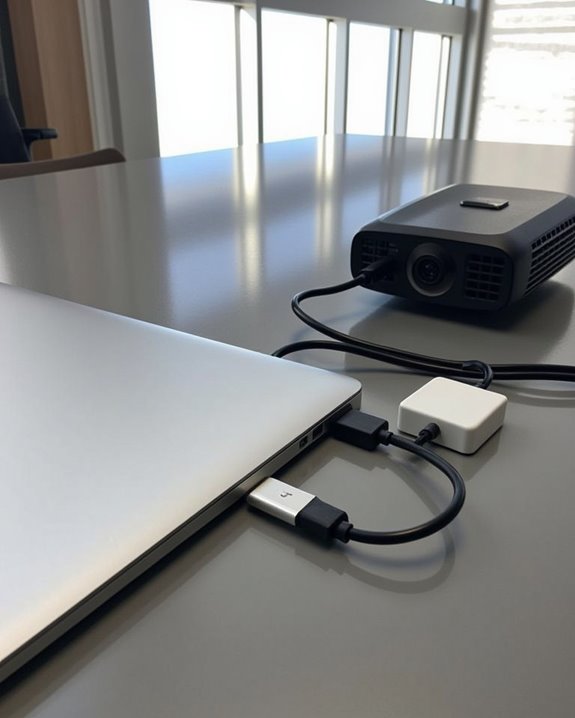
To successfully connect your Mac to a projector, you’ll need the right hardware and adapters that match both your Mac’s ports and the projector’s input options. For newer MacBooks with USB-C ports, Apple’s USB-C Digital AV Multiport Adapter or Anker’s 8K-compatible adapters provide dependable HDMI connectivity, while maintaining ideal presentation lighting conditions through high-resolution output.
Older Mac models require Thunderbolt or Mini DisplayPort to HDMI cables, which should be positioned carefully when setting up your projector mounting system. Consider investing in a multiport hub that combines HDMI output with charging capabilities, especially for extended presentations. Always verify compatibility between your specific Mac model and the projector before purchasing adapters, and remember to power off devices before connecting USB cables to prevent detection issues. For optimal viewing in various lighting conditions, it’s important to check the projector’s brightness levels to ensure your presentation remains clear and visible.
Recommended Products
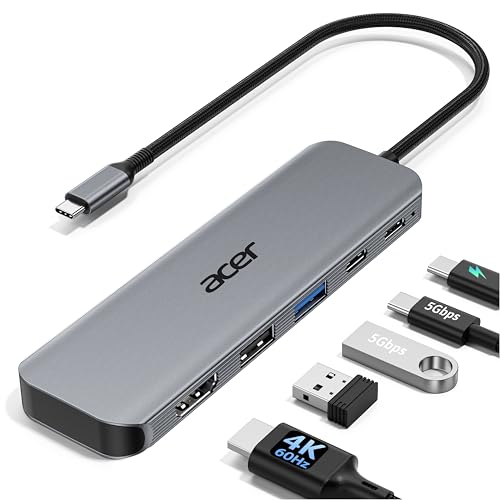
【5-in-1 Ultimate Productivity HUB】Expand your USB-C port into a high-performance workstation. This usb c hub multiport adapter integrates 4K@60Hz HDMI, 100W PD, USB-C 3.0 (5Gbps), USB-A 3.0/2.0. Perfect for keeping your desk organized and eliminating clutter from multiple dongles.

【Pre-Use Notice】To enable the HDMI output, your device's USB-C port must support DisplayPort Alterinate Mode (DP Alt Mode) or Thunderbolt 3/4. 📌Standard USB-C ports that only support charging or data transfer are not compatible with the HDMI function.
Step-by-Step Guide to Wired Connections
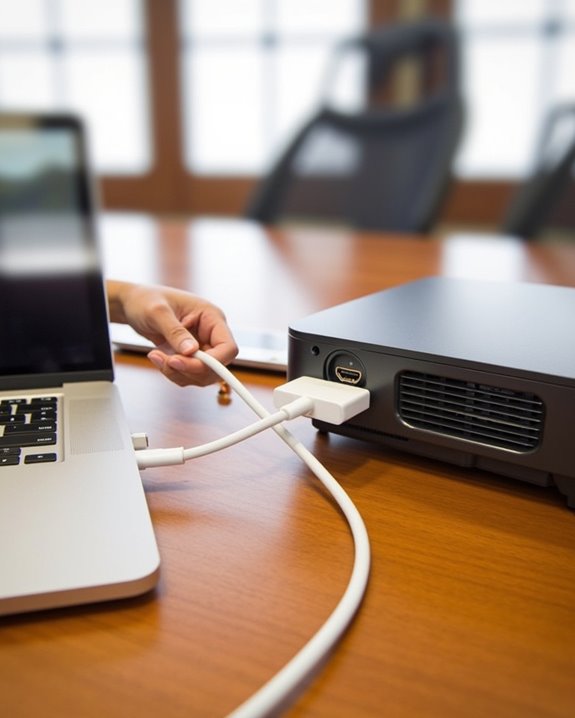
Establishing a reliable wired connection between your Mac and projector doesn’t need to be complicated, though it requires careful attention to hardware compatibility and proper setup procedures. First, power off both devices, identify available ports on your Mac and projector, then select the appropriate cable—typically HDMI for newer models or VGA for older equipment. Connect one end to your Mac, possibly using a Thunderbolt 4 adapter if needed, and secure the other end to the projector while implementing proper cable management to prevent tripping hazards.
Turn on both devices, select the correct input source on your projector, then adjust your Mac’s display settings to mirror or extend your desktop. This wired approach offers superior wireless security compared to Bluetooth alternatives, eliminating potential interference issues during critical presentations. For optimal image quality and ease of setup, consider projectors that support auto keystone correction to quickly align your display.
Recommended Products

【USB-C to HDTV Adapter 3-in-1 】 USB type-c to hdtv / usb-c/ usb 3.0 multiport adapter convenient for home-theater entertainment, office, exhibition, presentation, teaching etc. Good product solution allows you to charge faster, more stable and more HD, with perfect size to carry around in pocket

5-in-1 Connectivity: Equipped with a 4K HDMI port, a 5 Gbps USB-C data port, two 5 Gbps USB-A ports, and a USB C 100W PD-IN port. Note: The USB C 100W PD-IN port supports only charging and does not support data transfer devices such as headphones or speakers.

【iPhone 15 HDMI ADAPTER TO TV】- The 2-in-1 iPhone to HDMI adapter for tv helps iPhone15/16/iPad/MacBook expand a HDMI 4K@60Hz port and a charging port, enjoy crystal-clear audio and high-definition video experience, just share happiness with your family or friends. This apple HDMI to USB C adapter allows for faster charging, stable connections and high-definition output, which means you can enjoy home-theater, live streaming ,working report and playing while charging for your apple USB C to HDMI adapter.
Configuring Mac Display Settings for Optimal Projection
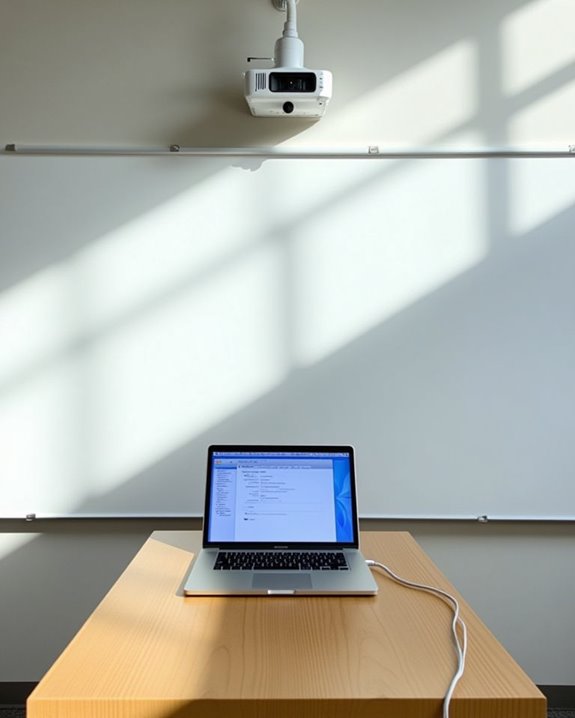
After connecting your Mac to a projector, you’ll need to configure your display settings to guarantee ideal projection quality for your presentation or viewing experience. Access these settings by pressing Option + F1 or moving to System Settings (or System Preferences on older Macs) and selecting “Displays” in the sidebar.
For presentations, you can choose between two primary display modes: Mirror Displays, which shows identical content on both screens, or Extended Desktop, which allows different content on each display. Adjust your display resolution to ensure text and images appear crisp and properly sized on the projected screen. For color-sensitive presentations, utilize color calibration options to maintain accuracy between your Mac and the projector, ensuring your audience sees precisely what you intend them to see.
Wireless Projection Methods for Cable-Free Presenting
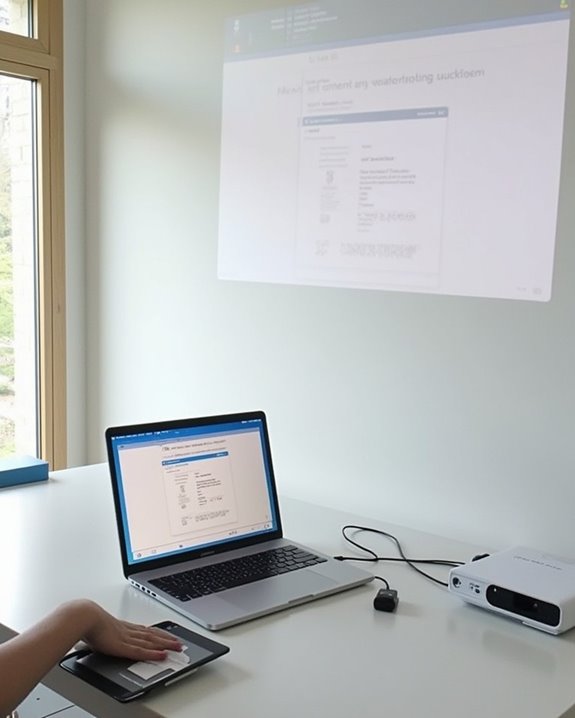
Modern presentations don’t require you to be tethered to your projector with cables, as wireless projection offers a convenient and professional alternative for Mac users. To set up a wireless connection, confirm both your Mac and projector are connected to the same Wi-Fi network, paying attention to wireless security protocols to prevent unauthorized access to your presentation content.
For seamless projection, use AirPlay with compatible projectors or an Apple TV device, accessing screen mirroring through your Mac’s Display preferences. Signal interference can disrupt wireless presentations, so position your devices away from other electronic equipment and physical barriers. Third-party wireless adapters like the Bijie Multimedia Collaboration System provide additional options when built-in wireless capabilities aren’t available. Smart projectors with integrated Wi-Fi functionality offer the most straightforward setup, eliminating the need for extra hardware while maintaining presentation quality.
Recommended Products

【PLUG & PLAY】This presentation clicker supports page up/down, hyperlink navigation, volume control, power on/off, and full screen/black screen switching. No software or driver is required, just plug the USB receiver into your computer's USB port and you're ready to start the show (Requires one AAA battery, not included)

HD Wireless Mirroring:This wireless display adapter supports 1080P@60Hz with 4K decoding, allowing you to mirror content from your iPhone, iPad, or MacBook to a larger screen such as a TV, monitor, or projector. Enjoy a cinematic viewing experience in your living room without the hassle of long, tangled cables

【PLUG & PLAY】This presentation clicker supports page up/down, hyperlink navigation, volume control, power on/off, and full screen/black screen switching. No software or driver is required, just plug the USB receiver into your computer's USB port and you're ready to start the show (Requires one AAA battery, not included)
Troubleshooting Display and Connection Problems
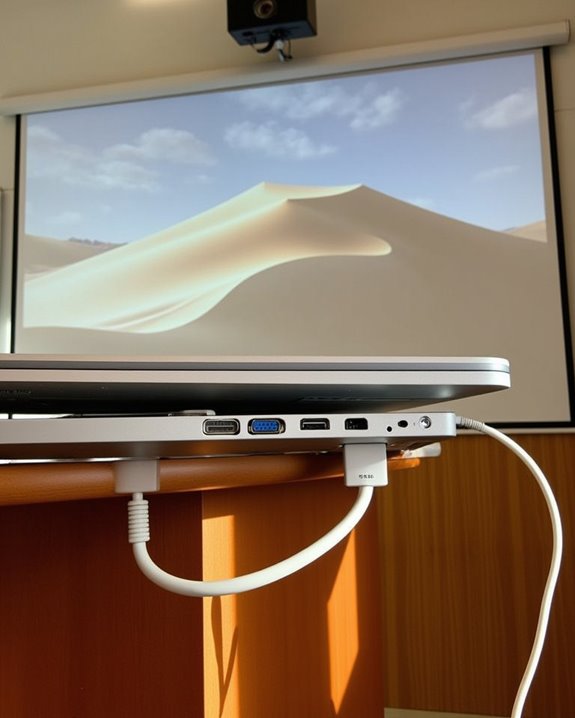
Even when you’ve carefully followed setup instructions, technical challenges can still arise when connecting your Mac to a projector. Check your resolution settings first, making sure they match your projector’s capabilities, then verify your display mode and arrangement settings. If you’re experiencing troubleshooting sound issues, confirm audio output is correctly routed through System Preferences.
For connection problems, inspect all cables and adapters for damage, verify secure connections, and ensure the projector is set to the correct input source. Resolving color calibration issues may require adjusting your Mac’s display settings or using the projector’s built-in calibration tools. Consider hardware compatibility between your Mac model and the projector, particularly with older equipment. When all else fails, restart both devices, reset display settings to default, and update your system software to resolve persistent problems.
Recommended Products

The Anker Advantage: Join the 80 million+ powered by our leading technology.

The USB-C VGA Multiport Adapter lets you connect your USB-C or Thunderbolt 3 (USB-C)–enabled Mac and iPad Pro to a VGA display, while also connecting a standard USB device and a USB-C charging cable.
![BENFEI Mini DisplayPort(Thunderbolt) to HDMI Adapter 4K@60Hz, Compatible with MacBook Air 2010-2017, MacBook Pro 2010-2015,Mac mini 2010-2014, Surface pro 1/2/3/4[Aluminium Shell&Nylon Cable]](https://m.media-amazon.com/images/I/31rhhvaloOL._SL500_.jpg)
EXCELLENT TRANSMISSION: Benfei Mini DisplayPort to HDMI 4k@60Hz Adapter utilizes better chip solution and professional multiple shielding for instaneous and accurate data streaming. [NOT Thunderbolt 3 Compatible]
Best Practices for Professional Presentations
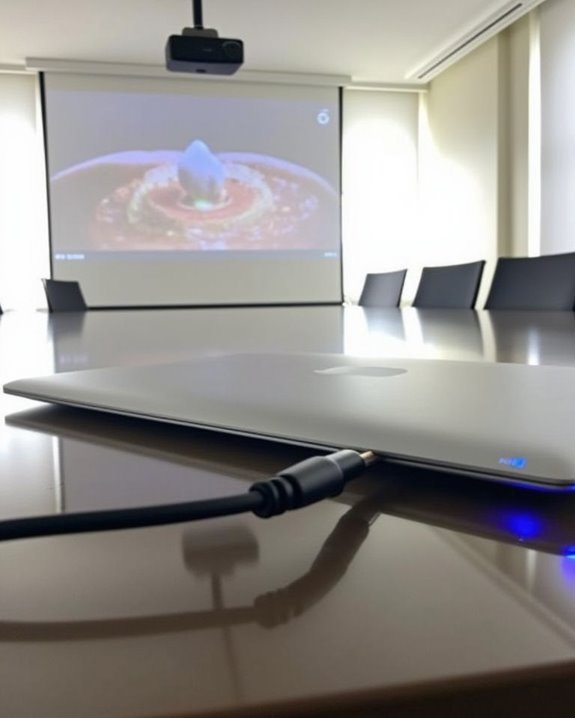
When delivering professional presentations with your Mac connected to a projector, preparation becomes your most valuable asset, saving you from technical mishaps and audience disconnection. Focus on visual storytelling by selecting appropriate charts and graphics that support your narrative, while maintaining consistent branding throughout your slides. Simplify complex information into digestible segments, highlighting actionable insights your audience can implement.
For maximum audience engagement, capture attention early with a compelling opening, then encourage interaction through targeted questions. Adapt your communication style to match your viewers’ technical knowledge, avoiding jargon when presenting to non-specialists. Use clear, readable fonts like Arial, and ensure your color choices enhance rather than distract from your message. Test all technology thoroughly before your presentation to prevent interruptions that could undermine your professionalism.
Frequently Asked Questions
Can I Connect My Mac to Multiple Projectors Simultaneously?
Yes, you can connect your Mac to multiple projectors simultaneously. You’ll need a video splitter for video mirroring, or you can use your Mac’s built-in support for multiple displays through System Preferences.
Will Projection Drain My Macbook Battery Faster?
Worried about your Mac’s lifespan? Yes, projector use will drain your MacBook battery faster due to increased graphics processing. You’ll want to manage power settings and consider an external power source during presentations.
How Do I Prevent My Mac From Sleeping During Presentations?
To prevent sleep during presentations, disable power saving mode in System Preferences. When using an external monitor, adjust Energy Saver settings to “Never” for display sleep. You can also try apps like Amphetamine for quick control.
Can I Use Ipad as Secondary Display While Projecting?
Yes, you can illuminate your potential by using iPad as secondary display during presentations. Simply activate Sidecar while projecting, allowing you to view notes privately on your iPad while your audience sees only your presentation.
Do Projector Connections Affect Mac’s Audio Output Settings?
Yes, projector connections can change your Mac’s audio output settings. When you connect via HDMI, your Mac often automatically switches sound settings to play through the projector instead of your computer’s speakers.