As an Amazon Associate, we earn from qualifying purchases. Some links on this site are affiliate links at no extra cost to you. Our recommendations are based on thorough research and editorial judgment.
How to Use Your Phone as a Projector for TV

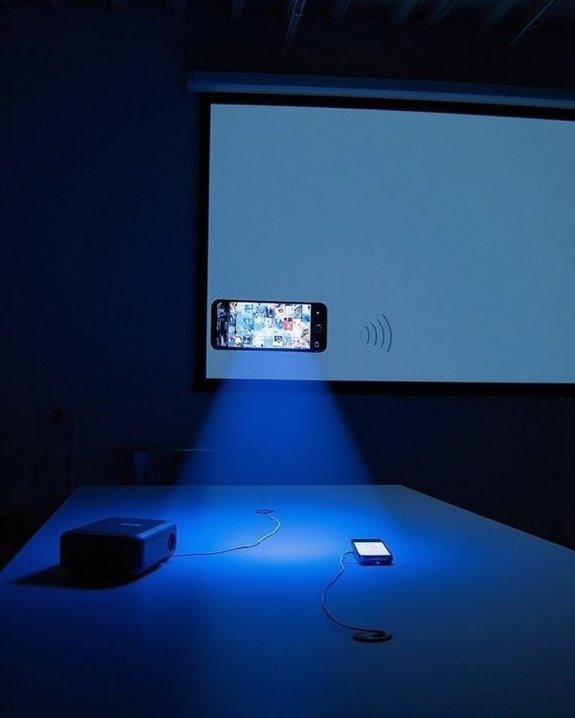
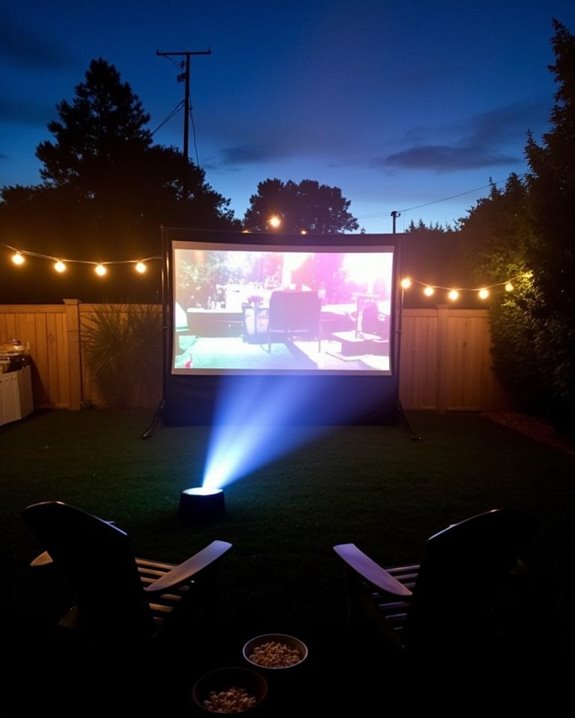
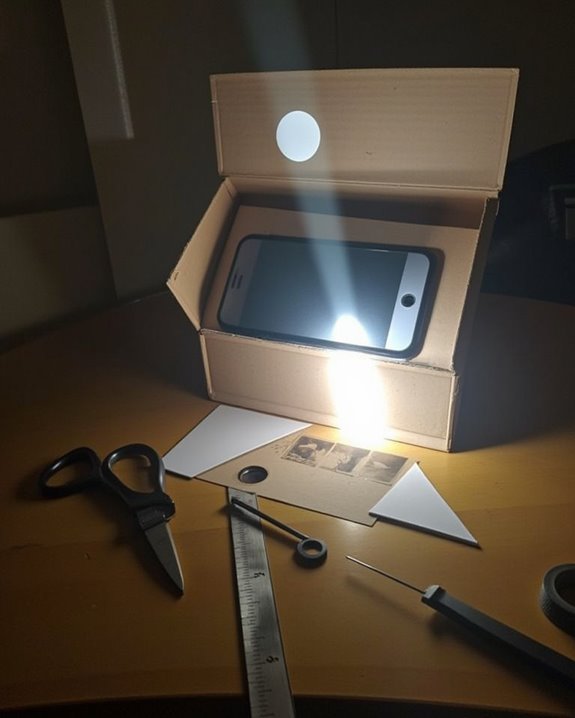
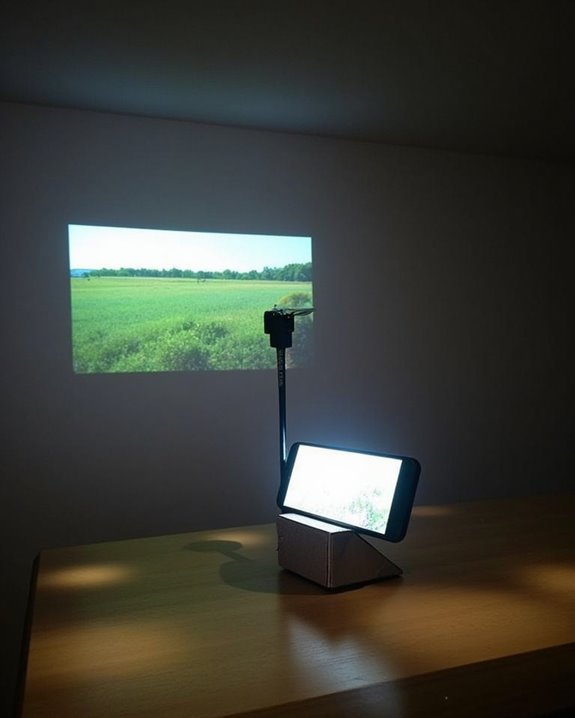
While giant home theater setups dazzle with their capabilities, your smartphone can serve as a surprisingly effective projector alternative for your TV viewing needs. You’ll discover that modern phones offer multiple ways to cast or mirror content onto larger screens, whether through wireless technologies or physical adapters. The process requires minimal technical knowledge but delivers impressive results when properly configured. Understanding the basics of phone-to-TV projection will transform how you share videos, photos, and presentations with friends, family, or colleagues in situations where traditional viewing methods aren’t available.
Key Takeaways
- Connect your phone to TV using HDMI adapters (USB-C/MHL) for wired projection with highest quality display.
- Use wireless options like AirPlay (Apple), Miracast (Android), or Chromecast to mirror your screen without cables.
- Ensure both devices are on the same Wi-Fi network and select the correct input source on your TV.
- Optimize settings by maximizing phone brightness, adjusting TV display settings, and managing power for uninterrupted viewing.
- For audio enhancement, connect external speakers or use the TV’s sound system rather than your phone’s speakers.
Understanding the Phone-to-TV Projection Methods
When you’re looking to display your phone’s content on a larger screen, you’ll need to understand the various projection technologies available to make the right choice for your needs. Different systems offer varying levels of screen resolution and device compatibility, which directly impact your viewing experience.
Apple devices work exclusively with AirPlay, providing stable mirroring with excellent screen resolution when connected to compatible TVs. Android users can leverage Miracast for full-screen mirroring without additional software, though compatibility varies across device manufacturers. Alternatively, Chromecast offers wide device compatibility but only casts specific content rather than mirroring your entire screen. For Windows users, WiDi comes built into newer operating systems, while DLNA serves primarily as a media streaming solution rather than a true mirroring technology. Modern projectors often support WiFi 6 connectivity, enhancing wireless streaming stability and speed when casting from phones.
Required Equipment for Phone Projection
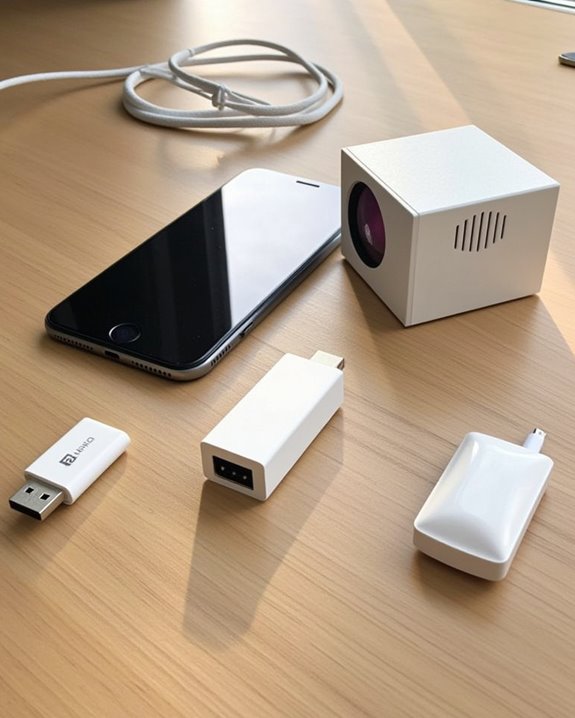
Now that you’ve explored how different phone projection technologies work, you’ll need to gather the right equipment to successfully display your phone’s content on a larger screen. The essential components include a compatible smartphone with adequate battery life, a projector with appropriate input ports (HDMI, VGA, or USB-C), and the correct adapter for your device type.
For excellent viewing, select a projector that supports high screen resolution to match your phone’s display capabilities. You’ll also need the appropriate cables, such as HDMI or USB-C, and a suitable projection surface. If you prefer wireless connectivity, consider adding a Chromecast, utilizing screen mirroring apps, or using Wi-Fi Direct features. Remember that wireless options may drain your phone’s battery life faster, so keep a power supply nearby during extended projection sessions. To ensure smooth streaming and future-proof functionality, prioritize projectors equipped with WiFi 5G and Bluetooth 5.1/5.2 connectivity.
Wired Connection Options for Maximum Quality
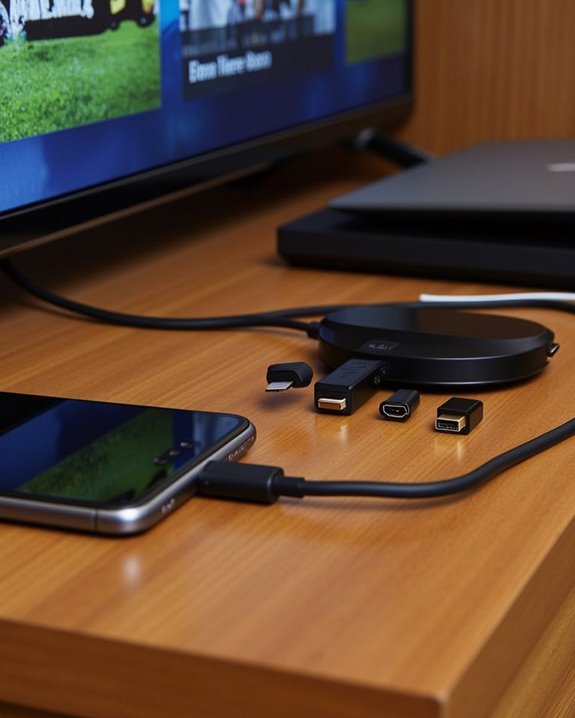
To achieve the highest possible display quality when projecting from your phone, wired connections offer unmatched reliability and visual fidelity compared to their wireless counterparts. The most common setup involves using an HDMI cable with an appropriate adapter for your phone, ensuring cable clarity throughout your viewing experience. Most modern projectors feature HDMI inputs, making this connection method straightforward and effective.
For phones with USB-C ports, a USB-C to HDMI adapter provides excellent results, though adapter compatibility should be verified before purchase. Older devices with Micro-USB ports may require MHL adapters instead. When troubleshooting connection issues, check that cables are securely connected, the projector is set to the correct input source, and your phone’s screen mirroring is enabled. These wired options deliver superior stability and consistently higher image quality for presentations or entertainment. Choosing cables with gold-plated connectors and braided shielding helps reduce interference and maintain signal clarity, especially for high-resolution projection.
Recommended Products

【4K UHD Visual Feast】This USB-C to HDMI cable supports up to 4K@60Hz resolution and is backward compatible with 1440P@60Hz and 1080P@120Hz. It can seamlessly transmit at 3840x2160 resolution, providing crystal-clear images and smooth video, suitable for high-definition monitors, TVs, and projectors, meeting the needs of various devices and use cases. 📌𝐍𝐨𝐭𝐞: 𝐔𝐒𝐁-𝐂 𝐩𝐨𝐫𝐭 𝐦𝐮𝐬𝐭 𝐬𝐮𝐩𝐩𝐨𝐫𝐭 "𝐃𝐢𝐬𝐩𝐥𝐚𝐲𝐏𝐨𝐫𝐭 𝐀𝐥𝐭𝐞𝐫𝐧𝐚𝐭𝐞 𝐌𝐨𝐝𝐞". 𝐍𝐎𝐓 𝐬𝐮𝐩𝐩𝐨𝐫𝐭 𝐏𝐨𝐫𝐭𝐚𝐛𝐥𝐞 𝐌𝐨𝐧𝐢𝐭𝐨𝐫 𝐨𝐫 𝐔𝐥𝐭𝐫𝐚 𝐖𝐢𝐝𝐞 𝐌𝐨𝐧𝐢𝐭𝐨𝐫.

[Effortless Plug & Play] Crystal-clear and vibrant 4K@60Hz resolution backward compatible for 1440P/2K@144Hz and 1080P@240Hz. Instantly mirror or extend UHD content from your Type-C phone, tablet, laptop, and desktop computer to larger displays like monitors, TVs, and projectors. Leave behind the worries of unstable WiFi and the hassle of drivers. HDCP compliance lets you enjoy media streaming without any limitations.𝗣𝗹𝗲𝗮𝘀𝗲 𝗡𝗼𝘁𝗲: 𝗧𝗵𝗶𝘀 𝗶𝘀 𝗮 𝗼𝗻𝗲-𝘄𝗮𝘆 𝗰𝗮𝗯𝗹𝗲, 𝗱𝗲𝘀𝗶𝗴𝗻𝗲𝗱 𝗲𝘅𝗰𝗹𝘂𝘀𝗶𝘃𝗲𝗹𝘆 𝗳𝗼𝗿 𝘁𝗿𝗮𝗻𝘀𝗺𝗶𝘀𝘀𝗶𝗼𝗻 𝗳𝗿𝗼𝗺 𝗨𝗦𝗕-𝗖 𝗵𝗼𝘀𝘁 𝗱𝗲𝘃𝗶𝗰𝗲𝘀 𝘁𝗼 𝗛𝗗𝗠𝗜 𝗱𝗶𝘀𝗽𝗹𝗮𝘆𝘀.

Compatibility & Functionality Overview: This durable USB-C to HDMI adapter is compatible with Windows, smartphones, and gaming consoles for video and audio streaming, but it requires DP Alt Mode support, is strictly for one-way video output, and does not support charging.
Wireless Projection Technologies Explained
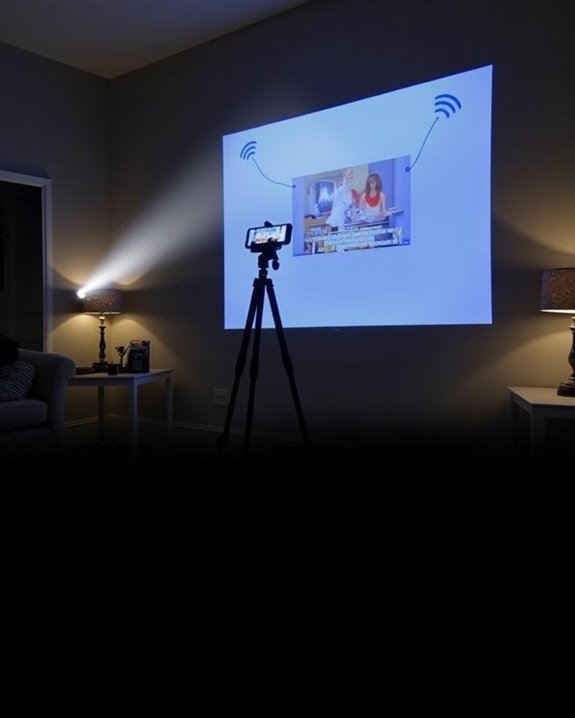
Unlike wired options that tether you to your projector, wireless projection technologies free you from cable constraints while still delivering impressive visual results. Your smartphone can connect to projectors using several methods: Wi-Fi Direct, Bluetooth, or screen mirroring protocols like Chromecast, AirPlay, and Miracast, depending on your projection compatibility requirements.
Each technology offers distinct advantages, with Wi-Fi providing greater range and bandwidth for high-quality video streaming, while Bluetooth works well for simpler content sharing. When setting up these connections, verify wireless security protocols are enabled to protect your data during transmission. Most modern phones support at least one wireless projection method, allowing you to mirror your screen or cast specific content directly to compatible projectors without additional hardware, though some older projectors may require dongles to enable wireless functionality.
Recommended Products

Plug and Play with ZeroDrop Tech: Wireless HDMI transmitter and receiver 4k offers true plug and play functionality—no messy cables, Wi-Fi, apps, Bluetooth, or complex settings required. Bluetooth hdmi connect devices effortlessly in under 10 seconds. ZeroDrop Technology ensures zero latency for smoother operation, keeping your workspace tidy while delivering seamless, high-quality streaming

Buy with Confidence: If you receive a defective one (like wavy lines, no sound/picture) or you have any problems with the adapter, please contact us in the first place to get efficient customer service for replacement or other assistance.

【No Need HDMI Cable,Easy Use】This wireless HDMI transmitter and receiver,easy installation, plug and play, no need for WiFi/APP/Bluetooth, say goodbye to the traditional cable connection can be audio and video signal transmission, make your office or room more neat.Use Delay <0.01s, almost 0 delay. Great for business meetings, teaching, churches, live broadcasts, business presentations home theater, parties, outdoor movie screenings, weddings, and more to use
Step-by-Step Setup Guide for Different Phone Types
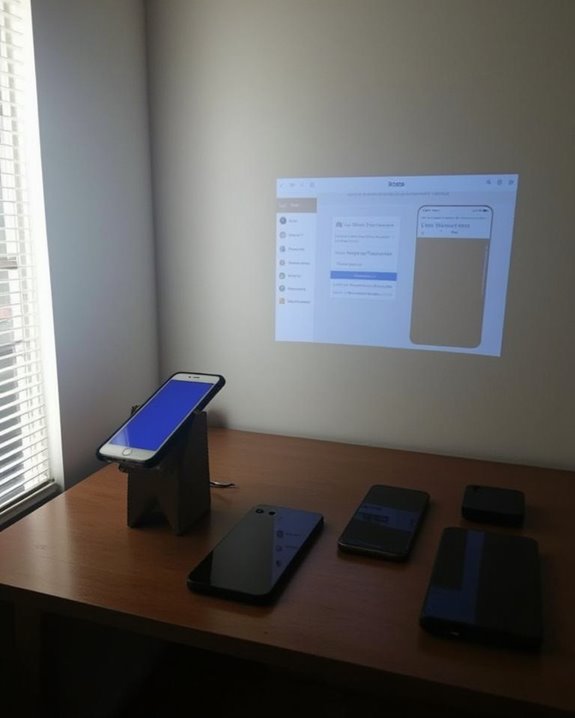
Setting up your phone as a projector requires different approaches depending on whether you’re using an Android or iOS device, though both can be configured through either wired or wireless connections with the right accessories. For Android phones, navigate to Settings, select Display, then enable screen mirroring or cast options, being mindful that intensive projection can drain battery life quickly.
For iPhones, swipe to access Control Center, tap Screen Mirroring, and select your compatible projector or Apple TV. The user interface remains responsive during projection with most phones, but you’ll need device-specific adapters—USB-C to HDMI for newer models or MHL adapters for older Android devices with Micro-USB ports. Remember to select the appropriate input source on your projector after connecting, and consider portable adapters when traveling for presentations.
Optimizing Your Display Settings for Viewing
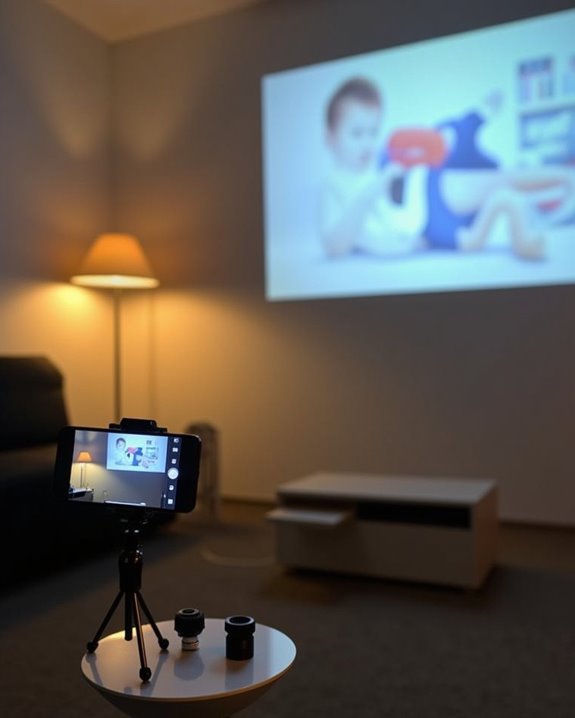
While your phone’s default display settings work adequately for everyday use, they’ll need substantial adjustments for ideal projection quality. Start by maximizing your phone’s brightness and adjusting contrast settings for better clarity and detail. Proper Screen Calibration involves matching your phone’s resolution with your projector’s capabilities, which considerably enhances image sharpness.
Ambient Lighting plays a vital role in projection quality; ensure your viewing room is as dark as possible to improve image contrast and vibrancy. Minimize peripheral light sources that could create glare on your projection surface. Additionally, consider using dedicated mobile apps for color calibration, which can fine-tune your display for optimal viewing. Remember to adjust your projector’s zoom, focus, and keystone settings to complement your optimized phone display for the best possible viewing experience.
Enhancing Audio Quality During Projection
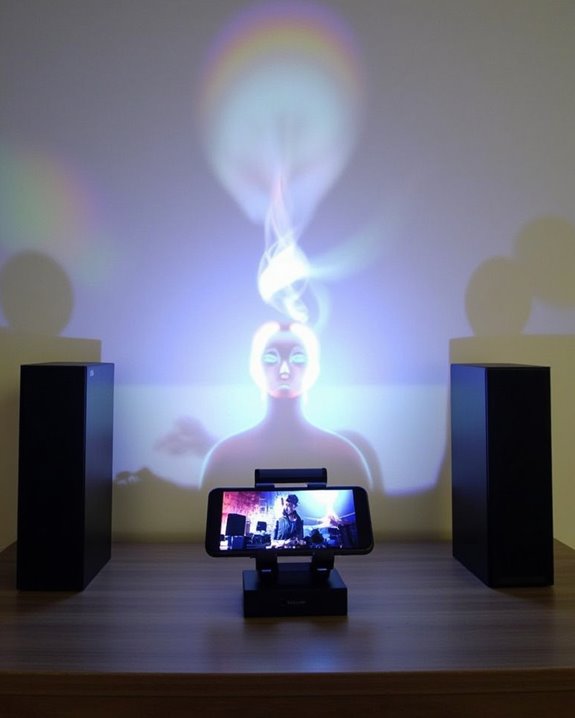
Because your phone’s built-in speakers aren’t designed for filling large spaces, enhancing audio quality becomes essential for an immersive projection experience. Consider connecting your phone to external Bluetooth speakers or a soundbar for significant audio improvements, making proper audio calibration critical for balanced sound throughout your viewing area.
For wired solutions, use an HDMI cable with audio extraction capabilities or connect directly to a home theater system through optical cables, ensuring all audio settings are configured correctly on both your phone and external devices. When dealing with challenging room acoustics, implement basic soundproofing techniques like adding soft furnishings or positioning speakers strategically to minimize echo. Remember to adjust any audio delay settings to maintain perfect synchronization between video and sound, especially when using wireless connections that might introduce latency.
Recommended Products

Outdoor-Proof Speaker: Portable design with IPX7 waterproof protection to safeguard against splashes, waves, and water vapor. Get incredible sounds at home, on camping trips, or for outdoor adventures.

【Hearing Every Word】 Say goodbye to muffled dialogue and hello to our soundbar that brings words to life, making you feel like you're part of the conversation.
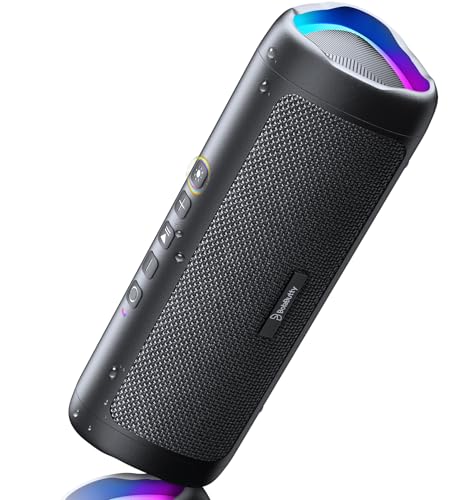
[Immersive Sound Experience & Dual Connectivity] Experience unparalleled sound quality with this wireless Bluetooth speaker's 2 drivers and advanced technology that delivers powerful, well-balanced sound with minimal distortion. Connect two speakers together to create an immersive stereo sound experience and fill any room with powerful sound. Perfect for gaming, music, and movie playback
Troubleshooting Common Connection Issues
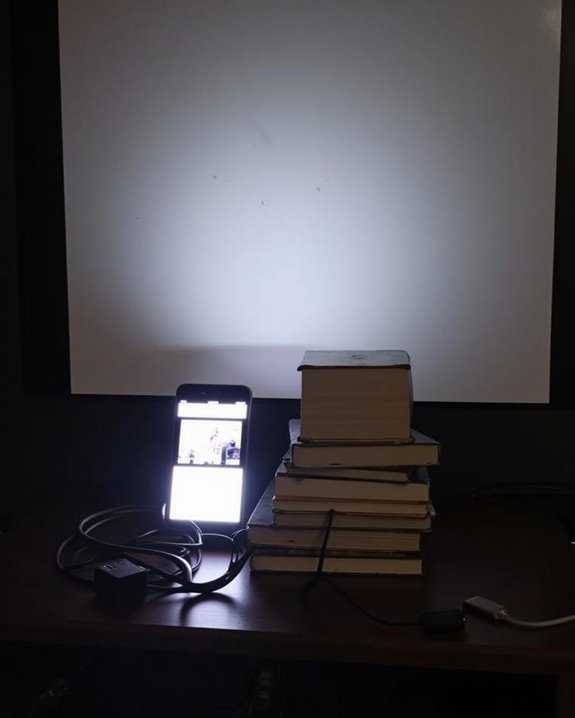
Even the best setup can experience technical difficulties, so you’ll need to know how to address common connection problems when using your phone as a projector. First, make certain all cables are properly connected and try alternate adapters if you’re using a wired connection. If casting wirelessly, verify that both your phone and projector are connected to the same network, then restart your router to clear potential network congestion.
Screen resolution mismatches often cause display problems, so adjust your smartphone’s resolution settings to match your projector’s capabilities. Check your phone’s power management settings, as power-saving features might interrupt your connection during projection. If issues persist, try disabling firewall settings temporarily, update both devices’ firmware, and select the correct input source on your projector.
Advanced Tips for a Professional Viewing Experience
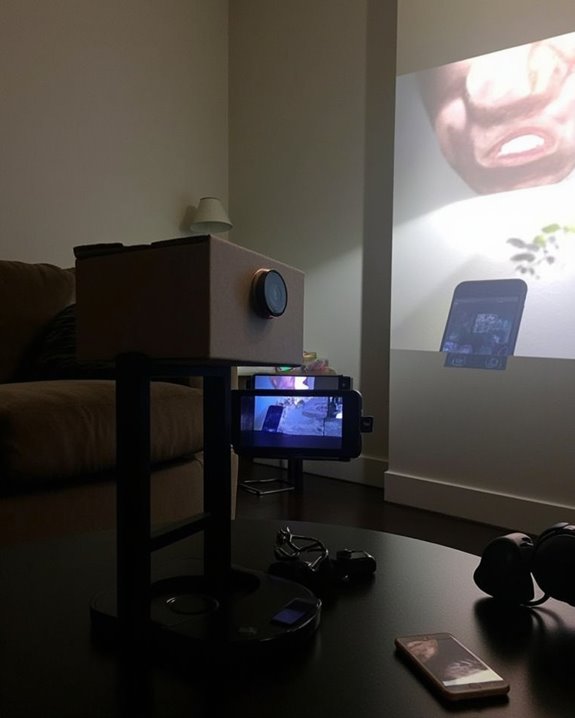
To transform your phone-based projection setup into a professional viewing experience, you’ll need to master several key elements beyond basic connectivity. Start with proper projector calibration, adjusting both focus and color settings to ensure sharp, accurate image reproduction. Control ambient lighting by using dark curtains or specialized screen materials that reject external light sources, markedly improving contrast and visibility.
For truly immersive viewing, connect external speakers or a soundbar to compensate for your phone’s limited audio capabilities. Position your projection setup to minimize glare, ideally in a room where you can control light conditions completely. Regular maintenance, including screen cleaning and lens care, will preserve image quality over time. Consider using a dedicated projection screen rather than a wall for ideal color reproduction and brightness levels.
Recommended Products

4K ultra HD projector screen: The Anti Light projection screen brings you vivid image and impeccable viewing experience with a 16:9 4K ultra HD resolution. Ambient light rejecting screens could reflects light in a way that minimizes the impact of ambient light. This means that when you're watching a movie or giving a presentation, the colors will look more vibrant and the images will be clearer.

CONVENIENT TO STORAGE AND CARRY : Compact one-piece,lightweight and folding design. You can fold the projector screen in small size and put it in your backpack or suitcase

★【Better Contrast and Color】 Light bleed is eliminated by the black backing layer, significantly improving image quality.
Frequently Asked Questions
Can I Project Netflix/Streaming Services Without Internet Connection?
Ah, you’re dreaming of Netflix without Wi-Fi! Sorry to burst your bubble, but streaming services require internet connection regardless of screen resolution or device compatibility. You can only project pre-downloaded content when offline.
Will Phone Projection Drain My Battery Faster?
Yes, phone projection substantially increases battery consumption due to high screen brightness and data transmission. You’ll notice faster drain, so enable power saving modes and consider using a power bank during longer sessions.
How Long Do Projection Adapters Typically Last?
Did you know 70% of projection adapters last 3-5 years? Your adapter’s lifespan depends on material quality and usage frequency. With proper care, high-quality projection adapters offer excellent durability, potentially lasting up to a decade.
Can I Charge My Phone While Using It as Projector?
Yes, you can charge while projecting, but it depends on your setup. With USB-C DisplayPort Alt Mode, you’ll manage both simultaneously. Wireless projection eliminates charging concerns entirely. Adapters often require separate power management solutions.
Will Constant Projection Cause Overheating Damage to My Phone?
Yes, constant projection can cause phone overheating, potentially harming your device longevity. You’ll need regular breaks, reduced brightness, and proper ventilation to protect your phone from heat-related damage during extended use.