As an Amazon Associate, we earn from qualifying purchases. Some links on this site are affiliate links at no extra cost to you. Our recommendations are based on thorough research and editorial judgment.

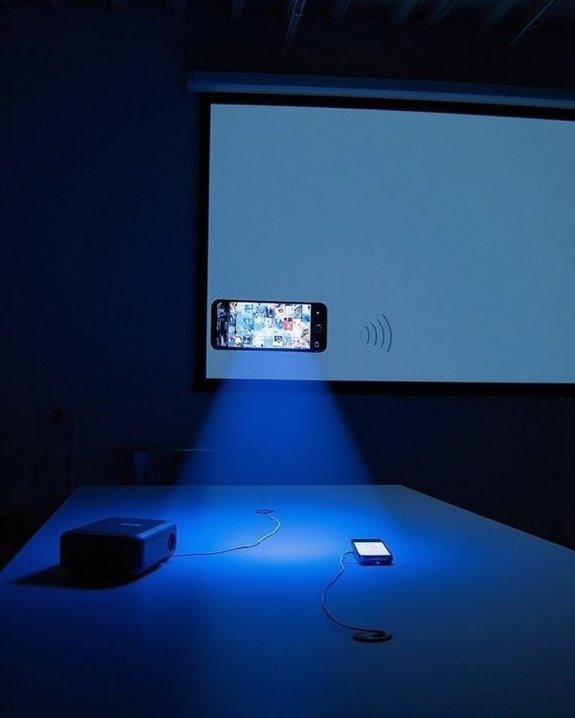
How to Connect Your Phone to a Projector Wirelessly

You’ve probably found yourself needing to share content from your phone to a larger screen, and wireless projection offers the perfect solution. Whether you’re presenting in a meeting, sharing photos with family, or watching videos on a bigger display, connecting your phone to a projector without cables is simpler than you might think. Modern smartphones and projectors come equipped with various wireless technologies that make this process seamless, but knowing which method works best for your specific devices can save you time and frustration. Let’s explore how to establish this convenient connection.
Key Takeaways
- Ensure both your phone and projector support compatible wireless standards like Miracast, AirPlay, or Chromecast.
- Connect both devices to the same Wi-Fi network or establish a Wi-Fi Direct connection for direct pairing.
- Access screen mirroring in your phone’s settings (usually in Display, Cast, or Quick Settings menu).
- Select your projector from the available devices list and confirm the connection when prompted.
- Adjust projector settings for optimal display and troubleshoot by restarting devices if connection issues occur.
Understanding Wireless Projection Technology
While projectors have been around for decades, wireless projection technology has revolutionized how we connect our devices to display screens. Modern wireless projectors utilize various protocols like Miracast, AirPlay, and Chromecast that allow you to mirror your phone’s screen without cables. Device compatibility is vital when selecting a wireless projection method, as not all phones support every protocol—iOS devices work best with AirPlay, while Android phones typically use Chromecast or Miracast.
Wireless security should be a primary consideration when connecting your phone to a projector, especially in business environments where sensitive information might be displayed. Most wireless projection technologies offer encryption and secure connection protocols to prevent unauthorized access. When setting up your connection, you’ll need to guarantee both devices are on the same network or properly paired for direct connections like Wi-Fi Direct. Some advanced projectors also offer WiFi app control for seamless effect selection and timer settings through dedicated smartphone applications.
Essential Requirements Before You Begin
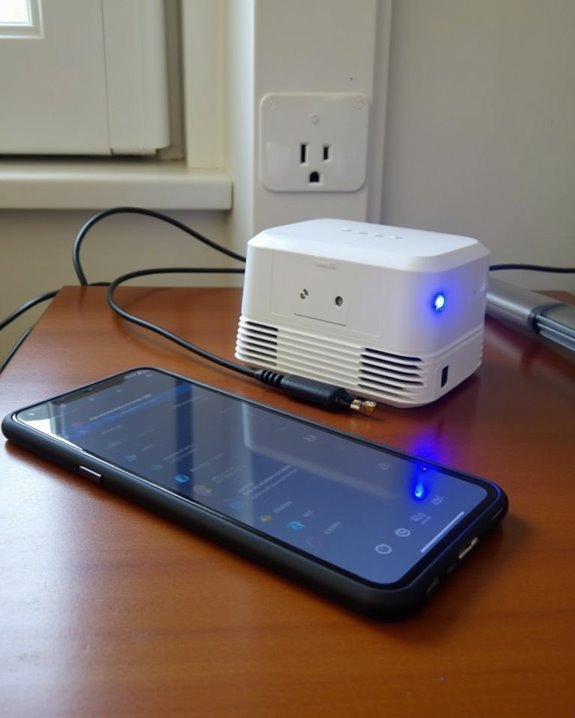
Before connecting your phone to a projector wirelessly, you’ll need to verify several critical requirements to guarantee a smooth experience. First, confirm both devices support compatible wireless standards, such as Wi-Fi, Bluetooth, or Miracast, and connect them to the same Wi-Fi network for reliable transmission. Check that your phone’s operating system supports screen mirroring functionality, and verify that your battery life is sufficient for extended projection sessions.
Your projector and phone should have updated software to prevent connection issues, with attention to screen resolution compatibility for ideal image quality. Have essential accessories ready, including backup HDMI adapters and adequate power supplies. For troubleshooting purposes, familiarize yourself with your devices’ user manuals, and be prepared to restart equipment if connections fail to establish properly. Additionally, consider using projectors equipped with Wi-Fi 6 technology for faster and more stable wireless connections.
Recommended Products

【Smart Projectror with Built-in Apps】This projector does more than simply mirror videos and images from your external devices. Preloaded with mainstream streaming apps, it lets you directly access YouTube, Prime Video and more without an extra streaming TV stick. What's more, the MAYPUG mini projector comes with a built-in TV Store, enabling you to conveniently download your favorite additional streaming applications.

【P2P Direct Connection & NO WiFi Required】Newly upgraded P2P connection method, iOS/Android no longer needs to connect to the projector under WiFi environment. After the projector switches to the corresponding interface, the mobile phone can cast the screen with one click! Solve all connection problems caused by network interference. Whether you are outside or traveling, you can enjoy a smooth viewing experience
Setting Up WiFi Direct Connections
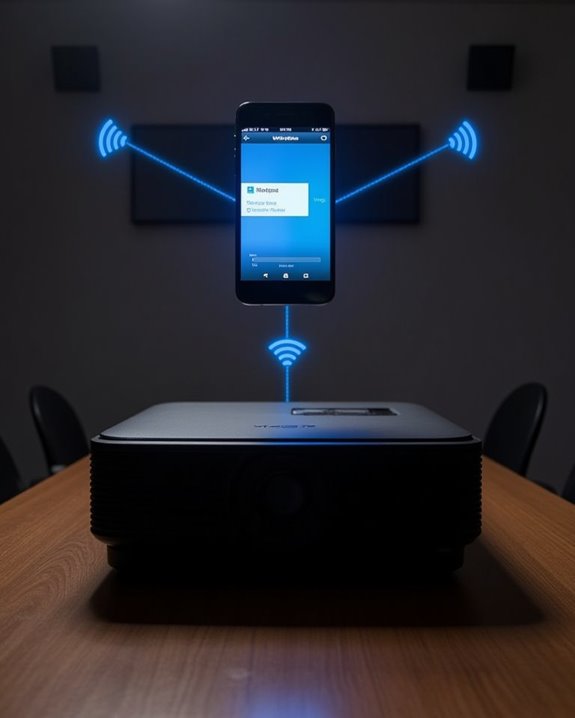
Wi-Fi Direct offers a powerful method to connect your phone and projector without an intermediary network, picking up where our preparation steps left off. To begin, access your projector’s settings menu and enable the Wi-Fi Direct function, which initializes the device’s security protocols for pairing. On your smartphone, navigate to Wi-Fi settings and locate the Wi-Fi Direct option, ensuring your device compatibility before proceeding.
Android users typically benefit from automatic connection detection, while iPhone owners may need to manually select the projector’s network name from available Wi-Fi options. Remember that Wi-Fi Direct disables other network connections on both devices, meaning you’ll temporarily lose internet access. After establishing the connection, confirm the pairing is successful by checking both device screens before attempting to mirror your content. Many modern projectors support dual-band WiFi (2.4G/5G) that enhances connection stability and streaming quality during wireless mirroring.
Using Bluetooth to Link Your Devices
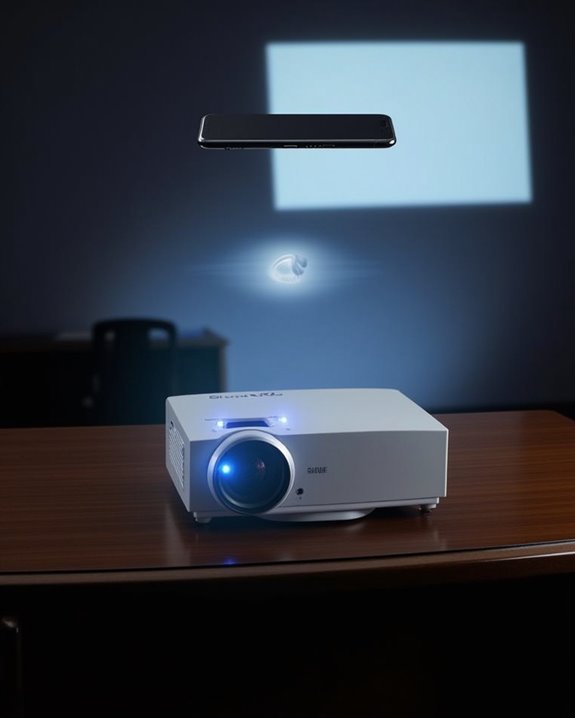
Although Wi-Fi Direct provides a reliable connection method, Bluetooth offers a simpler alternative for wirelessly linking your phone to compatible projectors. To establish a Bluetooth pairing, ensure both devices are Bluetooth-enabled and within close proximity for maximum connection stability.
Begin the process by activating Bluetooth on your phone, then put the projector in Bluetooth standby mode. Press and hold the Bluetooth key on the remote until the projector emits continuous beeps, indicating it’s in pairing mode. Next, select the projector’s name from your phone’s available devices list. Once connected, you’ll hear a confirmation jingle.
If you encounter connection issues, try restarting both devices, clearing previous pairing records, or checking for interference from other Bluetooth devices. Device compatibility is essential, so verify your projector model supports Bluetooth functionality before attempting to connect.
Chromecast: The Google Solution
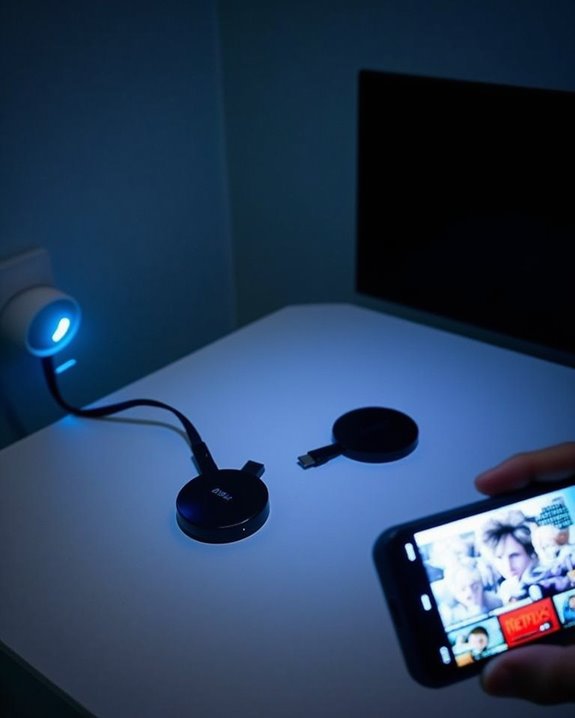
While Bluetooth offers a straightforward connection method, Google’s Chromecast presents a more versatile solution for wirelessly linking your phone to a projector. Setting up requires connecting the Chromecast to your projector’s HDMI port, powering both devices, and ensuring they share the same WiFi network as your phone, which enhances wireless security through encrypted connections.
Device compatibility is impressive, with Chromecast supporting both Android and iOS platforms for seamless streaming. To begin, download the Google Home app on your smartphone, follow the setup instructions, and select the appropriate HDMI input on your projector. Beyond basic screen mirroring, Chromecast enables you to stream content from numerous supported apps while maintaining full phone functionality. For troubleshooting connection issues, verify that all devices are powered on and connected to the same WiFi network.
Recommended Products

Seamless HD Wireless Streaming: Experience crisp, high-definition visuals with our wireless HDMI display dongle adapter, supporting 4K and delivers an impressive 1080P/60Hz Full HD output.

HD Wireless Mirroring:This wireless display adapter supports 1080P@60Hz with 4K decoding, allowing you to mirror content from your iPhone, iPad, or MacBook to a larger screen such as a TV, monitor, or projector. Enjoy a cinematic viewing experience in your living room without the hassle of long, tangled cables

Wirelessly display content from a phone, tablet, or laptop onto a bigger screen with the ScreenCast 4K Wireless Display Adapter. Note: Please use this wireless display adapter in the same room to prevent signal obstruction by walls. Wireless transmission distance of up to 50 ft./15m in an open environment
Apple Airplay for Ios Devices
How seamlessly can iOS users project their content onto the big screen? With AirPlay, you’ll enjoy wireless projection from any compatible iOS device (iPhone 5 or later, iPad 4+) running iOS 8 or newer. Simply confirm both your iOS device and Apple TV (third-generation or newer) are connected to the same Wi-Fi network, access Control Center, and select Screen Mirroring to begin displaying your content wirelessly.
Device Compatibility extends to many modern projectors with built-in AirPlay support, though you can also connect through Apple TV via HDMI for older projectors. Remember to activate both Wi-Fi and Bluetooth for proper functioning. While convenient, don’t overlook Security Concerns—confirm your network is password-protected to prevent unauthorized access to your projected content, particularly in public settings where others might intercept your signal.
Recommended Products

4K Decoding & 1080P Full HD Output at 60Hz: Enjoy crisp, vivid visuals powered by 4K decoding and 1080P/60Hz Full HD output—great for home movies, gaming, and clear presentation displays in office or meeting room settings. Supports HDMI 1.3 and HDCP 1.2 standards with wireless compatibility for AirPlay. Optimal for personal media and web content. Incompatibility App: Due to HDCP copyright restrictions, Netflix, hulu, Amazon Prime videos, Chromecast TV, HBO GO, Honda motor, Vudu, DIRECTV, Xfinity, Skygo, BT sport, Comcast TV.

iOS ONLY = ZERO COMPATIBILITY HEADACHES — Unlike adapters that claim "works with all devices" but fail on Android due to brand/model/OS differences, this adapter is designed exclusively for iPhone & iPad (iOS 7+). No app downloads, no Bluetooth pairing, no WiFi needed — just plug in and your screen mirrors instantly. Works with iPhone 16/15/14/13/12/11 and all iPad models.

【ENJOY 4K CASTING WITHOUT CORDS】SOCLLLife Wireless HDMI Adapter mirrors 4K video and audio wirelessly from your i-Phone, i-Pad, MacBook, Android smartphones, tablets, laptops, and PC, on larger screens like TVs, monitors, and projectors. Say farewell to tangled HDMI cables and enjoy 4K input & 1080P @60Hz output casting experience in your living room or office
Miracast for Android Smartphones
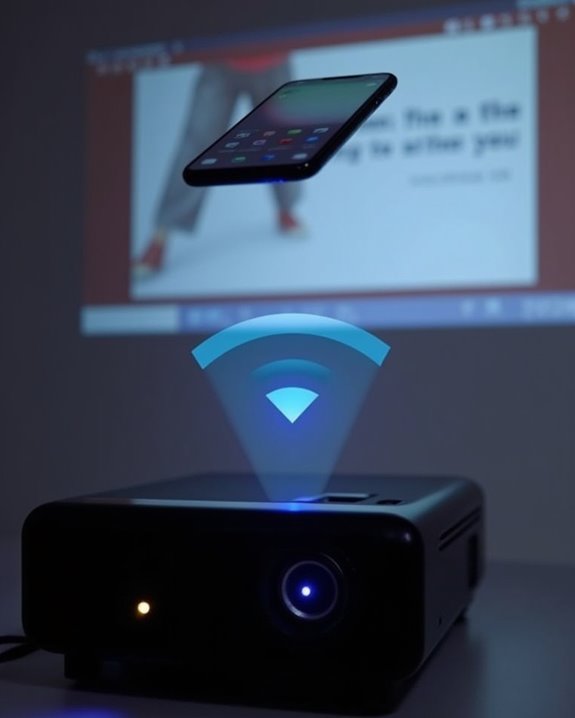
When it comes to Android smartphones, Miracast offers a straightforward wireless projection solution that’s built into many modern devices. To connect, navigate to your phone’s Settings, find the Display or Connection menu, and select “Cast” or “Wireless Display.” Enable the feature to make your device discoverable, prioritizing smartphone security by ensuring you’re connecting to trusted displays only.
Once activated, your Android will scan for compatible Miracast receivers nearby. Select your projector from the list, and you may need to confirm a security PIN to establish the encrypted connection. Data encryption protects your content during transmission, keeping presentations and media secure. For ideal performance, keep your phone within 30 feet of the projector and ensure both devices have updated firmware to maintain compatibility.
Recommended Products

3-Second Plug and Play Wireless HDMI, Truly Zero Setup No apps to download, no Bluetooth pairing, no same WiFi required. This phone to TV HDMI cable lets you mirror your screen instantly. Simply plug HDMI into display, USB for power, one-click to cast. Say goodbye to messy cables forever.

📺 【Seamless HD Wireless Streaming】 immersive visuals with our wireless HDMI display dongle adapter, serving as a versatile screen mirroring adapter for TV, supporting 4K and delivering an impressive 1080P/60Hz Full HD output.
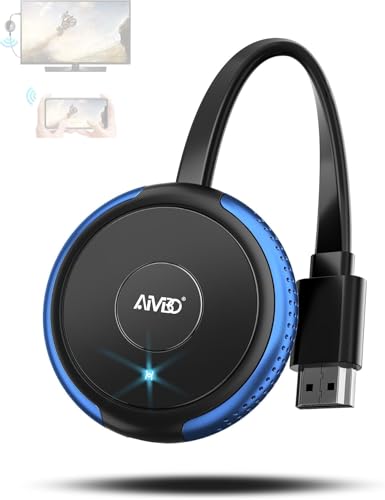
【Truly Plug & Play】AIMIBO’s latest wireless display adapter with genuine plug-and-play functionality. No complicated setup, no apps, no WiFi, and no Bluetooth needed—simply connect and mirror your screen instantly, even on iOS and Mac devices. Easily cast content from your laptop, PC, tablet, or smartphone to your HDTV, projector, or monitor. Mirroring the big screen with zero hassle.
Troubleshooting Common Connection Issues
Despite your best efforts, wireless connections between phones and projectors can sometimes fail due to various technical complications that you’ll need to systematically address. First, check your power supply, as both devices require stable power for reliable wireless communication; insufficient power can cause intermittent disconnections or prevent connections entirely. Adjust your device placement by positioning both your phone and projector closer to your Wi-Fi router, minimizing physical obstructions that could weaken signals.
If problems persist, restart both devices to clear temporary software glitches, and ensure your projector is set to the correct input source. Consider updating firmware on both devices, as outdated software frequently causes compatibility issues. For persistent black screens or connection failures, verify your network settings, switch to the 5 GHz band if available, and close background apps to free system resources.
Recommended Products

328FT/100M Ultra-Long Range & 5G+2.4G Dual-Band Transmission:The FUTUREAGLE S8 Wireless HDMI Transmitter and Receiver delivers a powerful wireless range of up to 100 meters (328 feet), allowing you to break free from cable clutter and arrange your devices with flexibility. The advanced LDS technology significantly enhances signal penetration and reception, ensuring stable transmission even in large spaces like conference rooms, classrooms, or spacious living rooms. Furthermore, our versatile hdmi transmitter supports 5GHz & 2.4GHz dual-band transmission, providing strong anti-interference capability and reliable signal performance for both indoor and outdoor use.

Cut the Cord with HDMI Cables: This HDMI wireless transmitter truly supports plug-and-play functionality. It can establish a connection in just 3 seconds without any cables, Wi-Fi, apps, Bluetooth, or complicated setup. Whether you’re streaming movies at home, presenting PPTs in meetings, recording programs in theaters, playing courseware in classrooms, or monitoring your store, our Wireless HDMI Transmitter and Receiver delivers a free, clear, and smooth experience.

Plug and Play with ZeroDrop Tech: Wireless HDMI transmitter and receiver 4k offers true plug and play functionality—no messy cables, Wi-Fi, apps, Bluetooth, or complex settings required. Bluetooth hdmi connect devices effortlessly in under 10 seconds. ZeroDrop Technology ensures zero latency for smoother operation, keeping your workspace tidy while delivering seamless, high-quality streaming
Advanced Tips for Optimal Streaming Quality
Once you’ve resolved connection issues, you’ll want to focus on maximizing your streaming experience through quality optimization techniques. Begin with screen calibration on your projector, adjusting brightness, contrast, and color settings to match your viewing environment, which profoundly enhances visual fidelity. Select display modes that complement your content type, whether movies, presentations, or photos.
For consistent performance, implement battery optimization on your smartphone by closing background apps and activating power-saving modes when not needed. Ensure your router prioritizes streaming traffic through QoS settings, positioning it for minimal interference. Match resolution settings between your phone and projector, avoiding quality loss from unnecessary conversion. For truly immersive experiences, connect external speakers if your projector’s audio capabilities are limited, and regularly update both devices’ firmware to maintain compatibility with evolving wireless protocols.
Frequently Asked Questions
Can Older Projector Models Be Upgraded for Wireless Connectivity?
Yes, you can upgrade older projectors for wireless connectivity using connection adapters like HDMI wireless dongles. You might also check if projector firmware updates are available to improve compatibility with wireless technologies.
How Does Wireless Projection Affect Battery Life on Smartphones?
Like Icarus flying too close to the sun, wireless projection causes significant battery drain on your smartphone. You’ll notice faster power depletion, especially with unstable signals. Consider keeping your phone charged during use.
Can I Stream Copyrighted Content Through Wireless Projection Legally?
No, you can’t legally stream copyrighted content without permission, regardless of projection method. You’ll face copyright restrictions if you don’t have proper licensing. Streaming legality depends on having authorized access to the content.
Will Wireless Projection Work During Power Outages?
Ah, expecting wireless magic during darkness? Sadly, no. You’ll need backup power for wireless projection during a power outage. Without batteries or a UPS system, your high-tech presentation becomes just a black screen experience.
Can Multiple Phones Connect to One Projector Simultaneously?
Yes, you can connect multiple phones to one projector with specific software like Epson iProjection. Multi phone connectivity allows simultaneous streaming, but you’ll need compatible projector models and all devices on the same network.