As an Amazon Associate, we earn from qualifying purchases. Some links on this site are affiliate links at no extra cost to you. Our recommendations are based on thorough research and editorial judgment.

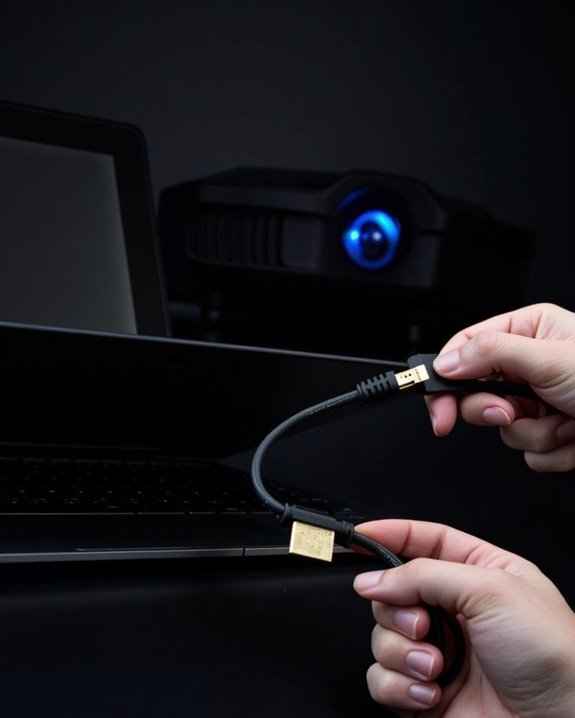
How to Connect to a Projector: A Step-by-Step Guide

Presenting with confidence requires technical know-how, yet many professionals struggle with projector connections minutes before important meetings. You’ll find that connecting to a projector doesn’t need to be complicated, whether you’re using a laptop, smartphone, or tablet. This guide covers everything from basic cable connections to wireless options, helping you identify the right method for your specific device and projector. By understanding the fundamentals of display technology and following our systematic approach, you’ll be prepared to overcome common obstacles that might otherwise derail your presentation.
Key Takeaways
- Identify connection type needed (HDMI for modern setups, VGA for older devices) and gather appropriate cables or adapters.
- Power on both projector and device, connect them using your selected cable, and set the projector to the correct input source.
- For wireless connection, ensure both devices connect to the same network and enable screen mirroring/casting on your device.
- Adjust display settings (resolution, aspect ratio) on your device for optimal projection quality.
- Troubleshoot common issues by checking power, cables, input selection and restarting devices if necessary.
Understanding Different Projector Connection Types
When you’re setting up a presentation, connecting your device to a projector requires understanding the various connection types available to you. Modern projectors typically offer multiple ports, with HDMI and USB being the most common options you’ll encounter.
HDMI delivers both high-quality digital video and audio through a single cable, making it ideal for presentations with multimedia elements. VGA compatibility remains important for older devices, though it’s limited to video signals only and requires separate audio connections. DVI advantages include excellent digital image quality, often providing better resolution than VGA while maintaining compatibility with many systems through adapters. For wireless flexibility, USB connections enable plug-and-play functionality without complex setup processes, allowing you to quickly connect laptops or even display content directly from thumb drives in supported formats like JPEG and PNG. Many modern projectors also support dual HDMI ports, allowing multiple devices to be connected simultaneously for seamless switching during presentations.
Essential Equipment for Connecting Your Devices
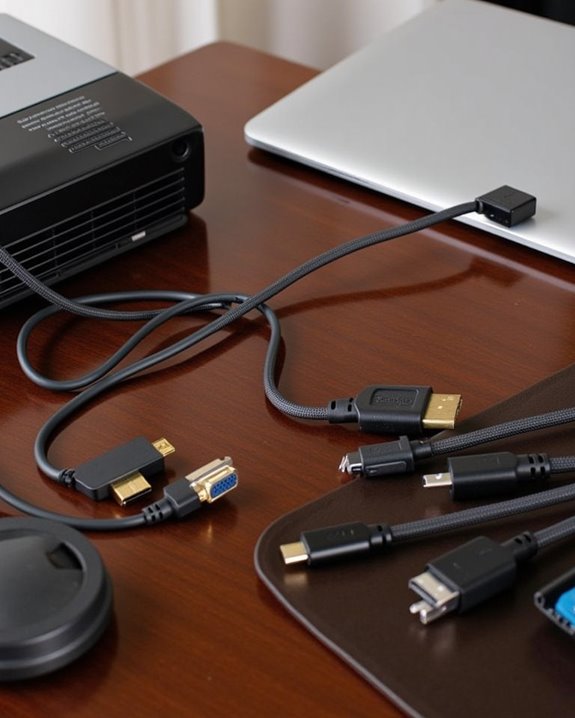
Although connecting to a projector might seem straightforward, having the right equipment on hand guarantees you’ll be prepared for any presentation scenario. Your toolkit should include various cable types such as HDMI for high-definition transmission, DVI for digital video, and VGA for older systems requiring analog signals.
Adapter options are equally important when connecting modern devices to projectors with different inputs. Keep USB-C adapters available for newer laptops, DisplayPort to HDMI adapters for graphics-intensive presentations, and wireless connectivity adapters for cable-free setups. For extended distances between your device and projector, video extenders and HDMI switchers provide necessary flexibility. Don’t forget cable management tools to maintain a professional appearance and prevent tripping hazards during your presentation. Power conditioners can also protect your equipment from unexpected electrical issues. Choosing cables with gold-plated connectors and braided shielding helps maintain signal stability and ensures high image quality during your presentations.
Recommended Products

328FT/100M Ultra-Long Range & 5G+2.4G Dual-Band Transmission:The FUTUREAGLE S8 Wireless HDMI Transmitter and Receiver delivers a powerful wireless range of up to 100 meters (328 feet), allowing you to break free from cable clutter and arrange your devices with flexibility. The advanced LDS technology significantly enhances signal penetration and reception, ensuring stable transmission even in large spaces like conference rooms, classrooms, or spacious living rooms. Furthermore, our versatile hdmi transmitter supports 5GHz & 2.4GHz dual-band transmission, providing strong anti-interference capability and reliable signal performance for both indoor and outdoor use.

Plug and Play with ZeroDrop Tech: Wireless HDMI Extended transmitter and receiver 4k offers true plug and play functionality. Bluetooth hdmi connect devices effortlessly in under 3 seconds, no messy cables/wifi/apps/bluetooth/settings required. ZeroDrop Technology ensures zero latency for smoother operation, keeping your workspace tidy while delivering seamless, high-quality streaming

Cut the Cord with HDMI Cables: This HDMI wireless transmitter truly supports plug-and-play functionality. It can establish a connection in just 3 seconds without any cables, Wi-Fi, apps, Bluetooth, or complicated setup. Whether you’re streaming movies at home, presenting PPTs in meetings, recording programs in theaters, playing courseware in classrooms, or monitoring your store, our Wireless HDMI Transmitter and Receiver delivers a free, clear, and smooth experience.
Wired Connection Methods for Various Devices
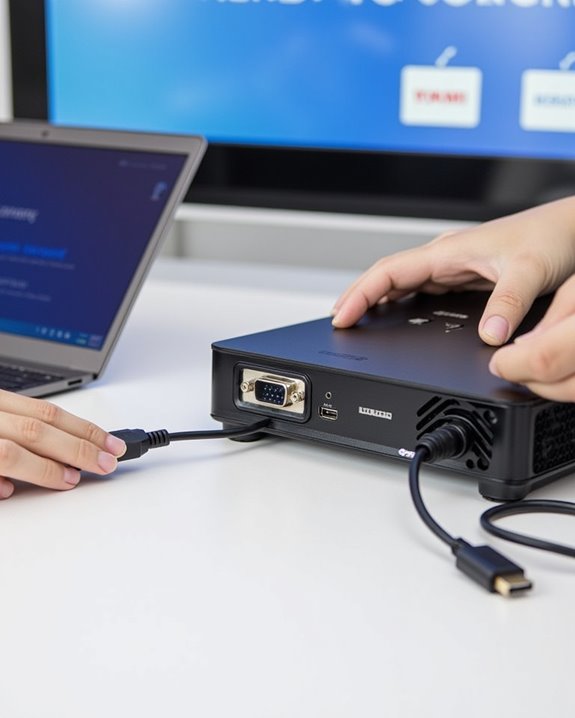
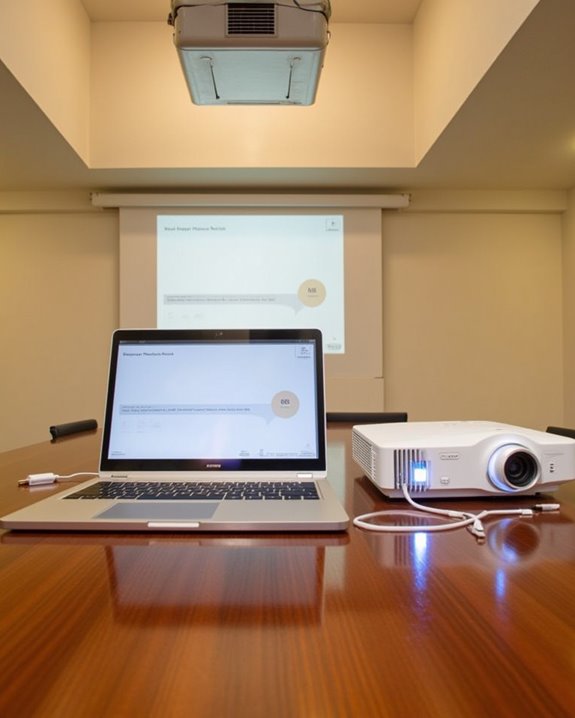
Now that you’ve assembled the necessary equipment, you’ll need to understand the specific wired connection methods for your particular device. For smartphones, use HDMI cables with appropriate adapters based on your port type (USB-C, Lightning, or micro USB), ensuring proper projector mounting for excellent viewing angles. Laptops typically connect directly via HDMI cables, while older computers may require VGA connections with separate audio cables for complete output functionality.
Power management becomes essential when using MHL adapters, which can charge your Android device while transmitting high-definition video. For newer devices, USB-C and Thunderbolt connections offer streamlined solutions, carrying video, audio, and power through a single cable. Always verify compatibility between your device specifications and projector inputs before connecting, then select the corresponding input source on your projector to establish a successful connection. Choosing models with multiple HDMI ports can simplify connecting various devices without needing frequent cable swaps.
Recommended Products

Versatile 3-in-1 USB C Hub: Upgrade your laptop's connectivity with the Acer USB C Hub. It offers a HDMI 4K@30Hz output port, a PD charging port (Charging function only), and a USB-A 3.0 port. Effortlessly mirror your iPhone or iPad screen to a TV, projector & monitor. Ideal for enhancing your home theater experience, optimizing office productivity, facilitating travel, and more.

【iPhone 15 HDMI ADAPTER TO TV】- The 2-in-1 iPhone to HDMI adapter for tv helps iPhone15/16/iPad/MacBook expand a HDMI 4K@60Hz port and a charging port, enjoy crystal-clear audio and high-definition video experience, just share happiness with your family or friends. This apple HDMI to USB C adapter allows for faster charging, stable connections and high-definition output, which means you can enjoy home-theater, live streaming ,working report and playing while charging for your apple USB C to HDMI adapter.
![BENFEI USB C to HDMI Adapter 4K@60Hz, USB Type-C to HDMI Adapter [Thunderbolt 3/4/5 Compatible] with iPhone 15 Pro/Max, MacBook Pro/Air 2023, iPad Pro, iMac, S23, XPS 17, Surface Book](https://m.media-amazon.com/images/I/31kTmzsrThL._SL500_.jpg)
COMPACT DESIGN - The compact-designed portable BENFEI USB-C to HDMI adapter connects a computer, desktop, laptop, or other devices with USB-C port to a monitor, projector, HDTV, or other devices with HDMI port; Tuck this lightweight gadget into your bag or pocket to do a business presentation with your laptop and projector, or extend your desktop screen to a monitor or TV;
Setting Up Wireless Projector Connectivity
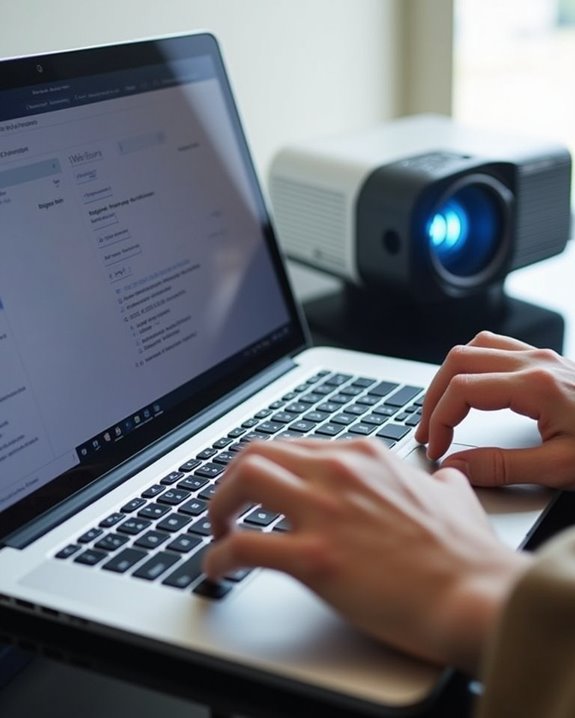
Wireless projection represents a significant advancement over traditional wired methods, offering flexibility and convenience for your presentations. To begin, access your projector’s Wi-Fi settings menu through the remote control, select your network, and enter the password to establish connection. Verify success by checking for a wireless icon on the screen.
For ideal performance, ensure device compatibility between your projector and source device, confirming they support the same wireless technology, such as AirPlay for Apple devices or Miracast for Android. Both devices must connect to the same network, with updated software for seamless operation. Consider network security by using WPA2 encryption for your connection, and position your projector to minimize interference from other devices. If connection issues occur, restart both devices and verify your password is correct.
Recommended Products

Plug and Play with ZeroDrop Tech: Wireless HDMI transmitter and receiver 4k offers true plug and play functionality—no messy cables, Wi-Fi, apps, Bluetooth, or complex settings required. Bluetooth hdmi connect devices effortlessly in under 10 seconds. ZeroDrop Technology ensures zero latency for smoother operation, keeping your workspace tidy while delivering seamless, high-quality streaming

【Wireless Screen Mirroring and Extension Modes】 Wireless HDMI Transmitter and Receiver supports screen mirroring and screen extension functions, allowing you to project the content from devices such as laptops, cameras, and cable TV set-top boxes onto high-definition TVs, projectors, and displays, providing a versatile application experience.

【No Need HDMI Cable,Easy Use】This wireless HDMI transmitter and receiver,easy installation, plug and play, no need for WiFi/APP/Bluetooth, say goodbye to the traditional cable connection can be audio and video signal transmission, make your office or room more neat.Use Delay <0.01s, almost 0 delay. Great for business meetings, teaching, churches, live broadcasts, business presentations home theater, parties, outdoor movie screenings, weddings, and more to use
Optimizing Your Projector’s Display Settings
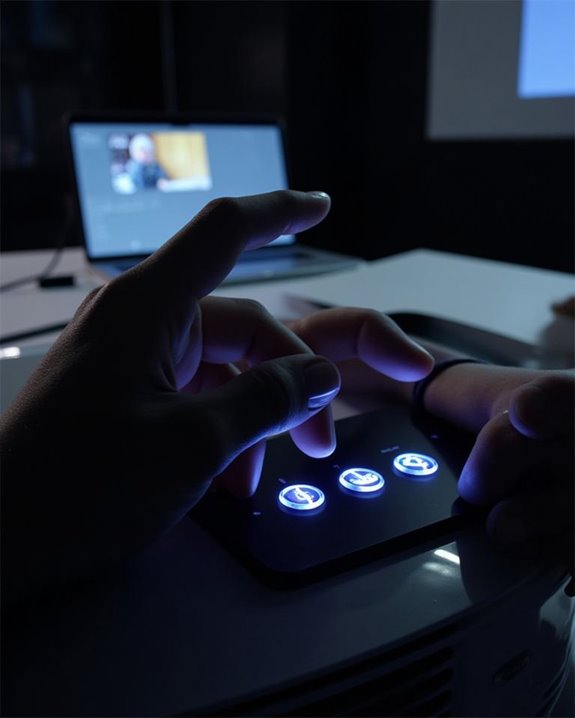
Once your projector is successfully connected, you’ll need to optimize its display settings to achieve the best possible image quality for your presentations or viewing experiences. Start by setting the resolution to a supported format like 1080p60Hz, ensuring color depth is at 8-bit for standard performance. Room lighting markedly impacts image quality, so adjust your settings under the same conditions you’ll use for viewing.
For optimal results, use test patterns to properly calibrate brightness and contrast levels, preventing crushed shadows or blown-out highlights. Color calibration is essential for accurate image reproduction; while default settings often work well, specialized tools like the Spears & Munsil UHD HDR Benchmark can help with precise adjustments. Finally, ensure your aspect ratio matches your content and consider your projector’s HDR capabilities when displaying high-dynamic-range material.
Audio Setup Options for the Perfect Viewing Experience
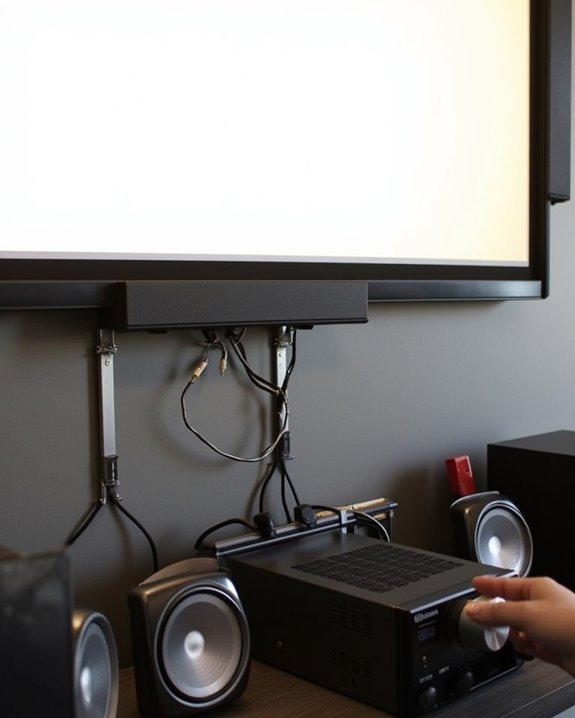
While your projector displays crisp, vibrant images, the audio component is equally essential for creating a truly immersive viewing experience. To achieve ideal audio quality, identify your projector’s available output ports—typically RCA, 3.5mm, HDMI ARC, or S/PDIF—and match them with compatible speaker inputs, using adapters if necessary.
For wired connections, HDMI ARC delivers superior digital sound transmission, supporting Dolby Digital and DTS surround formats, while 3.5mm cables offer simple stereo connectivity. Wireless options include Bluetooth speakers or WiFi-enabled audio systems, though these may introduce sound synchronization issues or latency. For theater-like experiences, connect through an Audio/Video Receiver, positioning speakers strategically around your viewing area. Remember to adjust audio settings on both projector and sound system, balancing volume levels for the perfect audiovisual experience.
Recommended Products

【𝐏𝐥𝐮𝐠 𝐚𝐧𝐝 𝐏𝐥𝐚𝐲, 𝐄𝐚𝐬𝐲 𝐭𝐨 𝐏𝐥𝐚𝐲】 YMOO wireless transmitter receiver kit design with 𝐌𝐞𝐭𝐚𝐥 𝐬𝐡𝐞𝐥𝐥, safe enough, anti-drop and anti-collision.RCA input and output can easily connect with your TV,DVD,MP3 Player,transfer audio wirelessly to a powered speaker,soundbar.Transmitter is for your TV/PC/MP3 Player, Receiver for your powered speaker.wireless transmitter and receiver will automatically turn on and automatically connect.

2-in-1 Transmitter and Receiver: 1Mii RCA Bluetooth audio transmitter supports transmitter and receiver mode. In transmitter mode, it is very easy to turn a non-Bluetooth TV, PC, projector, gym equipment into Bluetooth transmitter to connect with Bluetooth headphones/speaker/soundbar. In receiver mode, 1Mii 3.5mm Bluetooth adapter allow you to enjoy high fidelity audio from your phone to your non-Bluetooth car/home stereo systems/wired speakers/wired earphones.

Bluetooth 5.3 and Stable Connection: The Aux Bluetooth Adapter for Car can receive Bluetooth signal within 10 meters, lossless music playback and stable call signal, so you can have a pleasant music environment while driving
Troubleshooting Common Connection Problems
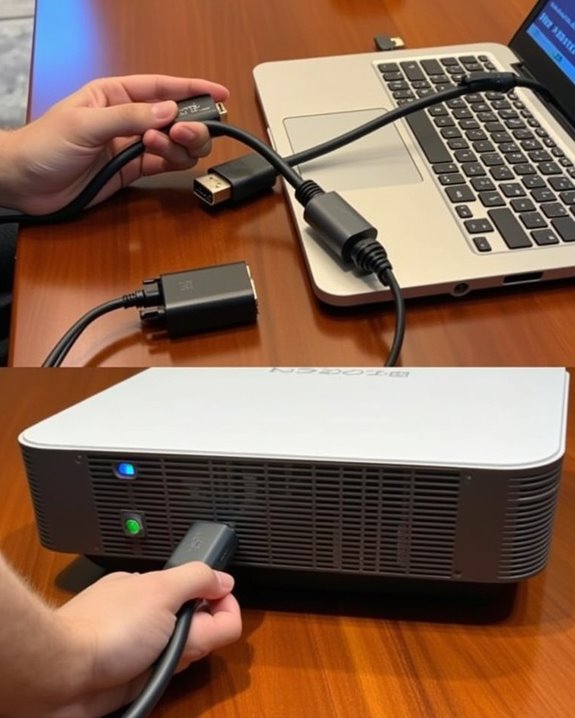
Even the most advanced projector setup can encounter frustrating technical issues that disrupt your viewing experience. Power management problems often occur first, so check your power source, inspect cables for damage, and verify the power switch is on before considering professional repair for persistent issues.
When there’s no picture displayed, verify connections between devices, select the correct input source, and examine if proper screen calibration settings are configured on both devices. For connectivity troubles, inspect physical connections like HDMI or VGA ports, secure all cables properly, and try alternative cables to identify faulty ones.
Environmental factors can also impact performance, so place your projector in well-ventilated areas, clean air filters regularly, and remove any obstructions blocking vents to prevent overheating, which can affect both image quality and device longevity.
Mobile Device Connection Techniques
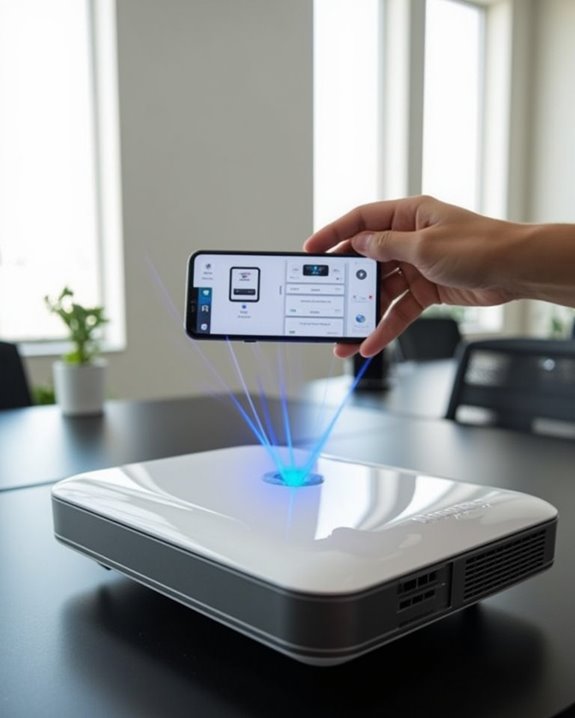
Now that you’ve resolved common connection problems, let’s explore how to connect your mobile devices to projectors, which has become increasingly popular for presentations and entertainment.
You can connect wirelessly through Miracast, Wi-Fi Direct, AirPlay, or Chromecast, ensuring your device firmware updates are current for suitable performance. For wired connections, check both your phone and projector ports, then purchase compatible adapters like USB-C to HDMI or MHL adapters for Micro-USB phones. Mobile app compatibility varies across projection systems, so verify your apps work with your chosen connection method. When setting up, enable screen mirroring on your device, select the correct input source on the projector, and begin streaming. Consider display quality, latency issues, and cross-platform compatibility when choosing between wireless convenience or wired reliability.
Recommended Products

【4K UHD Visual Feast】This USB-C to HDMI cable supports up to 4K@60Hz resolution and is backward compatible with 1440P@60Hz and 1080P@120Hz. It can seamlessly transmit at 3840x2160 resolution, providing crystal-clear images and smooth video, suitable for high-definition monitors, TVs, and projectors, meeting the needs of various devices and use cases. 📌𝐍𝐨𝐭𝐞: 𝐔𝐒𝐁-𝐂 𝐩𝐨𝐫𝐭 𝐦𝐮𝐬𝐭 𝐬𝐮𝐩𝐩𝐨𝐫𝐭 "𝐃𝐢𝐬𝐩𝐥𝐚𝐲𝐏𝐨𝐫𝐭 𝐀𝐥𝐭𝐞𝐫𝐧𝐚𝐭𝐞 𝐌𝐨𝐝𝐞". 𝐍𝐎𝐓 𝐬𝐮𝐩𝐩𝐨𝐫𝐭 𝐏𝐨𝐫𝐭𝐚𝐛𝐥𝐞 𝐌𝐨𝐧𝐢𝐭𝐨𝐫 𝐨𝐫 𝐔𝐥𝐭𝐫𝐚 𝐖𝐢𝐝𝐞 𝐌𝐨𝐧𝐢𝐭𝐨𝐫.

[Effortless Plug & Play] Crystal-clear and vibrant 4K@60Hz resolution backward compatible for 1440P/2K@144Hz and 1080P@240Hz. Instantly mirror or extend UHD content from your Type-C phone, tablet, laptop, and desktop computer to larger displays like monitors, TVs, and projectors. Leave behind the worries of unstable WiFi and the hassle of drivers. HDCP compliance lets you enjoy media streaming without any limitations.𝗣𝗹𝗲𝗮𝘀𝗲 𝗡𝗼𝘁𝗲: 𝗧𝗵𝗶𝘀 𝗶𝘀 𝗮 𝗼𝗻𝗲-𝘄𝗮𝘆 𝗰𝗮𝗯𝗹𝗲, 𝗱𝗲𝘀𝗶𝗴𝗻𝗲𝗱 𝗲𝘅𝗰𝗹𝘂𝘀𝗶𝘃𝗲𝗹𝘆 𝗳𝗼𝗿 𝘁𝗿𝗮𝗻𝘀𝗺𝗶𝘀𝘀𝗶𝗼𝗻 𝗳𝗿𝗼𝗺 𝗨𝗦𝗕-𝗖 𝗵𝗼𝘀𝘁 𝗱𝗲𝘃𝗶𝗰𝗲𝘀 𝘁𝗼 𝗛𝗗𝗠𝗜 𝗱𝗶𝘀𝗽𝗹𝗮𝘆𝘀.

Compatibility & Functionality Overview: This durable USB-C to HDMI adapter is compatible with Windows, smartphones, and gaming consoles for video and audio streaming, but it requires DP Alt Mode support, is strictly for one-way video output, and does not support charging.
Frequently Asked Questions
Can Projectors Damage Walls or Surfaces They Project Onto?
Worried about wall damage? Generally, projectors won’t cause surface marking on walls they project onto. However, improper screen mounting or leaning heavy screens against walls can potentially damage your surfaces over time.
How Do Ambient Lighting Conditions Affect Projector Visibility?
Excessive ambient light washes out your projector’s colors and contrast. You’ll need to control light sources, use higher brightness settings, or invest in ALR screens for visibility enhancement in well-lit environments.
Are Projector Bulbs Replaceable and How Long Do They Last?
Yes, projector bulbs are replaceable. You’ll need to follow a specific replacement process for your model. Bulb lifespan typically ranges from 1,500-2,000 hours, though some last up to 5,000 hours with proper maintenance.
Can Projectors Be Permanently Mounted to Ceilings or Walls?
Did you know 70% of classrooms use mounted projectors? Yes, you can permanently secure projectors to ceilings or walls. Various mounting options exist, with ceiling installation being most popular for ideal viewing angles and space efficiency.
Do Projectors Consume More Electricity Than Standard Televisions?
Yes, projectors typically consume more electricity than TVs. While small projectors use around 50W, high-end models can reach 800W. You’ll find better power efficiency with TVs for regular viewing despite projectors’ energy-saving modes.