As an Amazon Associate, we earn from qualifying purchases. Some links on this site are affiliate links at no extra cost to you. Our recommendations are based on thorough research and editorial judgment.
How to Turn Your Phone Into a Projector for TV Entertainment

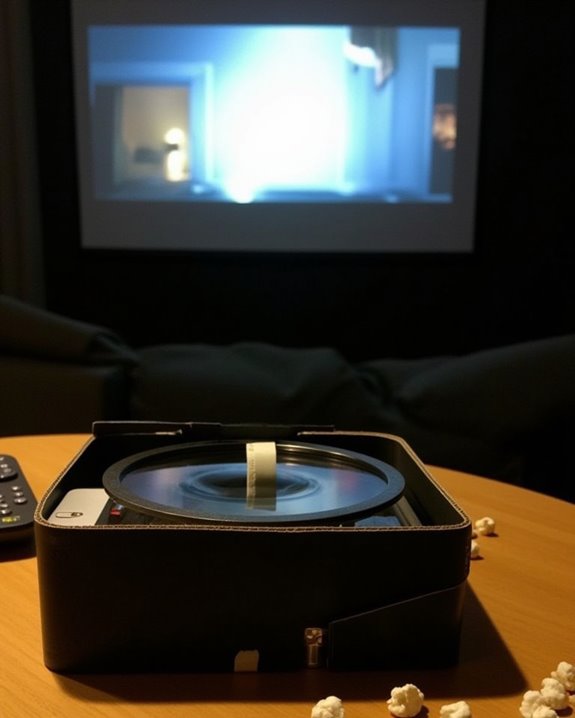
A family movie night transforms into an immersive experience when you connect your smartphone to a projector, displaying your favorite streaming content on a wall-sized screen. You’ll discover that your pocket-sized device can replace bulky media players with just a few simple connections and setting adjustments. By understanding compatibility requirements between your phone model and projection options, you can create a portable entertainment system that works anywhere with a flat surface and power source. The process varies slightly depending on your device type and preferred connection method.
Key Takeaways
- Connect your phone to TV using a Lightning/USB-C to HDMI adapter for highest quality and most reliable playback.
- Stream wirelessly via Chromecast, Apple TV, or AirPlay for convenient, cable-free viewing from anywhere in the room.
- Ensure your smartphone supports screen mirroring and select the correct input source on your TV.
- Adjust display settings on both devices for optimal resolution matching and enhanced visual experience.
- Use quality cables with gold-plated connectors to minimize interference and ensure stable signal transmission.
Understanding Phone-to-Projector Compatibility
Before you attempt to connect your phone to a projector, it is essential to understand the compatibility requirements that make this connection possible. Your smartphone must support screen mirroring capabilities, which allows content from your device to be displayed on a larger screen. Most modern phones include this feature, but settings may vary between iOS and Android systems.
The physical connection depends on your phone’s output port: iPhones typically require Lightning to HDMI adapters, while newer Android devices use USB-C to HDMI connections. Resolution matching between your phone and projector ensures the best image quality, so check that both devices support compatible display resolutions. For wireless options, look for projectors with built-in Chromecast, AirPlay, or Wi-Fi connectivity, eliminating the need for adapters and cables altogether. Many projectors also offer WiFi 6 and Bluetooth 5.1/5.2 support to facilitate seamless streaming and device pairing.
Essential Adapters and Cables for Connection
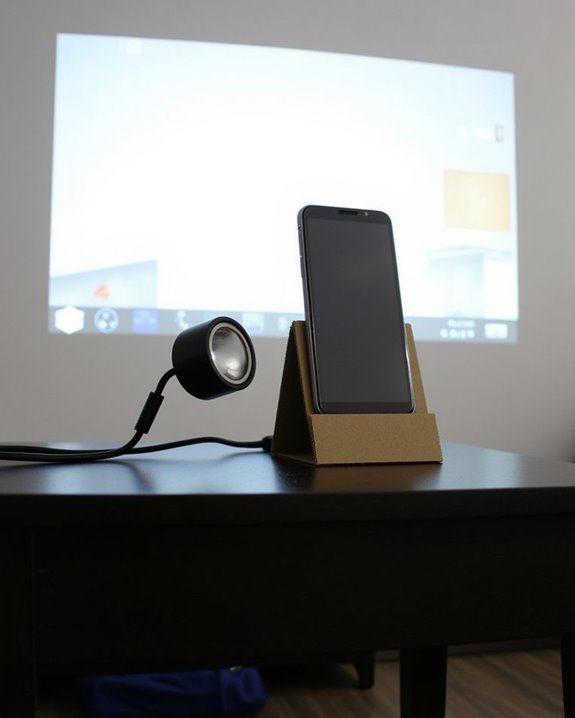
Connecting your phone to a projector requires the right hardware to bridge the technological gap between devices. The adapter you’ll need depends on your phone’s port type—USB-C to HDMI adapters work for newer Android phones, while iPhones require Lightning to HDMI adapters for proper screen mirroring functionality.
Consider adapter compatibility with your specific device model, ensuring it supports both power delivery and data transfer for uninterrupted playback. Quality matters considerably in this setup, with prices ranging from $10 for basic cables to $80 for premium options with superior data transfer speeds. High-end brands like Belkin offer reliable connections that minimize disruptions during presentations or movie nights. For maximum versatility, 3-in-1 adapters accommodate multiple device types, making them ideal for households with various phones and tablets.
To ensure the best visual experience, choose cables with gold-plated connectors and braided shielding to reduce interference and maintain signal reliability.
Recommended Products

【4K UHD Visual Feast】This USB-C to HDMI cable supports up to 4K@60Hz resolution and is backward compatible with 1440P@60Hz and 1080P@120Hz. It can seamlessly transmit at 3840x2160 resolution, providing crystal-clear images and smooth video, suitable for high-definition monitors, TVs, and projectors, meeting the needs of various devices and use cases. 📌𝐍𝐨𝐭𝐞: 𝐔𝐒𝐁-𝐂 𝐩𝐨𝐫𝐭 𝐦𝐮𝐬𝐭 𝐬𝐮𝐩𝐩𝐨𝐫𝐭 "𝐃𝐢𝐬𝐩𝐥𝐚𝐲𝐏𝐨𝐫𝐭 𝐀𝐥𝐭𝐞𝐫𝐧𝐚𝐭𝐞 𝐌𝐨𝐝𝐞". 𝐍𝐎𝐓 𝐬𝐮𝐩𝐩𝐨𝐫𝐭 𝐏𝐨𝐫𝐭𝐚𝐛𝐥𝐞 𝐌𝐨𝐧𝐢𝐭𝐨𝐫 𝐨𝐫 𝐔𝐥𝐭𝐫𝐚 𝐖𝐢𝐝𝐞 𝐌𝐨𝐧𝐢𝐭𝐨𝐫.

Compatibility & Functionality Overview: This durable USB-C to HDMI adapter is compatible with Windows, smartphones, and gaming consoles for video and audio streaming, but it requires DP Alt Mode support, is strictly for one-way video output, and does not support charging.
Setting Up Wired Connections Between Phone and Projector
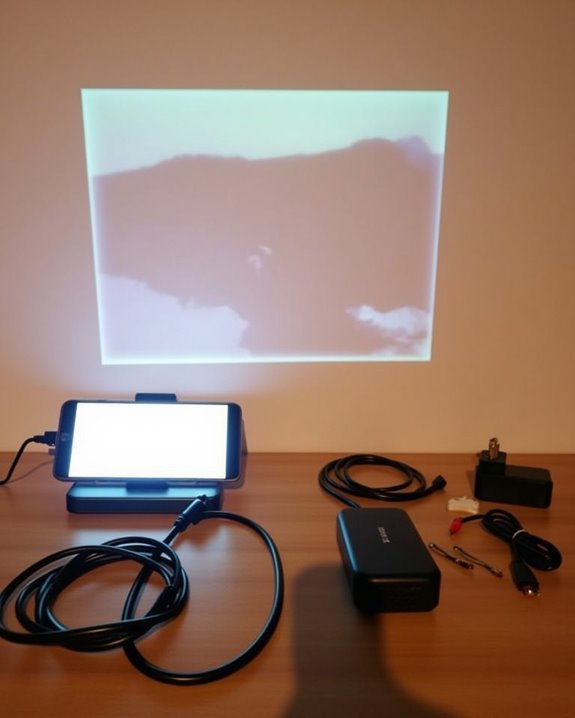
Once you’ve gathered the necessary adapters and cables, establishing a wired connection between your phone and projector provides the most reliable method for displaying your content. Start by identifying the available ports on both devices, then connect your phone to the projector using the appropriate cable—HDMI for modern projectors or VGA for older models.
Ensure your power supply is stable throughout the connection process, as interruptions can disrupt signal transmission. After connecting, turn on your projector, select the correct input source, and adjust screen resolution settings if the image appears distorted. For USB-C connections, simply plug the cable directly into both devices, while other smartphones might require specific adapters like MHL or SlimPort to enable video output functionality. Many modern projectors also support HDMI ports for seamless connectivity with various devices.
Recommended Products

[Effortless Plug & Play] Crystal-clear and vibrant 4K@60Hz resolution backward compatible for 1440P/2K@144Hz and 1080P@240Hz. Instantly mirror or extend UHD content from your Type-C phone, tablet, laptop, and desktop computer to larger displays like monitors, TVs, and projectors. Leave behind the worries of unstable WiFi and the hassle of drivers. HDCP compliance lets you enjoy media streaming without any limitations.𝗣𝗹𝗲𝗮𝘀𝗲 𝗡𝗼𝘁𝗲: 𝗧𝗵𝗶𝘀 𝗶𝘀 𝗮 𝗼𝗻𝗲-𝘄𝗮𝘆 𝗰𝗮𝗯𝗹𝗲, 𝗱𝗲𝘀𝗶𝗴𝗻𝗲𝗱 𝗲𝘅𝗰𝗹𝘂𝘀𝗶𝘃𝗲𝗹𝘆 𝗳𝗼𝗿 𝘁𝗿𝗮𝗻𝘀𝗺𝗶𝘀𝘀𝗶𝗼𝗻 𝗳𝗿𝗼𝗺 𝗨𝗦𝗕-𝗖 𝗵𝗼𝘀𝘁 𝗱𝗲𝘃𝗶𝗰𝗲𝘀 𝘁𝗼 𝗛𝗗𝗠𝗜 𝗱𝗶𝘀𝗽𝗹𝗮𝘆𝘀.

【iPhone 15 HDMI ADAPTER TO TV】- The 2-in-1 iPhone to HDMI adapter for tv helps iPhone15/16/iPad/MacBook expand a HDMI 4K@60Hz port and a charging port, enjoy crystal-clear audio and high-definition video experience, just share happiness with your family or friends. This apple HDMI to USB C adapter allows for faster charging, stable connections and high-definition output, which means you can enjoy home-theater, live streaming ,working report and playing while charging for your apple USB C to HDMI adapter.

Seamless HD Wireless Streaming: Experience crisp, high-definition visuals with our wireless HDMI display dongle adapter, supporting 4K and delivers an impressive 1080P/60Hz Full HD output.
Wireless Options for Smartphone Projection
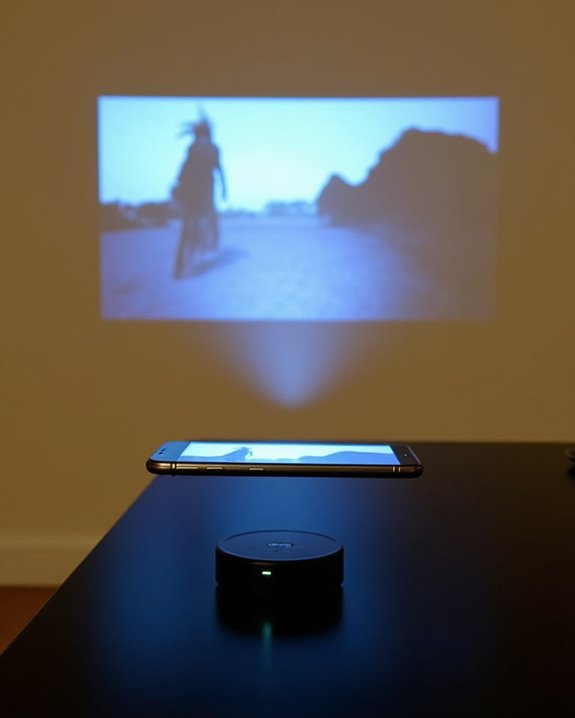
Wireless projection represents a more flexible alternative to the wired connections we’ve explored. Your smartphone can wirelessly connect to projectors through several technologies, each offering unique benefits for entertainment, including wireless gaming and screen mirroring. Google Chromecast works with Android and iOS devices, streaming content when connected to your projector’s HDMI port, while Apple TV provides seamless AirPlay functionality for iOS devices on the same network.
Smart projectors with built-in Wi-Fi eliminate the need for additional hardware, offering direct streaming capabilities and mobile app control. For more secure presentations, dedicated wireless systems provide encrypted connections with quick setup features. Third-party apps like Miracast support Android devices specifically, though performance varies by compatibility. All wireless options require stable internet connections for optimal streaming quality, particularly when enjoying high-definition content or responsive gaming experiences.
Recommended Products

All-in-One Compatibility for iPhone 15/16/17: Seamlessly for Phone, MacBook, iPad, Galaxy S24, Switch and USB-C laptop to HDMI TVs/Monitors/Mini Projector. No extra adapters required—stream, mirror, or present in seconds while keeping your device charged.

Wirelessly display content from a phone, tablet, or laptop onto a bigger screen with the ScreenCast 4K Wireless Display Adapter. Note: Please use this wireless display adapter in the same room to prevent signal obstruction by walls. Wireless transmission distance of up to 50 ft./15m in an open environment
Optimizing Display Settings for the Best Experience
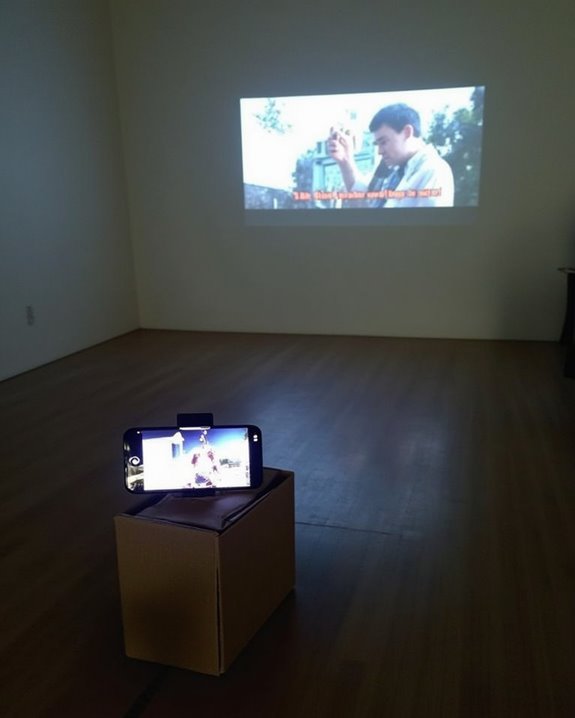
After successfully connecting your smartphone to a projector, you’ll need to optimize your display settings to achieve the best possible viewing experience. Start by minimizing ambient light in your projection area, which markedly enhances image contrast and color depth. Adjust your phone’s brightness settings to match the surrounding environment, avoiding both washed-out images and eye strain from excessive brightness.
Focus on color calibration by selecting the appropriate display mode on your phone, typically found in display settings under “screen mode” or “color profile.” For movies, choose cinema or movie mode; for presentations, standard mode works best. Consider the projection surface, as white walls provide better color accuracy than colored surfaces. If projecting in a brightly lit room, increase contrast slightly to maintain image clarity, while in darker environments, reduce brightness to prevent eye fatigue during extended viewing sessions.
Troubleshooting Common Connection Problems
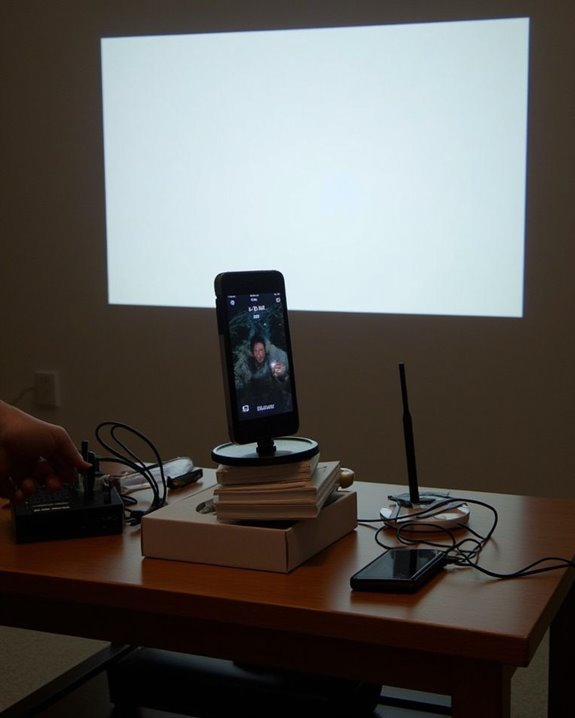
Despite your best setup efforts, you’ll likely encounter connection issues at some point when using your phone as a projector. First, verify both devices are connected to the same network for wireless setups, and check for cable damage if using HDMI or USB connections. Battery maintenance is essential during troubleshooting, as low power can cause unexpected disconnections.
When connection problems persist, try restarting both devices, checking compatibility, and updating software. For wireless issues, reduce interference by moving devices closer together or restarting your router. Privacy concerns should be addressed by reviewing app permissions that access your screen content during projection. USB connection problems can often be resolved by simply disconnecting and reconnecting cables, or by resetting relevant phone settings if necessary.
Recommended Products

"HDMI Adapter Cable for Phone to TV - This HDTV cord is a MHL wire to connect USB type C ( Thunderbolt 3/4 ) port cellphones / laptops with DP Alt Mode such as Samsung Galaxy S21 S20 Ultra S10 S10e S9 Plus S8 Note 20 10 9 8, LG Q8 G8 G5 V20 V30 V30+ V50 V60, Mac iMac MacBook Pro 2017/2016, ChromeBook Pixel , Dell XPS 13/15, Yoga 910, HP Specter x360 etc. for conference projection,driving navigation,video,picture,digital av phone games to projector / TVs / monitor / car dash board AirPlay."

【Lightning to HDMI Cable for iPhone to TV】 Elevate your viewing experience with our Lightning to HDMI cable supporting a resolution of up to 1080P (HD). Mirror what's displayed on your iPhone or iPad screen, including images, movies, games, apps, presentations, websites, slide shows, and more, on your HDMI-equipped TV, display, projector, or other compatible screens. Enjoy stunning visuals with crystal-clear clarity.
![QGeeM USB C to HDMI Adapter 4K Cable, USB Type-C to HDMI Adapter [Thunderbolt 3/4] HDMI for Laptop MacBook Neo/Pro/Air, iPhone 15 16 17 Pro max, Dell XPS, Pixelbook, iMac,Thinkpad,Surface,IPad Pro](https://m.media-amazon.com/images/I/31Ut6vUoveL._SL500_.jpg)
Plug & Play: QGeeM hdmi to usb c cable plug-and-play,no additional driver/software required.Perfectly compatible for your USB-C MacBook Pro/Neo/MacBook, I Mac, surface Book 2, pixels, HP Envy 13, Galaxy Book, and Chromebook, drive one or two HDMI monitors/displays, up to 4K@30Hz resolution. Compatible for HDMI-enabled TVs/monitors/projectors for both video and audio transfer.
Enhancing Your Home Theater Setup With Phone Projection
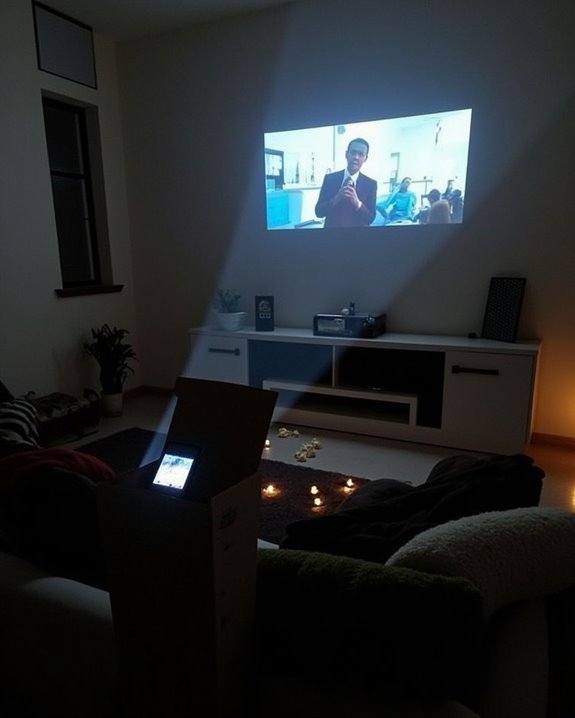
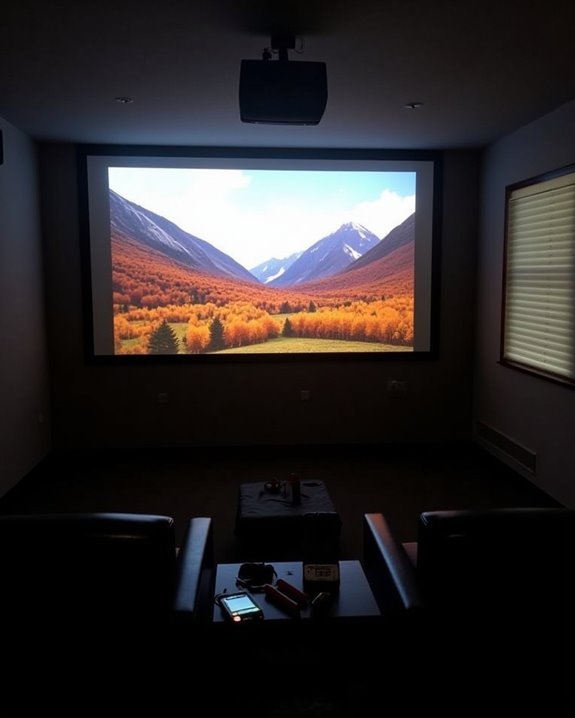
Transforming your phone into a projection device opens up new possibilities for your home theater experience, building on the connection solutions we just covered. For essential results, create a DIY projector box with a black interior and secure lens mounting, ensuring alternative mounting options are available for different viewing angles. Position your setup in a completely darkened room, projecting onto a smooth, white surface for the clearest image possible.
Sound synchronization becomes vital for an immersive experience, so connect your phone to Bluetooth speakers placed strategically around your viewing area. Consider the cost-effectiveness of this setup compared to traditional home theater equipment, particularly for impromptu gatherings. While recognizing the limitations in brightness and resolution, you’ll find this portable solution surprisingly versatile for casual movie nights.
Recommended Products

【SCREEN MIRRORING VIDEO/AUDIO to BIG SCREEN】 TIMBOOTECH Wireless HDMI Transmitter and Receiver are designed to wirelessly cast 4K HDR video and audio to big display without delay. You could cast any contents from laptop/camera/Cable Box to HDTV, projector, monitor. Enjoy watching movies, live sports, playing gaming, doing presentation with your friends or family

Wireless USB-C Transmitter and HDMI Receiver Kit: A wireless HDMI casting kit that transmits audio and video signals from USB-C devices (such as smartphones, tablets, and laptops) to HDMI display devices (such as TVs, monitors, and projectors), enabling wireless screen casting for work, presentations, and entertainment.

【SCREEN MIRRORING VIDEO/AUDIO to BIG SCREEN】Enjoy instant video & audio casting to your TV, projector, or monitor with TIMBOOTECH wireless HDMI transmitter and receiver. Perfect for movies, sports, gaming, or presentations.
Frequently Asked Questions
Can I Use a Mini Projector With My Phone?
Yes, you can use a mini projector with your phone. Most mini projectors offer excellent phone compatibility through HDMI, USB, or wireless connections. Consider the projector resolution to guarantee quality display of your phone’s content.
Will Projecting Drain My Phone Battery Faster?
Yes, projecting will drain your battery faster. To extend battery life, use power saving modes on your device and consider external power sources. Good battery management includes charging while projecting when possible.
Can I Project Netflix or Disney+ From My Phone?
Perfectly projectable! Yes, you can stream Netflix and Disney+ from your phone. Screen resolution clarity depends on projection distance. You’ll need compatible connections (HDMI, Chromecast, AirPlay, etc.) to maintain the streaming services’ quality standards.
How Do I Prevent Overheating When Projecting for Hours?
To prevent overheating during long projection sessions, you’ll need proper thermal management. Place your phone on cooling pads, ensure good ventilation, reduce brightness, take breaks, and consider external cooling solutions like small fans.
Can Gaming Apps Be Projected With Minimal Lag?
Picture your game flowing like water on a huge screen. Yes, you can project gaming apps with minimal lag by using fast mode, ensuring stable connections, and selecting appropriate screen resolution for your device’s capabilities.