As an Amazon Associate, we earn from qualifying purchases. Some links on this site are affiliate links at no extra cost to you. Our recommendations are based on thorough research and editorial judgment.
How to Connect Your Iphone to a Projector for Easy Sharing

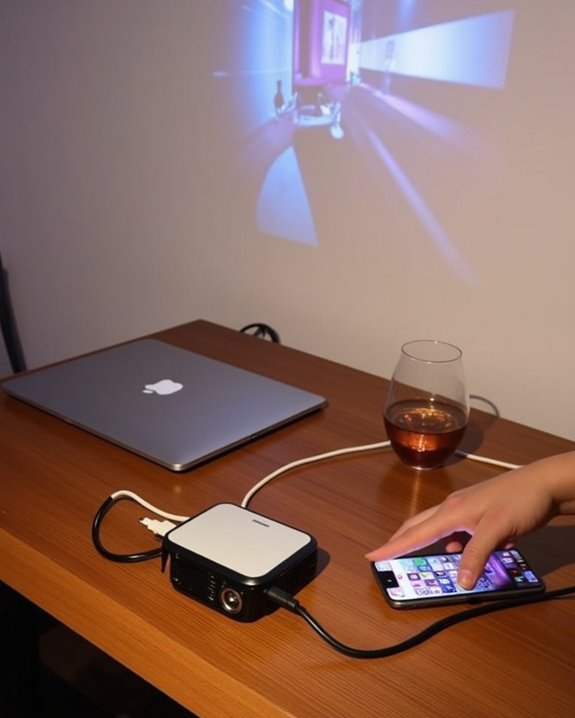
Nearly 70% of business professionals have struggled with device connectivity during presentations, often wasting valuable meeting time. You don’t need to be among them when connecting your iPhone to a projector. Whether you’re presenting quarterly results, sharing vacation photos, or streaming content for a group, there are several reliable methods to establish a seamless connection between your iPhone and projector. The right approach depends on your specific equipment, setting, and technical requirements—factors that can make the difference between an impressive display and a frustrating experience.
Key Takeaways
- Connect your iPhone directly to the projector using a Lightning Digital AV Adapter and HDMI cable for reliable performance.
- Use AirPlay with Apple TV by ensuring both devices are on the same Wi-Fi network and selecting Screen Mirroring from Control Center.
- Connect through streaming devices like Chromecast, Roku, or Fire Stick that plug into the projector’s HDMI port.
- Try Miracast or Wi-Fi Direct for wireless connections without external networks, especially in locations with limited Wi-Fi access.
- Match projector resolution to device output and optimize display settings for best image quality during presentations.
Understanding Different Connection Methods for Iphone and Projector
When connecting your iPhone to a projector, you’ll need to decide between wireless or wired connection methods, each offering unique advantages depending on your specific needs. Wireless options include AirPlay, which requires both devices to share the same Wi-Fi network, ensuring ideal screen resolution when using Apple TV or projectors with built-in AirPlay support.
Alternatively, device compatibility is excellent with streaming devices like Chromecast, Roku, or Amazon Fire Stick, which connect to your projector via HDMI while allowing wireless interaction with your iPhone. These options support various apps and streaming services, making them versatile for presentations or entertainment. For more direct connections, Miracast and Wi-Fi Direct protocols enable screen mirroring without requiring an external network, though both your iPhone and projector must support the same protocol for proper functionality. When using wired connections, choosing an HDMI cable with gold-plated connectors and proper shielding can significantly enhance image clarity and signal reliability.
Wired Connections Using Lightning to HDMI Adapters
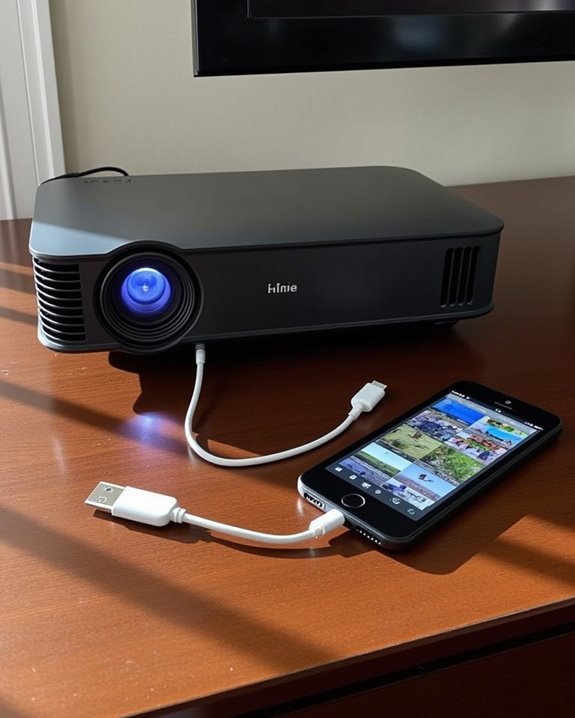
While wireless options provide flexibility, many users prefer the reliability of direct physical connections. Apple’s Lightning Digital AV Adapter creates a straightforward pathway between your iPhone and any HDMI-equipped projector. To set up this connection, plug the Lightning end into your iPhone, connect an HDMI cable from the adapter to your projector’s input port, and select the corresponding HDMI source on your projector.
Most Lightning adapters include a pass-through charging port, allowing you to power your device during presentations and prevent battery drain. This feature proves especially valuable during longer sessions. The adapter supports full 1080p HD video output with synchronized audio, though it’s worth noting you’ll need to purchase HDMI cables separately. Despite limiting mobility compared to wireless alternatives, these adapters offer consistent, lag-free performance. For optimal image quality on large displays, ensure your projector supports 1080P native resolution.
Recommended Products

Use the Lightning Digital AV Adapter with your iPhone, iPad, or iPod with Lightning connector. The Lightning Digital AV Adapter supports mirroring of what is displayed on...
Setting up Airplay With Apple TV for Wireless Streaming
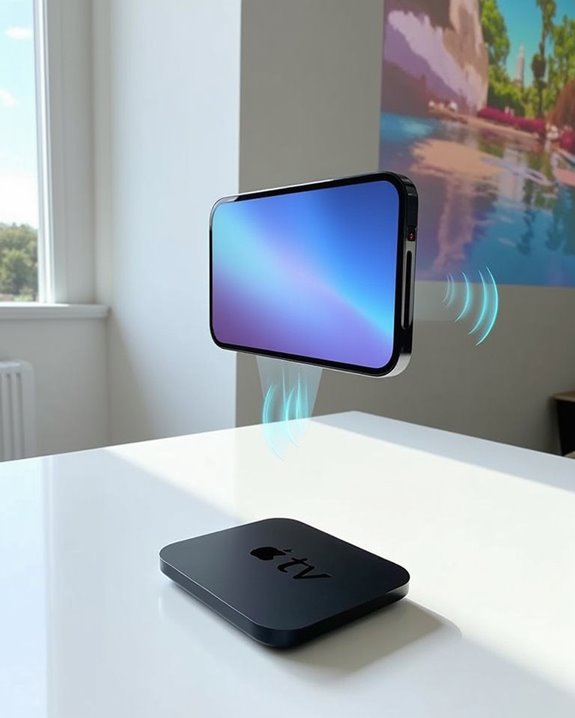
For iPhone users seeking wireless presentation options, AirPlay with Apple TV offers a cable-free solution that’s both elegant and powerful. To begin, verify both your iPhone and Apple TV connect to the same Wi-Fi network, positioning them within 25-30 feet of each other to prevent wireless interference that could disrupt your stream.
Access Control Center on your iPhone, tap the Screen Mirroring icon, and select your Apple TV from the list. You’ll enjoy ideal screen resolution up to 4K HDR if both devices support it, making presentations visually impressive. For best performance, connect your Apple TV via Ethernet and avoid mounting it behind screens or inside cabinets, as physical obstructions can block signals. Remember that 5GHz Wi-Fi bands typically deliver more reliable streaming than congested 2.4GHz frequencies. Using a projector with 4K support ensures the streamed content retains high clarity and detail.
Recommended Products
![[Official Apps & Live TV & 330° Stand]Smart Mini Projector with WiFi and Bluetooth Ultra-thin, 4K Support Outdoor Movie Projector, Auto Focus, HDR10, Portable 1080P Projector for Bedroom/Home/Celling](https://m.media-amazon.com/images/I/51JDSuNCIrL._SL500_.jpg)
[Exclusive SmartOS – Endless Streaming in One Place] The S36 portable projector runs on official smart system, giving you access to massive native apps and 1,000+ free live TV channels via Whale TV. It brings together live TV, streaming apps, and connected devices into one clean, easy-to-use interface. Instantly enjoy popular apps like Netlifx, YouTube, Prime Video, Apple TV, Max, ESPN and more.

【iPhone 15 HDMI ADAPTER TO TV】- The 2-in-1 iPhone to HDMI adapter for tv helps iPhone15/16/iPad/MacBook expand a HDMI 4K@60Hz port and a charging port, enjoy crystal-clear audio and high-definition video experience, just share happiness with your family or friends. This apple HDMI to USB C adapter allows for faster charging, stable connections and high-definition output, which means you can enjoy home-theater, live streaming ,working report and playing while charging for your apple USB C to HDMI adapter.

FEATURES:18AWG high quality 2 slot 15 feet ac power cord,Two Prong / Figure 8 / Non Polarized / 7A 125V / NEMA 1-15P.
Alternative Wireless Methods Beyond AirPlay
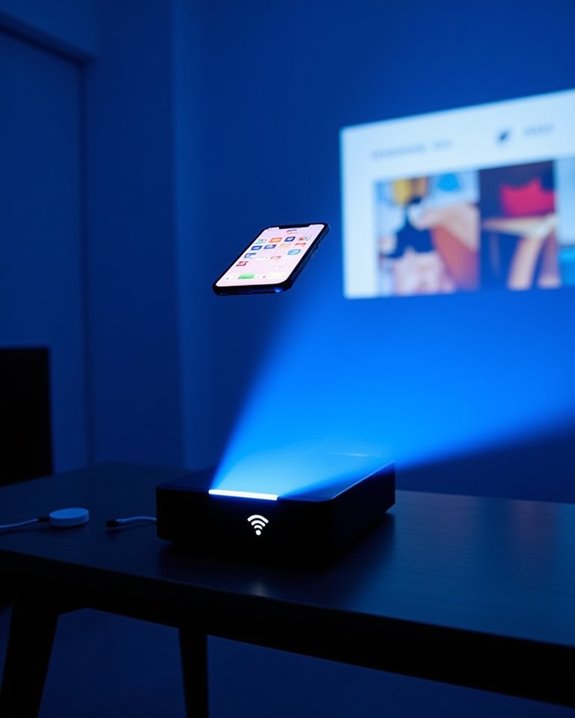
Though Apple’s AirPlay offers excellent wireless connectivity, you’re not limited to this option if you need to project from your iPhone. Various wireless standards provide alternative solutions, each with distinct advantages. Google Chromecast connects to your projector’s HDMI port, enabling wireless casting when both devices share the same Wi-Fi network. Miracast, a widely compatible standard, allows direct screen mirroring without an intermediary network, reducing compatibility issues frequently encountered with proprietary systems.
For environments without stable Wi-Fi, Wi-Fi Direct creates a direct connection between your iPhone and projector. Streaming devices like Amazon Fire Stick or Roku offer additional functionality beyond simple mirroring. Many projector manufacturers also provide proprietary wireless solutions with dedicated apps that optimize performance and minimize latency, though these may require specific configuration steps for proper functionality.
Recommended Products

【ENJOY 4K CASTING WITHOUT CORDS】SOCLLLife Wireless HDMI Adapter mirrors 4K video and audio wirelessly from your i-Phone, i-Pad, MacBook, Android smartphones, tablets, laptops, and PC, on larger screens like TVs, monitors, and projectors. Say farewell to tangled HDMI cables and enjoy 4K input & 1080P @60Hz output casting experience in your living room or office

HD Wireless Mirroring:This wireless display adapter supports 1080P@60Hz with 4K decoding, allowing you to mirror content from your iPhone, iPad, or MacBook to a larger screen such as a TV, monitor, or projector. Enjoy a cinematic viewing experience in your living room without the hassle of long, tangled cables

True Wireless Freedom: The wireless HDMI display adapter is plug and play, no app, Bluetooth, or Wi-Fi required. Simply plug in your device for instant screen mirroring. Free from cables, enjoy seamless sharing for casting video, audio and files
Optimizing Display Settings for Perfect Presentation
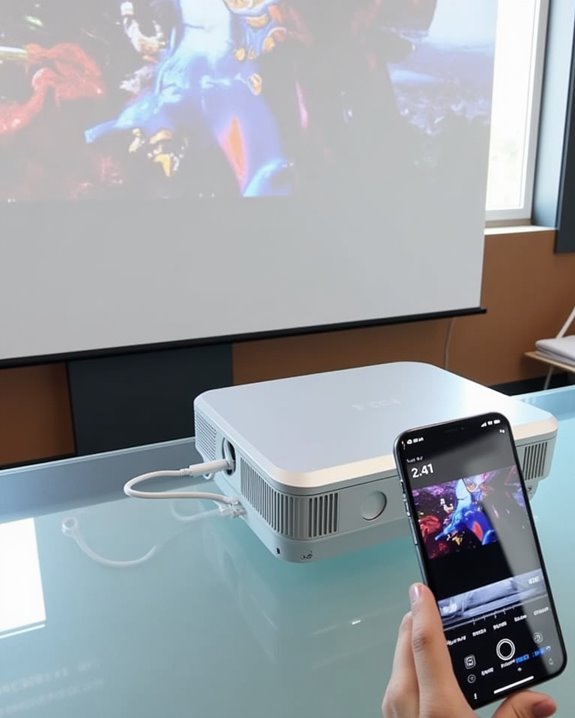
Once connected to a projector, your iPhone’s display quality can make or break your presentation. For ideal results, match your projector’s resolution to your iPhone’s output, preventing image distortion or stretching. Adjust the aspect ratio settings (16:9 or 4:3) based on your content type, and disable any overscan settings that might crop your edges.
Consider ambient lighting when calibrating brightness, reducing levels in darker rooms to preserve detail and prevent eye strain. For color calibration, select custom image modes on your projector and adjust until skin tones appear natural. Keep sharpness settings moderate to avoid artificial edge enhancement. Position your projector perpendicular to the screen, using keystone correction sparingly, as excessive adjustment degrades image quality. Finally, lock your iPhone’s orientation to maintain consistent alignment throughout your presentation.
Specialized Apps for Enhanced Screen Mirroring
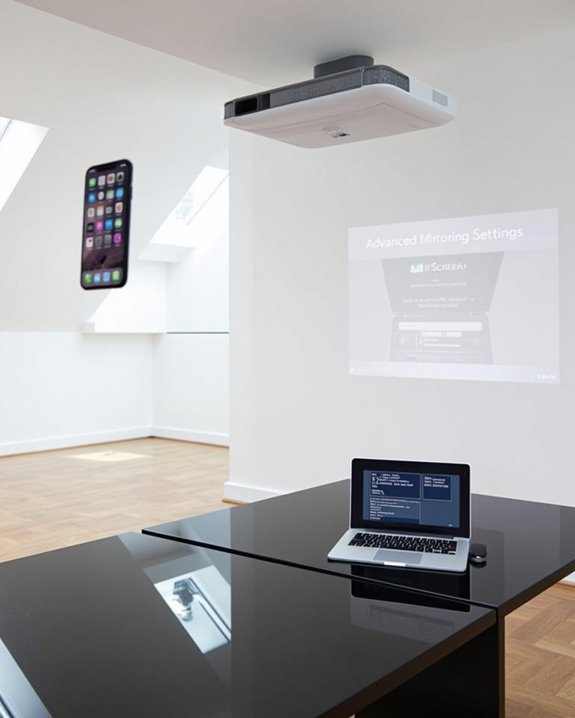
While standard screen mirroring works well for basic presentations, specialized apps can dramatically enhance your iPhone-to-projector experience with advanced features and greater flexibility. Apps like AirDroid Cast, Epson iProjection, and Mirroring360 provide multi-device compatibility, allowing you to connect your iPhone to various projector brands with ease.
These screen mirroring solutions offer unique advantages beyond Apple’s built-in AirPlay, including real-time interaction with your content, simultaneous display of multiple devices, and wireless audio output. For Epson projector users, the dedicated iProjection app delivers optimized performance with QR code setup for instant connectivity. If you’re looking for enhanced collaboration tools, consider apps like LetsView that provide superior quality streaming and annotation features, making your presentations more dynamic and interactive without requiring additional hardware.
Recommended Products

【Portable Projector & 220° Rotation】Weighing only 1.5 pounds and measuring 5.5 x 4.7 x 8.6 inches, the projector easily fits into a backpack to carry around and enjoy family movie night anytime. Equipped with a base that rotates 220° vertically for flexible projection - from floor to wall and ceiling. Projection sizes range from 40-130 inches, providing flexible viewing options for any space. For the best viewing experience, we recommend a projection distance of 5.51 feet and projection size of 60 inches. Note: The movie projector does not include batteries and must be plugged in

iOS ONLY = ZERO COMPATIBILITY HEADACHES — Unlike adapters that claim "works with all devices" but fail on Android due to brand/model/OS differences, this adapter is designed exclusively for iPhone & iPad (iOS 7+). No app downloads, no Bluetooth pairing, no WiFi needed — just plug in and your screen mirrors instantly. Works with iPhone 16/15/14/13/12/11 and all iPad models.

【Lightning to HDMI Cable for iPhone to TV】 Elevate your viewing experience with our Lightning to HDMI cable supporting a resolution of up to 1080P (HD). Mirror what's displayed on your iPhone or iPad screen, including images, movies, games, apps, presentations, websites, slide shows, and more, on your HDMI-equipped TV, display, projector, or other compatible screens. Enjoy stunning visuals with crystal-clear clarity.
Troubleshooting Common Connection Problems
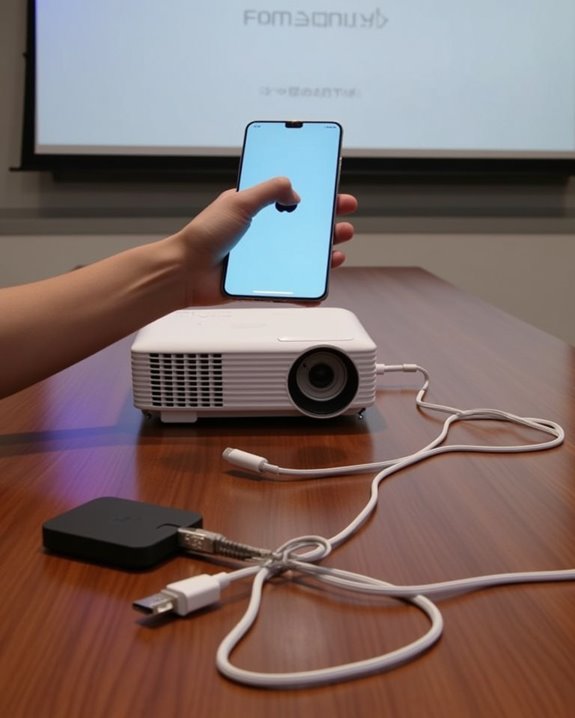
Even the most advanced screen mirroring apps can’t help if your iPhone won’t connect to the projector in the first place. When you encounter issues, first check for loose connections and verify your HDMI cable is properly seated in both devices. Many connection problems stem from incompatible adapters or insufficient power to your Lightning-to-HDMI adapter, which often requires external power to maintain stable Screen Resolution.
If your projector displays a black screen, confirm your iPhone is unlocked and the correct input source is selected. Proper Cable Management prevents accidental disconnections during presentations, so secure cables with clips or tape when possible. For persistent issues, restart both devices, inspect cables for damage, and confirm your adapter is compatible with your specific iPhone model. Remember that wireless connections require all devices to share the same Wi-Fi network.
Best Practices for Business Presentations
When you’re connecting your iPhone to a projector for business presentations, achieving professional results requires more than just a successful connection. Consider your audience first, tailoring your content to their interests and technical knowledge. Recent tech innovations allow for interactive elements that boost engagement, while proper presentation etiquette demands simplicity in your visuals.
Choose visualizations that support your narrative, highlighting key changes over time rather than overwhelming with complex data. For maximum impact, focus each slide on communicating just one major point, using relative comparisons to make statistics more relatable. Maintain credibility by citing reputable sources, and leverage collaboration tools like team templates to streamline your design process. Remember to practice your delivery, ensuring you connect the data to your audience’s specific needs.
Equipment Recommendations for Different Scenarios
Selecting the right equipment for connecting your iPhone to a projector depends largely on your specific presentation scenario and environment. For home theater setups, invest in high-quality HDMI cables (preferably eco-friendly cables made from recycled materials) and an Apple TV for wireless streaming convenience. Business professionals should prioritize reliable adapters and signal amplifiers to guarantee uninterrupted presentations, while educators might benefit from budget-friendly wireless dongles that offer flexibility in classroom arrangements.
For events requiring mobility, portable projectors with built-in AirPlay support eliminate the need for additional hardware, saving space and setup time. These lightweight options often include rechargeable batteries, making them ideal for outdoor presentations or traveling consultants. Gaming enthusiasts should look for projectors with fast refresh rates and minimal lag, paired with high-speed HDMI connections for excellent performance.
Recommended Products
![[Apple MFi Certified] USB C to HDMI Adapter for iPhone 17 16 15 to TV](https://m.media-amazon.com/images/I/21dCcOW1zGL._SL500_.jpg)
【USB-C to HDMI Adapter for iPhone 17】 Adopt MFi certified Chip, It supports Mirroring/Expanding of what is displayed on your iPhone 17 16 15 series/Computer/Macbook/iMac/iPad Pro/Smartphone screen (including apps, videos, pictures, presentations, websites, slideshows and more) to your HDMI-equipped TV, Monitor, Projector. Convenient for home-theater entertainment, office work, exhibition, presentation, teaching etc.
![[Apple MFi Certified] Lightning to HDMI Cable Adapter for iPhone 14 13 12](https://m.media-amazon.com/images/I/413Doy32W4L._SL500_.jpg)
【Universal Compatibility】 Lightning to HDMI Adapter enable support for multiple devices, such as iPhone 14 iPhone 14 Pro Max iPhone 14 Pro iPhone 13 iPhone 13 Pro Max iPhone 13 Pro iPhone 12 iPhone 12 Pro Max iPhone 12 Pro iPhone 11 Pro Max iPhone 11 iPhone 11 Pro iPhone Xs max iPhone XR iPhone X,iPhone XR/XS /XS Max / iPhone 8/ iPhone 8 Plus/iPhone 7 / iPhone 7 Plus, iPhone 6s / iPhone 6s Plus, iPhone 6 / iPhone 6 Plus, Support iOS System or later.(NOTE:Not compatible with Net-flix/Amazo-n video/Direc-tV/HU-LU, not compatible with paid-videos)
![BENFEI USB C to HDMI Adapter 4K@60Hz, USB Type-C to HDMI Adapter [Thunderbolt 3/4/5 Compatible] with iPhone 15 Pro/Max, MacBook Pro/Air 2023, iPad Pro, iMac, S23, XPS 17, Surface Book](https://m.media-amazon.com/images/I/31kTmzsrThL._SL500_.jpg)
COMPACT DESIGN - The compact-designed portable BENFEI USB-C to HDMI adapter connects a computer, desktop, laptop, or other devices with USB-C port to a monitor, projector, HDTV, or other devices with HDMI port; Tuck this lightweight gadget into your bag or pocket to do a business presentation with your laptop and projector, or extend your desktop screen to a monitor or TV;
Future-Proofing Your Setup With Latest Technologies
Technology advancements in the projector market move swiftly, making today’s cutting-edge devices potentially outdated within a few years. To maintain relevance, consider investing in projectors with AI-powered personalization and voice control capabilities, which automatically adjust color calibration based on ambient lighting and content type. Modern projectors with enhanced battery longevity allow for extended presentations without power concerns, particularly important for business travelers and educators.
Wireless presentation systems offering secure, encrypted connections will become increasingly standard, protecting your data while simplifying setup. Look for devices supporting multiple connectivity protocols, including the latest iterations of AirPlay and USB-C, ensuring compatibility with future iPhone models. Smart home integration capabilities also future-proof your investment, allowing your projector to function within broader automated ecosystems rather than as a standalone device.
Frequently Asked Questions
Can I Connect My Iphone to Multiple Projectors Simultaneously?
Cutting to the chase, you can’t directly connect your iPhone to multiple projectors simultaneously. For a multiple projector setup, you’ll need HDMI splitters or specialized apps, but native simultaneous display options aren’t built into iPhones.
Will My Iphone Case Interfere With Adapter Connections?
Your iPhone case may interfere with adapter connections. Thick, bulky, or metal cases often cause compatibility issues. You’ll want to remove your case or choose slim designs with precise cutouts for reliable adapter connections.
Can I Project Iphone Content While Charging It?
Yes, your power-hungry iPhone can multitask! You can definitely charge while projecting—either through adapters with pass-through charging for HDMI connections or by using wireless projection methods like AirPlay while your phone’s plugged in separately.
Do Screen Recording Apps Work During Projection?
Yes, screen recording apps typically work during projection from your iPhone. You’ll find most apps are compatible with mirroring, though DRM-protected content can’t be recorded regardless of whether you’re projecting or not.
Can I Mirror Specific Apps While Keeping Notifications Private?
Purposefully protect privacy! You can mirror specific apps while restricting access to others. Enable Do Not Disturb or turn off notifications in Control Center to maintain privacy concerns during projection. App restrictions help control what’s shared.