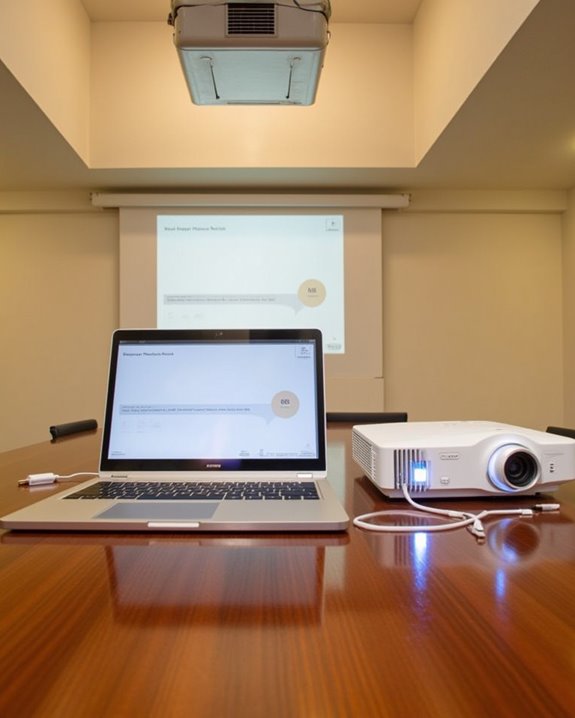
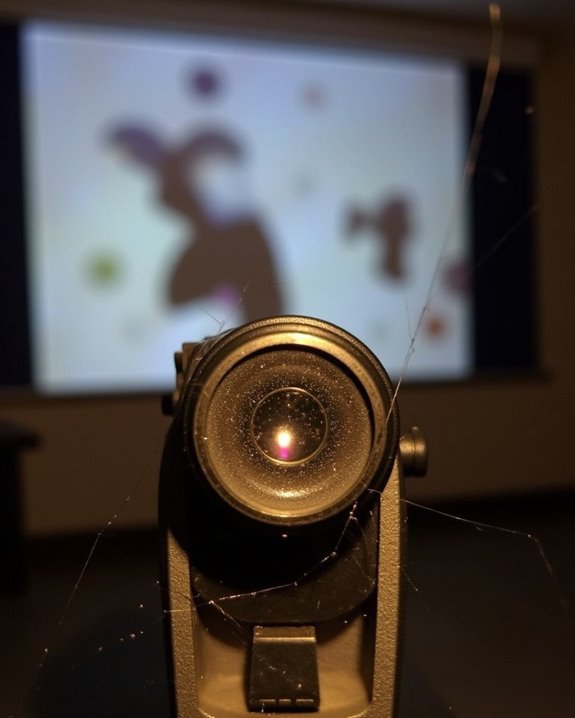

A blurry projector can quickly ruin your presentation or movie night, causing frustration and distraction for viewers. You’re likely facing one of several common issues that affect image clarity, from simple lens dust to more complex resolution mismatches between your source and display. Understanding these potential problems is your first step toward a sharper picture, as most blur issues can be resolved without professional help. The following sections will guide you through step-by-step troubleshooting to diagnose and fix your specific situation, ensuring your projector performs at its best.
Key Takeaways
- Dust on lenses or internal components causes image distortion, requiring regular cleaning with microfiber cloths and compressed air.
- Incorrect focus adjustment needs manual fine-tuning, even after using auto-focus features as a starting point.
- Resolution mismatch between source device and projector creates digital blur, so align native resolutions for optimal clarity.
- Improper projection distance or misalignment with screen affects image sharpness and can be corrected through proper positioning.
- Textured or uneven projection surfaces distort pixels, while smooth, high-quality screens preserve image clarity and detail.
Understanding the Basic Causes of Projector Blur
When you’re frustrated with a blurry projector image, understanding the root causes can help you troubleshoot effectively. Blurriness typically stems from five primary issues: resolution mismatches between your source device and projector, improper focus adjustment, incorrect throw distance, motion blur from inadequate refresh rates, and poor-quality screen materials.
Your projector’s clarity is also affected by ambient lighting conditions, which can wash out images and reduce perceived sharpness. Color calibration plays a vital role too, as improper settings can make text appear fuzzy and details less distinct. To diagnose your specific issue, examine whether the blur occurs consistently or only during movement, if it affects the entire image or just portions, and whether adjusting focus temporarily improves clarity before returning to a blurry state. Additionally, ensuring your projector’s brightness level matches your room’s ambient light is essential for maintaining image sharpness and clarity, as models vary from 550 to over 1500+ ANSI lumens depending on use cases and environment brightness levels.
Dirty Lens: The Most Common Culprit
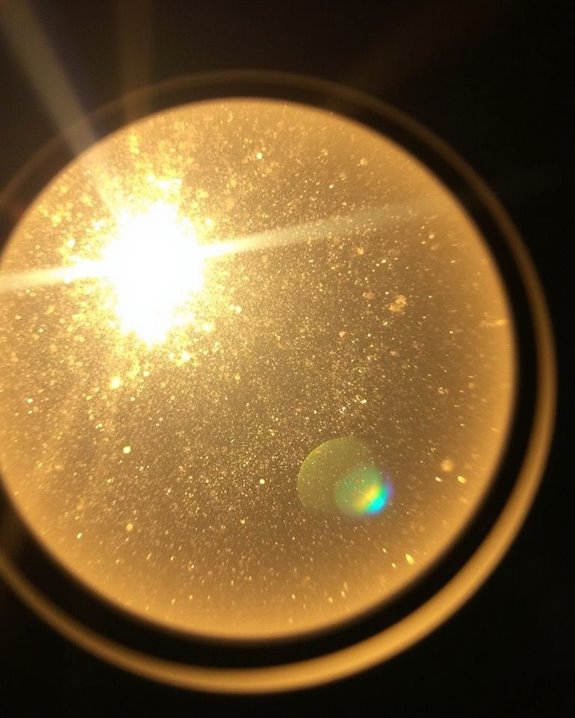
Among all the issues that can cause projector blurriness, a dirty lens stands out as the most frequent culprit that’s often overlooked by users. Your projector’s lens clarity can deteriorate due to dust accumulation, fingerprints, moisture, and improper cleaning techniques, resulting in diminished image quality.
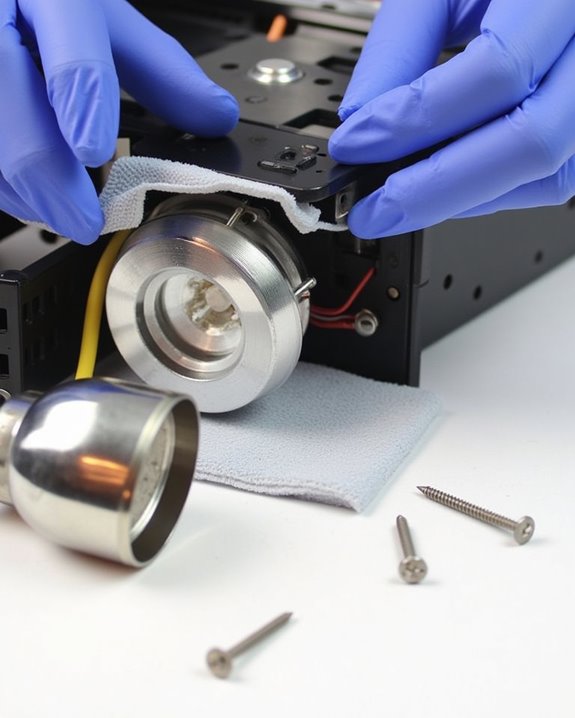
For effective dust removal, you’ll need several tools: a blower or compressed air to dislodge particles, a soft brush for stubborn debris, and microfiber cloths for wiping. Always unplug your projector and allow it to cool before cleaning, and never spray solution directly onto the lens. Instead, apply it to your cloth and wipe in circular motions.
Regular maintenance prevents permanent damage, extends your projector’s lifespan, and maintains optimal focus and color accuracy over time. Proper care, including regular cleaning and maintaining ventilation, directly influences longevity and performance.

[Professional Camera Cleaning Kit] Air Blower*1+Short Nozzle*1+Long Nozzle*1+Cleaning Cloth*6+Cleaning Pen*1+15ML Cleaner*1. The cleaning kit is mainly suitable for cleaning the sensor, lens, screen and body surface and gaps of SLR cameras, and can also be used for digital cameras, computers, mobile phones and other equipment.

【Professional Lens Cleaning Kit】 Dslr cleaning kit includes Lens Cleaning Pen*1, Camera Blower*1, 60ML Purified Water, 40*40cm Extra-large Oversize Microfiber Cleaning Cloth*2, 15*15cm Cleaning Cloth*3, Lens Wipes*6, Lens Brush*1. All essentials in one convenient package.

[Mini Air Blower - Precision Dust Removal]:Specifically designed to remove dust particles from camera lenses, hot-shoes, and zoom rings. Compact and powerful, this mini air blower ensures no corners are left untouched in your camera cleaning kit.
Focus and Distance Adjustments for Crystal Clear Images
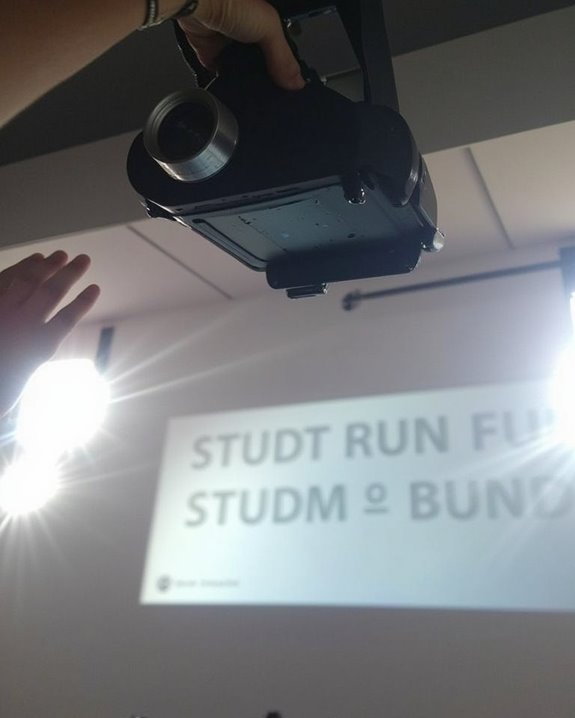
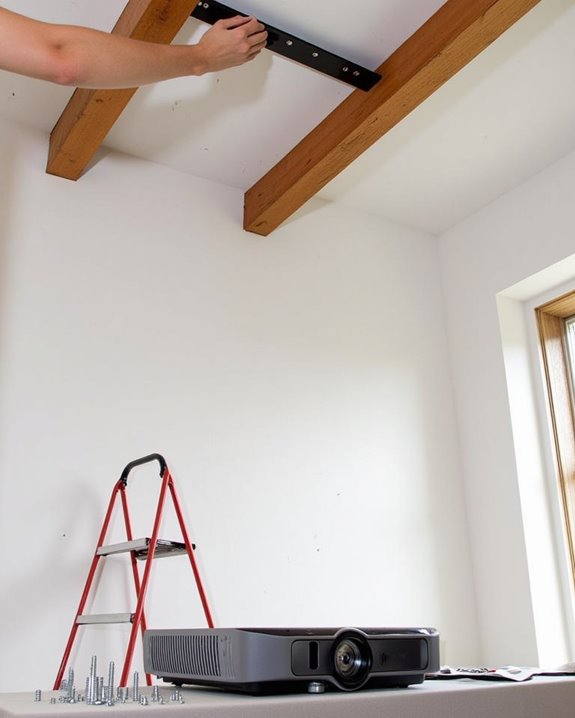
Even with a pristine lens, your projector’s image may remain frustratingly blurry if the focus and distance settings aren’t properly configured. Proper lens calibration begins with calculating the ideal throw ratio, which determines the best distance between your projector and screen for sharp imagery.
Most projectors offer manual focus adjustments through control rings or remote buttons, allowing you to fine-tune clarity with precision focus techniques. Auto-focus features can provide a good starting point, though they often require manual fine-tuning for optimal results. For best performance, ensure your projector is centered and properly aligned with the screen, adjusting mounting height as needed. If perfect alignment isn’t possible, utilize keystone correction to square the image or take advantage of lens shift capabilities, which maintain image quality better than keystone adjustment alone. Additionally, using projectors with auto-focus and keystone correction features can significantly reduce setup time and improve image sharpness.
![[AI Auto Focus/Auto Lens Cap] Outdoor-Projector-4K with WiFi 6 and Bluetooth: 1500 ANSI Portable Projector with Auto 6D Keystone & Zoom, Jimveo Native 1080P Movie Proyector 2026 Upgraded](https://m.media-amazon.com/images/I/51NbInL1chL._SL500_.jpg)
[World’s 1st Smart Projector with AI Auto-Focus + Auto Lens Cap] E30 Pro portable projector with 2026 upgrade AI auto-focus tech allows to get clear pictures in 5 seconds, free from troublesome manual focus and cuts the setup process in half. The auto-shift sensors detect real-time movements and adjust focus to keep images stable and clear. The design of the auto lens cap eliminates the worry of losing the cap and protects the lens from dust/scratches, bringing great convenience and security for the ceiling mount

Compatible with Bowens Mount Point-Source Fixtures Up to 300W

Shapeable Spotlight: The Spotlight SE is the first amaran Bowens Mount precision projection lens designed to instantly transform Bowens Mount point-source lights with up to 300W of power output into a shapeable spotlight with an even beam
The Impact of Projection Surfaces on Image Quality
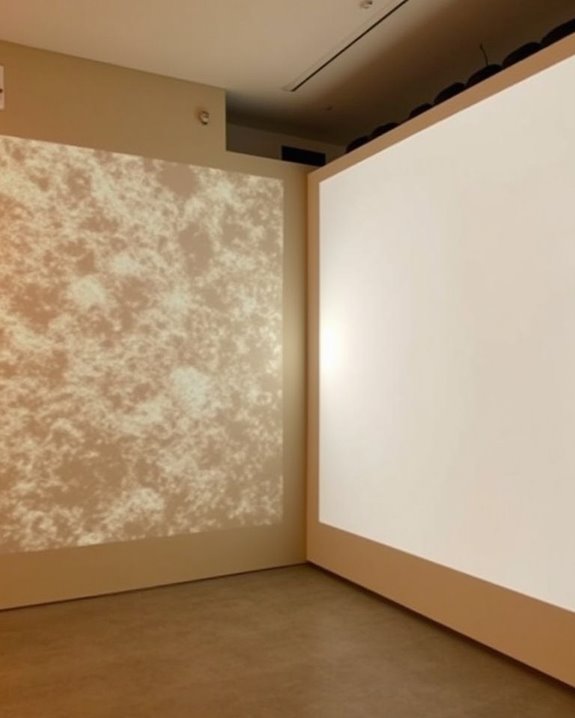
Your projector’s lens and focus settings aren’t the only culprits behind blurry images, as the surface you’re projecting onto plays a crucial role in determining overall clarity. A textured or uneven projection surface can distort pixels, especially with high-resolution 4K projectors, resulting in a frustrating “fuzz effect” that diminishes sharpness.
For ideal image clarity, consider the material composition of your screen. Smooth-surfaced screens, particularly those made from PVC, prevent pixel distortion and maintain geometric precision. If your room has ambient light, an ALR (Ambient Light Rejecting) screen can considerably reduce glare while enhancing contrast. In darker environments, matte white screens deliver excellent color accuracy, while high contrast gray screens improve dark areas. Remember that even microscopic variations in surface texture can affect how well your projector displays fine details.

The Perfect Combo with LTV-2500: Our matte white screen can not only solve the problem of wavy lines that may exist when projecting onto the wall, but also the perfect combo with LTV-2500, effectively improving the picture quality by 80%.

80 INCH PROJECTOR SCREEN: The tripod for the projector screen with stand is made of sturdy metal with a thick main pole and 4 sturdy diagonal poles, and four aluminum tubes with spring tension at the end to keep the entire projector screen structure stable, solid and flexible, with height adjustment.

To avoid purchasing an incompatible projection screen and potential inconveniences, please carefully check the specifications table before purchasing. If you still have questions about your selection, please contact us and we will recommend the most suitable screen for you. Given the large size of the screen, it is essential to measure the dimensions of your room, lift and corridors to ensure that the selected size fits your space.
Keystone Correction and Image Alignment Issues
When your projector is creating blurry images, keystone correction might be the hidden culprit behind your frustration. This digital manipulation, while solving one problem, often creates another by reducing the actual number of pixels used to display your image, resulting in noticeable softening and reduced sharpness.
Both vertical and horizontal keystone correction affect image quality, particularly when adjustments are extreme. While this feature helps achieve proper image alignment when your projector isn’t ideally positioned, it sacrifices clarity in the process. The digital scaling required to correct the trapezoid shape essentially compresses parts of the image, degrading overall definition.
For best clarity, try repositioning your projector directly in front of the screen whenever possible, or use lens shift technology instead of keystone correction to maintain image quality while achieving proper alignment.
Hardware Malfunctions That Lead to Blurry Projection
Hardware issues within your projector often manifest as persistent blurriness that won’t resolve through simple focus adjustments. Faulty autofocus mechanisms or degraded focus motors can prevent proper image sharpness, while defective imaging chips or LCD panels directly impact projection clarity. Internal hardware components like optical elements may become misaligned through normal wear and tear, causing consistent focus problems.
Firmware issues can also affect hardware performance, with outdated software failing to properly control the focusing system. Heat-related problems frequently contribute to blurriness, as overheating from blocked ventilation or fan failures causes optical elements to shift slightly. If you’re experiencing persistent blur, check that cooling vents remain unobstructed and listen for unusual fan noises, which often indicate impending hardware problems. Sometimes, a firmware update or factory reset resolves these hardware-related image quality issues.
Resolution and Input Source Problems
While hardware issues often cause blurry projections, resolution and input source problems represent another common culprit behind unclear images. Resolution mismatch occurs when your projector’s native resolution doesn’t align with your input device, resulting in scaled images that appear fuzzy or distorted. You’ll need to adjust your computer’s display settings to match your projector’s capabilities for suitable clarity.
Input source problems can also contribute to blurriness through poor-quality cables, loose connections, or incompatible signal types. Check that you’re using undamaged HDMI or VGA cables properly secured at both ends. Additionally, verify that your projector and computer have synchronized refresh rates, as mismatched settings can cause flickering or blurred motion. Adjusting the aspect ratio on your projector may also resolve distortion issues that make text and images appear stretched and unclear.
Environmental Factors Affecting Your Projector’s Clarity
Beyond the projector itself, environmental factors play a crucial role in determining image clarity and can often be the hidden culprit behind persistent blurriness. Ambient light conditions, particularly high levels from windows or overhead lighting, can wash out your image and reduce contrast considerably. UV interference from sunlight not only diminishes visibility but can also cause thermal effects that impact internal components over time.
Dust accumulation represents another major challenge, as particles settling on lenses or optical components reduce brightness and distort colors. Additionally, temperature fluctuations and humidity levels affect your projector’s performance through condensation on optical elements or component stress. In particularly dusty environments, consider a projector with IP5X or higher rating for dust protection, and always position your unit away from direct sunlight to maintain ideal image clarity.
Regular Maintenance Tips to Prevent Blur
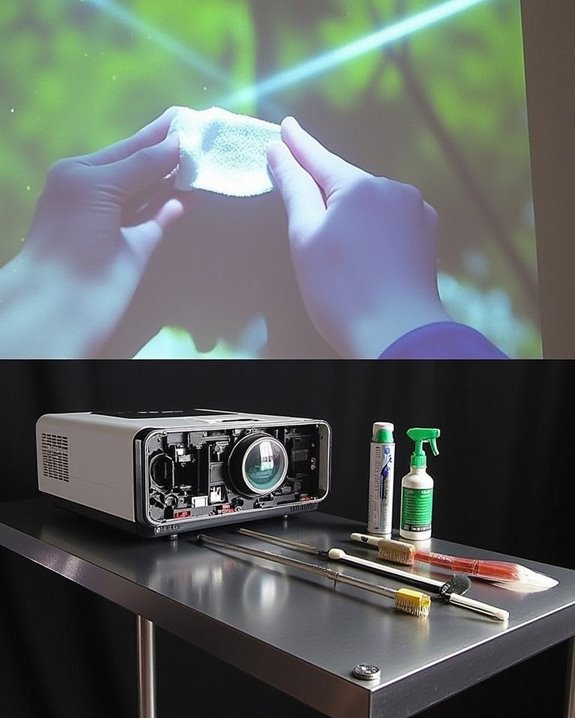
Regular maintenance serves as your best defense against projector blur, transforming those environmental challenges into manageable conditions. Start with proper lens cleaning using soft, lint-free microfiber cloths to prevent scratches that lead to image degradation, and avoid harsh chemicals that can damage the delicate lens coating. When not in use, follow responsible storage practices by keeping your projector in a cool, dry environment away from extreme temperatures and humidity that can affect internal components.
Don’t overlook regular focus and alignment checks, ensuring your projector remains level and properly positioned relative to your screen. Match your source device’s resolution to your projector’s native resolution to prevent digital blur, and schedule periodic deep cleaning sessions to remove accumulated dust from both external and internal components.
When to Seek Professional Help for Your Projector
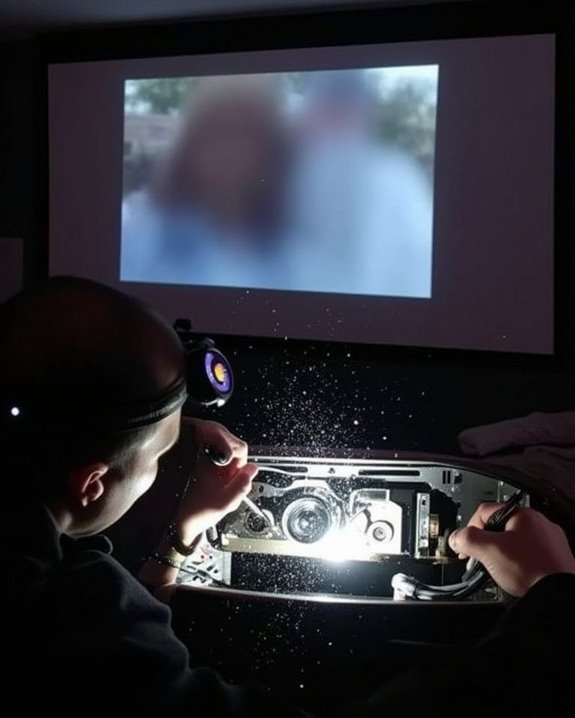
Despite your best maintenance efforts, there are situations when your projector’s blurriness requires professional intervention, particularly if you’ve exhausted all DIY troubleshooting options. Complex issues like cracked lenses, circuit board failures, or persistent blurriness despite adjustments warrant expert attention.
Consider professional diagnostics when you notice unusual noises, burning smells, or visible physical damage to your projector. High-end models especially benefit from specialized repair services that utilize genuine parts and offer warranties on their work. If your projector is still under warranty coverage, contacting authorized service centers is essential to maintain your protection.
When selecting repair services, prioritize technicians with experience handling your specific brand, positive customer reviews, and transparent pricing policies. Professional repair often proves more cost-effective for valuable equipment than repeated DIY attempts that might cause additional damage.
Frequently Asked Questions
Can Screen Burn-In Cause Projector Blurriness?
While screen burn-in doesn’t directly cause blurriness, it creates persistent discoloration and shadows that you might perceive as blur. This image persistence can make details appear less sharp, especially in affected areas of your projection.
Does Projector Bulb Age Affect Image Clarity?
Yes, as your projector bulb lifespan diminishes, you’ll notice significant image quality degradation. Aging bulbs lose brightness, causing blurry, dull images. You’ll typically see clarity issues after 1500-2000 hours of use.
How Do Color Calibration Settings Impact Perceived Sharpness?
Studies show 60% of users mistake color issues for blurriness. You’ll notice improved perceived sharpness with proper color accuracy adjustments. Contrast enhancement between elements makes details pop, creating the illusion of a sharper image overall.
Can Wireless Projection Cause More Blur Than Wired Connections?
Yes, your wireless projection can cause more blur due to wireless interference and compression. You’ll experience better signal stability with wired connections, resulting in sharper images and fewer quality issues overall.
Do Different Projection Technologies (Dlp Vs LCD) Have Different Blur Issues?
Indeed, like night and day, DLP and LCD projection technologies differ in their blur issues. DLP offers better image sharpness with higher contrast, while LCD may show more pixelation but fewer rainbow artifacts that cause blur-like effects.