As an Amazon Associate, we earn from qualifying purchases. Some links on this site are affiliate links at no extra cost to you. Our recommendations are based on thorough research and editorial judgment.

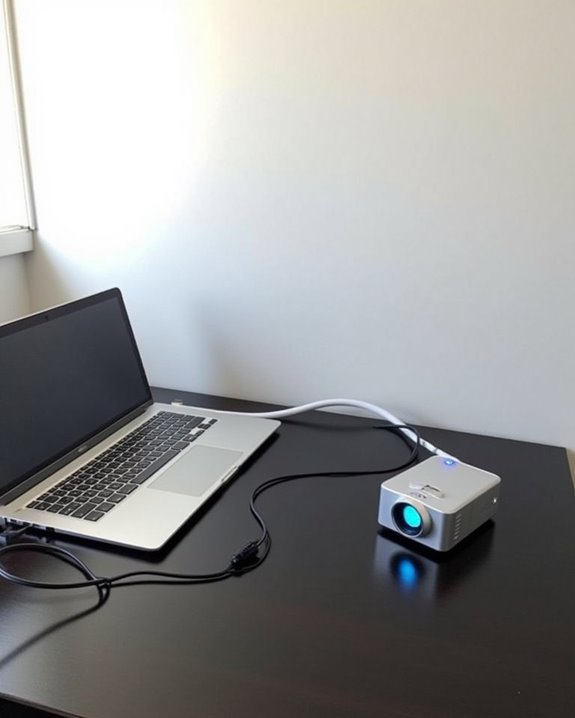
How to Connect a Small Projector to Your Computer

Small projectors often use different connection standards than typical computer monitors, making compatibility a potential hurdle for first-time users. You’ll need to identify which ports are available on both your computer and projector before purchasing any cables or adapters. Most modern laptops feature HDMI or USB-C outputs, while projectors might offer HDMI, VGA, or specialized mini-ports that require specific connectors. Understanding these connection types will save you time and frustration, especially when you’re preparing for an important presentation or entertainment setup that depends on a properly functioning display.
Key Takeaways
- Check which ports are available on both your projector and computer (HDMI, VGA, DisplayPort, or USB-C).
- Connect devices using an appropriate cable, ensuring both are powered on before establishing the connection.
- Select the correct input source on your projector that matches your connection (HDMI 1, VGA, etc.).
- Adjust your computer’s display settings to either duplicate or extend your screen to the projector.
- For wireless connectivity, ensure both devices support Wi-Fi or Bluetooth and are connected to the same network.
Understanding the Different Connection Types
When connecting your small projector to a computer, you’ll need to understand the various connection types available to guarantee compatibility between your devices. Most projectors offer HDMI ports, which transmit both high-definition video and audio through a single cable, while VGA connections provide reliable analog signals for older laptops. DisplayPort offers high-bandwidth transmission with backward compatibility, and DVI supports quality digital video for desktop setups.
For flexible setups, consider portable cable options like mini-HDMI or micro-HDMI adapters that work well with compact projectors. Wireless alternatives are increasingly popular, eliminating cable clutter while maintaining connection quality. USB connections enable plug-and-play functionality and PC-free presentations, particularly useful when traveling. Each connection type offers specific advantages depending on your computer’s available ports and your presentation requirements. Many modern projectors also support dual-band WiFi and Bluetooth connectivity to enable seamless wireless streaming and device pairing.
Selecting the Appropriate Cable for Your Devices
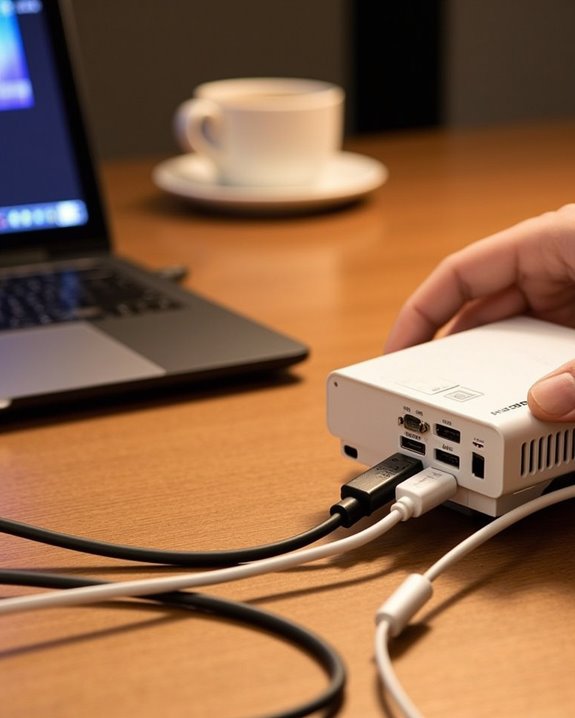
Selecting the appropriate cable for your devices guarantees ideal performance and seamless connectivity between your computer and small projector. HDMI cables, supporting resolutions up to 8K, represent the most versatile option for modern setups, while DisplayPort provides similar high-quality video transmission with excellent audio support. Cable quality directly impacts signal integrity, with poorly shielded cables causing signal degradation, especially at lengths exceeding 15 feet.
For older projectors, you might need DVI or VGA connections, often requiring adapters to connect with newer computers. When choosing HDMI cables, verify the version (HDMI 2.1 offers superior performance) and bandwidth rating (18Gbps recommended for high-definition content). Remember that mini and micro HDMI connectors serve specific devices, so examine your projector’s input ports carefully before purchase. Additionally, many modern projectors support WiFi 6 & Bluetooth connectivity as alternative options for wireless streaming and device mirroring.
Recommended Products

【4K UHD Visual Feast】This USB-C to HDMI cable supports up to 4K@60Hz resolution and is backward compatible with 1440P@60Hz and 1080P@120Hz. It can seamlessly transmit at 3840x2160 resolution, providing crystal-clear images and smooth video, suitable for high-definition monitors, TVs, and projectors, meeting the needs of various devices and use cases. 📌𝐍𝐨𝐭𝐞: 𝐔𝐒𝐁-𝐂 𝐩𝐨𝐫𝐭 𝐦𝐮𝐬𝐭 𝐬𝐮𝐩𝐩𝐨𝐫𝐭 "𝐃𝐢𝐬𝐩𝐥𝐚𝐲𝐏𝐨𝐫𝐭 𝐀𝐥𝐭𝐞𝐫𝐧𝐚𝐭𝐞 𝐌𝐨𝐝𝐞". 𝐍𝐎𝐓 𝐬𝐮𝐩𝐩𝐨𝐫𝐭 𝐏𝐨𝐫𝐭𝐚𝐛𝐥𝐞 𝐌𝐨𝐧𝐢𝐭𝐨𝐫 𝐨𝐫 𝐔𝐥𝐭𝐫𝐚 𝐖𝐢𝐝𝐞 𝐌𝐨𝐧𝐢𝐭𝐨𝐫.
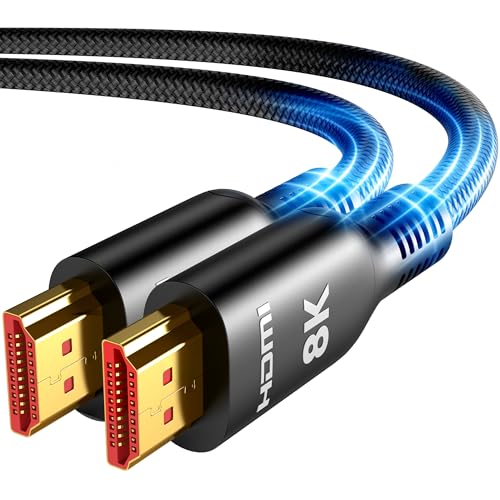
Future-Ready 8K Clarity – See Every Detail in Stunning Resolution: Experience the pinnacle of visual technology with Highwings 8K Ultra High-Speed HDMI Cable 20ft long, delivering breathtaking 8K@60Hz and buttery-smooth 4K@120Hz performance. Every pixel shines with perfect clarity thanks to advanced signal processing that eliminates artifacts and preserves true-to-life colors. Whether you're streaming movies or gaming, enjoy studio-grade precision that makes every scene leap off the screen

[Effortless Plug & Play] Crystal-clear and vibrant 4K@60Hz resolution backward compatible for 1440P/2K@144Hz and 1080P@240Hz. Instantly mirror or extend UHD content from your Type-C phone, tablet, laptop, and desktop computer to larger displays like monitors, TVs, and projectors. Leave behind the worries of unstable WiFi and the hassle of drivers. HDCP compliance lets you enjoy media streaming without any limitations.𝗣𝗹𝗲𝗮𝘀𝗲 𝗡𝗼𝘁𝗲: 𝗧𝗵𝗶𝘀 𝗶𝘀 𝗮 𝗼𝗻𝗲-𝘄𝗮𝘆 𝗰𝗮𝗯𝗹𝗲, 𝗱𝗲𝘀𝗶𝗴𝗻𝗲𝗱 𝗲𝘅𝗰𝗹𝘂𝘀𝗶𝘃𝗲𝗹𝘆 𝗳𝗼𝗿 𝘁𝗿𝗮𝗻𝘀𝗺𝗶𝘀𝘀𝗶𝗼𝗻 𝗳𝗿𝗼𝗺 𝗨𝗦𝗕-𝗖 𝗵𝗼𝘀𝘁 𝗱𝗲𝘃𝗶𝗰𝗲𝘀 𝘁𝗼 𝗛𝗗𝗠𝗜 𝗱𝗶𝘀𝗽𝗹𝗮𝘆𝘀.
Setting Up a Wired Connection
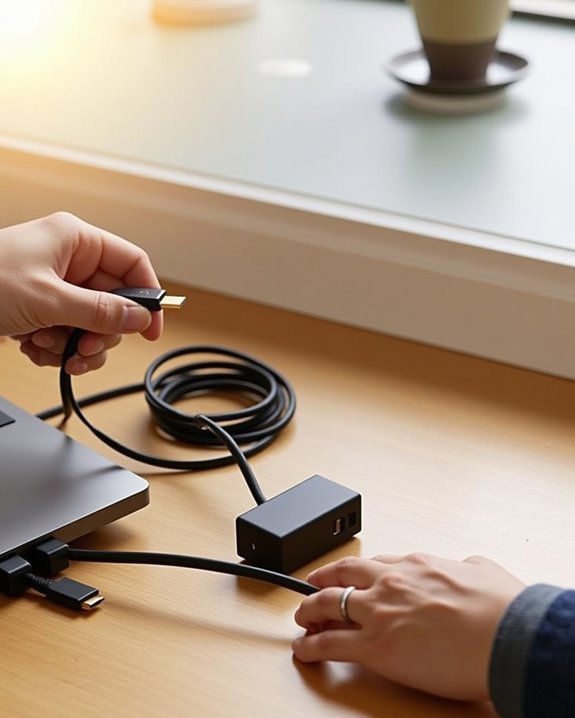
A properly established wired connection between your computer and projector guarantees ideal image quality, reliable performance, and minimal technical difficulties. Begin by identifying compatible ports on both devices, ensuring cable durability through careful handling and proper storage when not in use. Connect your selected cable (HDMI, VGA, DisplayPort, or USB-C) securely to avoid signal interference from loose connections.
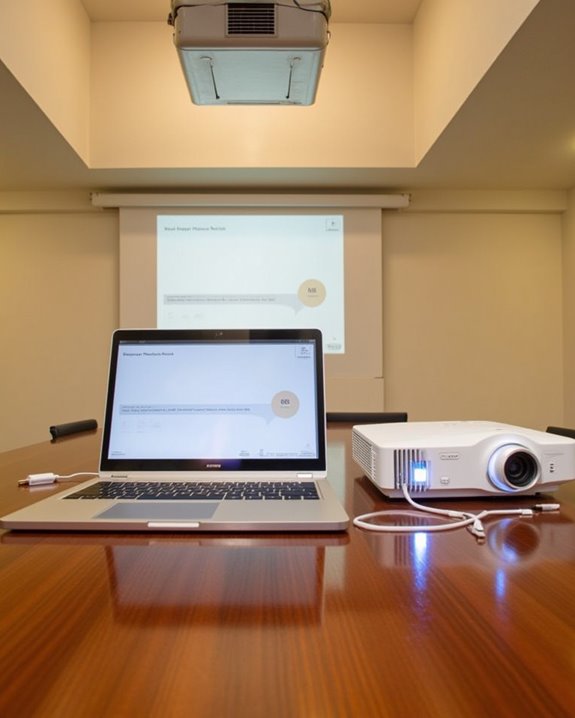
Power on your projector first, then select the corresponding input source that matches your connected cable. For maximum results, adjust your computer’s display settings to either extend or mirror your screen according to your presentation needs. If you encounter image problems, verify that both devices are set to compatible resolutions. Remember that longer cable runs may increase susceptibility to signal interference, so position your equipment to minimize cable length when possible. Using a projector stand with a stable base can help maintain optimal projector positioning and reduce cable strain during use.
Recommended Products

UHD HDMI 2.1 Cable 25FT: Meets the newest standard HDMI 2.1 Version and charactrize by 3 times transmission speed more than Ultra HD 4K, less lag, stuck and flick. This HDMI cord is also backward compatible with HDMI 2.0b/2.0a/1.4/1.3/1.2/1.1 version

All-in-One Compatibility for iPhone 15/16/17: Seamlessly for Phone, MacBook, iPad, Galaxy S24, Switch and USB-C laptop to HDMI TVs/Monitors/Mini Projector. No extra adapters required—stream, mirror, or present in seconds while keeping your device charged.

CTS Version: 2.1/2.1a/2.0b/2.0a/2.0/1.4/1.3/1.2/1.1. CTS 2.1 is the most recent update of the HDMI specification.
Establishing Wireless Connectivity
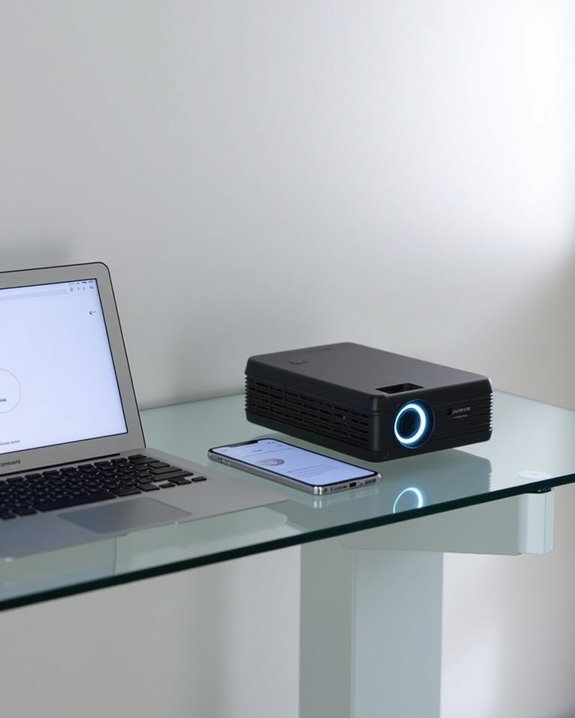
Wireless connectivity offers freedom from cables while maintaining the functionality you need for presentations and media display. To begin, verify that both your projector and computer have compatible wireless technologies, such as Wi-Fi or Bluetooth pairing capabilities. Turn on both devices and ensure they’re connected to the same network, adjusting display settings as needed for *ideal* performance.
For most setups, you’ll need to install specific software like Epson iProjection or utilize built-in features like Miracast on Windows devices. Keep your devices within reasonable proximity to minimize wireless interference, which can cause connection drops or poor image quality. If you experience connectivity issues, check for network congestion, restart both devices, or update your software to the latest version.
Recommended Products

328FT/100M Ultra-Long Range & 5G+2.4G Dual-Band Transmission:The FUTUREAGLE S8 Wireless HDMI Transmitter and Receiver delivers a powerful wireless range of up to 100 meters (328 feet), allowing you to break free from cable clutter and arrange your devices with flexibility. The advanced LDS technology significantly enhances signal penetration and reception, ensuring stable transmission even in large spaces like conference rooms, classrooms, or spacious living rooms. Furthermore, our versatile hdmi transmitter supports 5GHz & 2.4GHz dual-band transmission, providing strong anti-interference capability and reliable signal performance for both indoor and outdoor use.

Plug and Play with ZeroDrop Tech: Wireless HDMI transmitter and receiver 4k offers true plug and play functionality—no messy cables, Wi-Fi, apps, Bluetooth, or complex settings required. Bluetooth hdmi connect devices effortlessly in under 10 seconds. ZeroDrop Technology ensures zero latency for smoother operation, keeping your workspace tidy while delivering seamless, high-quality streaming

Cut the Cord with HDMI Cables: This HDMI wireless transmitter truly supports plug-and-play functionality. It can establish a connection in just 3 seconds without any cables, Wi-Fi, apps, Bluetooth, or complicated setup. Whether you’re streaming movies at home, presenting PPTs in meetings, recording programs in theaters, playing courseware in classrooms, or monitoring your store, our Wireless HDMI Transmitter and Receiver delivers a free, clear, and smooth experience.
Using Adapters for Incompatible Ports
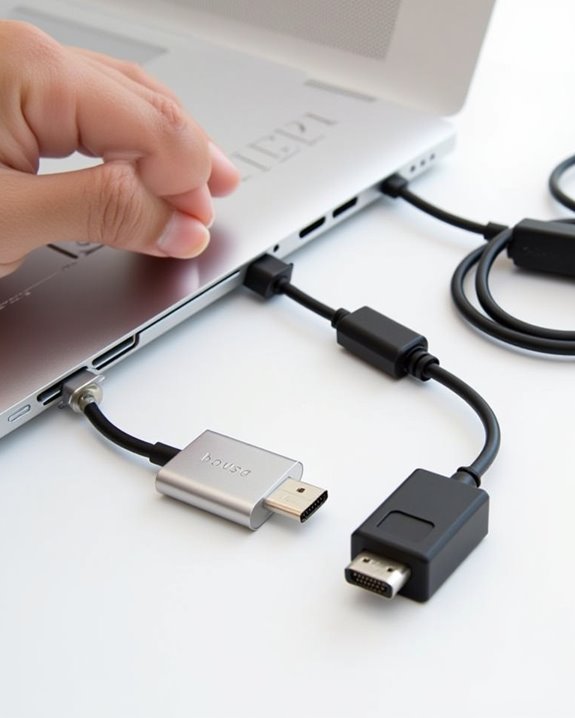
When your computer’s output ports don’t match your projector’s input options, you’ll need the right adapter to bridge the gap between devices. Adapter compatibility depends on the specific ports available on both your computer and projector, with HDMI-to-HDMI connections being the most straightforward option for modern equipment.
For newer laptops with only USB-C ports, a USB-C to HDMI adapter provides reliable signal conversion without quality loss. If your projector only accepts VGA input while your computer offers HDMI output, you’ll need an HDMI-to-VGA adapter that can properly convert the digital signal to analog. DisplayPort users connecting to HDMI-equipped projectors should verify their adapter supports the desired resolution, as some budget adapters limit output quality or introduce latency during signal processing.
Recommended Products

Compatibility & Functionality Overview: This durable USB-C to HDMI adapter is compatible with Windows, smartphones, and gaming consoles for video and audio streaming, but it requires DP Alt Mode support, is strictly for one-way video output, and does not support charging.

5-in-1 USB-C Hub: Experience comprehensive connectivity featuring a Power Delivery input, two USB-A 2.0 ports, a USB-A 3.0 port, and an HDMI port. (Note: The USB-C power delivery input port is only for connecting an external wall charger to power your laptop and cannot power peripheral devices.)
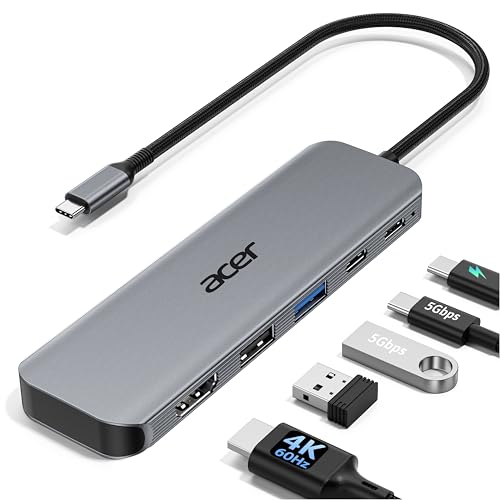
【5-in-1 Ultimate Productivity HUB】Expand your USB-C port into a high-performance workstation. This usb c hub multiport adapter integrates 4K@60Hz HDMI, 100W PD, USB-C 3.0 (5Gbps), USB-A 3.0/2.0. Perfect for keeping your desk organized and eliminating clutter from multiple dongles.
Configuring Display Settings on Your Computer
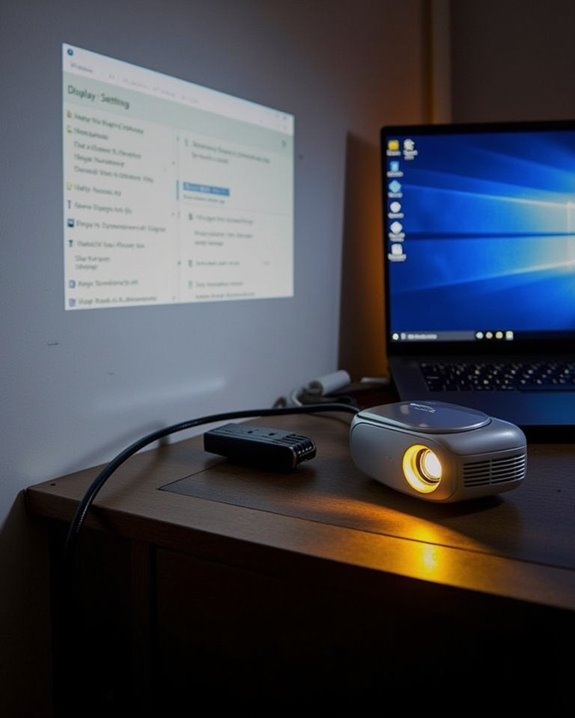
Properly configuring your computer’s display settings ensures the projector will show your content exactly as you intend it to, with ideal resolution and arrangement for your presentation needs. Access these settings by right-clicking on your desktop and selecting Display Settings, or using the Windows+P shortcut for quick adjustments. Choose between extending, duplicating, or using only the projector display based on your presentation requirements.
For perfect image quality, match the projector’s native resolution and adjust the aspect ratio to prevent distortion. Color calibration is essential for accurate representation of visuals, particularly for presentations involving detailed graphics or images. If using wireless projection, press Windows+K to connect, ensuring your projector supports this technology. Should display issues arise, verify input sources and update video drivers for better performance.
Optimizing Projector Settings for Best Performance
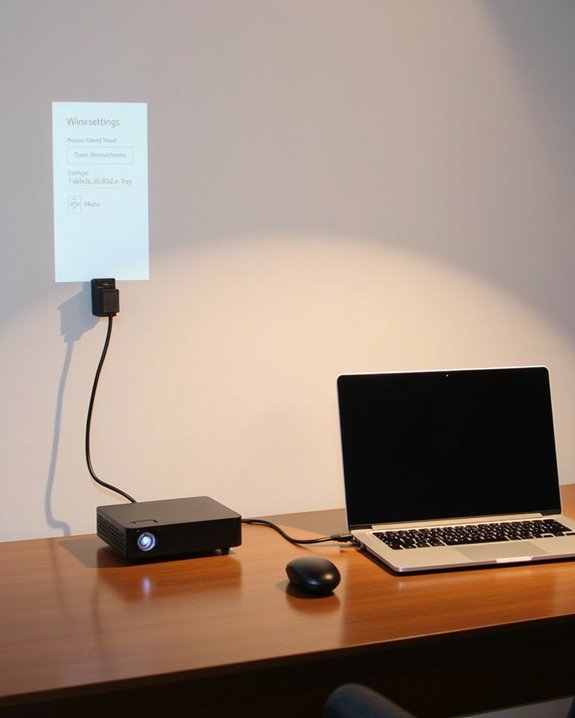
Once you’ve successfully connected your projector to your computer, optimizing the device’s settings becomes essential for achieving crystal-clear, vibrant presentations that will impress your audience. Start by selecting the appropriate picture mode, typically “Cinema” or “Movie” for balanced color accuracy and reduced fan noise during extended use.
Adjust brightness and contrast to match your room’s lighting conditions, ensuring your image resolution appears crisp without washing out important details. For maximal clarity, fine-tune the focus and zoom until text appears sharp throughout the entire screen. Color calibration is vital for accurate representation; use your projector’s built-in presets or manual adjustments to achieve natural-looking colors. Reduce ambient light whenever possible by drawing curtains or dimming room lights, particularly when presenting content with dark sections that require good contrast levels.
Troubleshooting Connection Problems
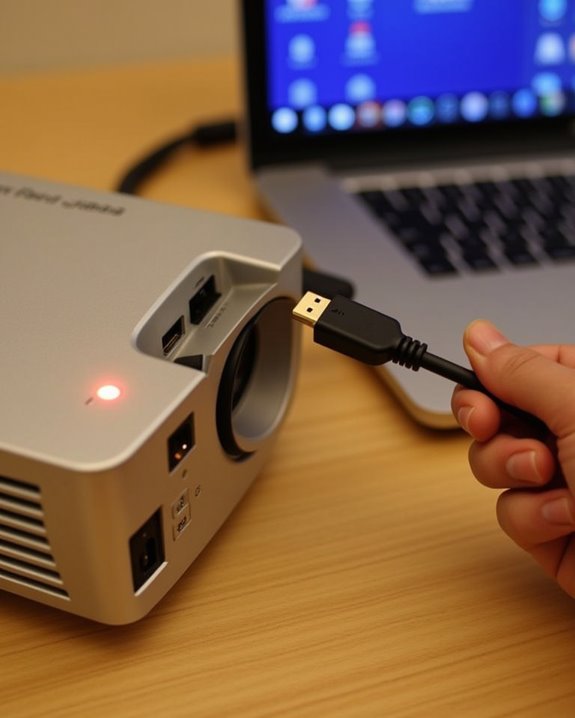
Even the most carefully configured projector can occasionally experience connection issues that prevent your presentations from displaying properly. When troubleshooting, start with basic checks: ensure all cables are securely connected, verify the projector is powered on, and confirm you’ve selected the correct input source. If problems persist, adjust your computer’s display output settings using keyboard shortcuts like Windows + P to extend or duplicate your screen.
Hardware issues often require deeper investigation, such as checking for faulty cables or testing alternative ports. After projector bulb replacement, you might need to reconfigure your connection settings entirely. Similarly, proper projector screen calibration can resolve display quality problems that initially appear as connection failures. When all else fails, update your display drivers and restart both devices, which often resolves persistent connectivity problems.
Recommended Products

COMPACT DESIGN - The compact-designed portable Benfei HDMI to VGA adapter connects a computer, desktop, laptop, or other devices with HDMI port to a monitor, projector, HDTV, or other devices with VGA port; Tuck this lightweight gadget into your bag to do a business presentation with your laptop and projector, or extend your desktop screen to a monitor or TV;

COMPACT DESIGN - The compact-designed portable Benfei HDMI to VGA adapter connects a computer, desktop, laptop, or other devices with HDMI port to a monitor, projector, HDTV, or other devices with VGA port; Tuck this lightweight gadget into your bag or pocket to do a business presentation with your laptop and projector, or extend your desktop screen to a monitor or TV; A VGA cable is required.

「Product Name」0.6M C14 to C5 Power Cord
Advanced Tips for Special Presentation Needs
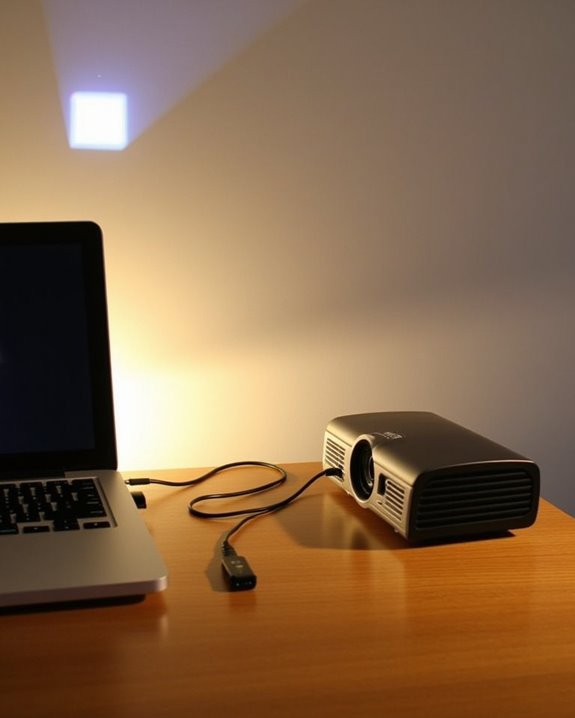
Beyond basic connectivity, special presentation scenarios require advanced techniques to create truly memorable experiences. When designing immersive environments, consider incorporating interactive projectors that allow audience participation through touch interfaces or gesture recognition. For specialized presentations, augmented reality projections can blend virtual elements with real-world objects, creating dynamic visual experiences that captivate your audience.
Multi-screen setups offer expanded visual real estate for complex data visualization, allowing you to display complementary information simultaneously. To enhance your presentations further, integrate immersive audio systems that synchronize with your visual elements, creating a more complete sensory experience. For venues with unique architectural features, 3D projection mapping can transform ordinary surfaces into extraordinary display canvases, conforming your content to the specific contours and dimensions of your presentation space.
Frequently Asked Questions
Can My Projector Display 3D Content From My Computer?
Yes, your projector can display 3D content from your computer if it’s 3D-ready and compatible with your computer’s graphics card. You’ll need specialized 3D glasses and software like Stereoscopic Player for ideal viewing.
How Do I Connect Multiple Computers to One Projector Simultaneously?
For a multiple device setup, you’ll need either a switcher box, a network connection, or screen-sharing software. These shared display options let you connect several computers to one projector, switching between inputs as needed.
Will Using a Projector Drain My Laptop Battery Faster?
As the saying goes, “nothing comes without a cost.” Yes, your laptop’s battery consumption will increase when using a projector. You’ll want to adjust your power management settings to minimize this drain.
Can I Use My Smartphone as a Remote Control?
Yes, you can use your smartphone as a remote control by downloading a remote app. If your phone has an IR blaster or the projector supports wireless control, you’ll enjoy convenient operation without a physical remote.
What’s the Maximum Distance Between My Computer and Projector?
You’ve probably wondered if distance affects your setup. For HDMI, you’re limited to about 50 feet maximum, with better signal quality at 25 feet or less. For 4K, keep your cable length under 10 feet.