As an Amazon Associate, we earn from qualifying purchases. Some links on this site are affiliate links at no extra cost to you. Our recommendations are based on thorough research and editorial judgment.
How to Connect Your Phone to a Projector via USB

While wireless streaming options continue to expand, connecting your phone to a projector via USB remains a reliable, high-quality solution for presentations and media sharing. You’ll find this connection method particularly useful when Wi-Fi is unreliable or unavailable, providing a stable link between your mobile device and larger display. The process varies slightly depending on your phone model and projector specifications, but with the right adapters and settings, you can achieve seamless video transmission. Let’s explore the essential steps to establish this connection and troubleshoot common issues that might arise.
Key Takeaways
- Verify your phone supports video output via USB-C/Lightning and use appropriate adapters (USB-C to HDMI for Android, Lightning to HDMI for iPhone).
- Connect the adapter to your phone first, then use an HDMI cable to link the adapter to the projector’s HDMI input port.
- Select the correct input source on your projector (HDMI) using the remote or control panel.
- Enable screen mirroring or display output in your phone’s settings to activate the external display connection.
- If no connection appears, check cable connections, restart devices, or try wireless alternatives like Chromecast or Miracast.
How to Connect Your Phone to a Projector via USB
When you’re looking to share content from your phone on a larger screen, connecting your device to a projector via USB offers a convenient solution for presentations, movie nights, or displaying photos. The process varies depending on your phone’s port type and projector compatibility, which determines the necessary cable types you’ll need.
For phones and projectors with USB-C ports, a direct USB-C to USB-C cable works efficiently. However, if your phone has a Micro-USB port, you’ll need MHL or Slimport adapters with appropriate HDMI or VGA cables. Adapter compatibility is vital—ensure your phone supports video output through USB and that your adapter matches your phone’s output format. Gather all required components before beginning setup to avoid interruptions and ensure a smooth connection process. Keep in mind that many projectors have HDCP restrictions limiting direct streaming from apps, so using adapters or external streaming devices might be necessary.
Understanding Phone-to-Projector USB Connection Options
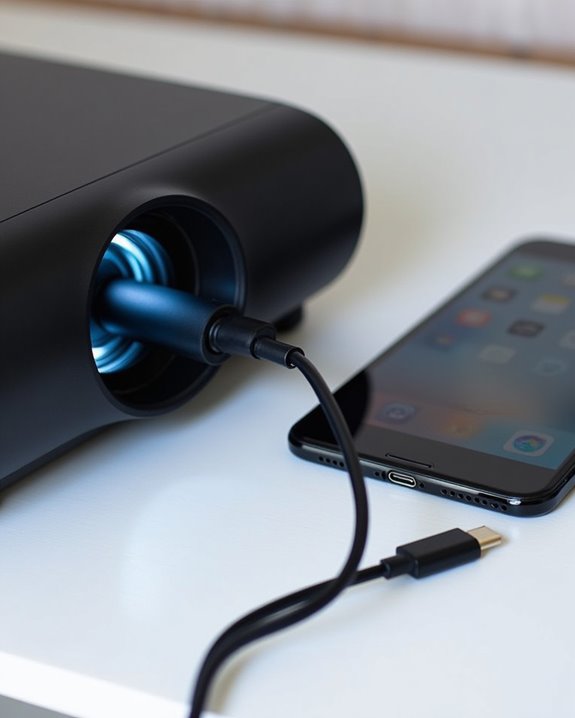
Successfully connecting your phone to a projector via USB requires understanding the various connection options available based on your specific devices. Modern smartphones typically use USB-C ports that support alternate video modes, while older devices may need specialized adapters to achieve proper display output.
When examining compatibility, verify that both your phone’s USB port supports video output and your projector accepts video input through its USB connection, not just for firmware updates or reading storage devices. Many projectors use USB ports solely for maintenance purposes rather than video input. Additionally, consider USB security protocols that might prevent unauthorized screen mirroring or require permission confirmations on your device. For excellent results, match your phone’s output capabilities (USB-C, Lightning, or Micro-USB) with appropriate adapters designed for video transmission to your specific projector model. For enhanced compatibility and performance, also consider projectors with WiFi 6 & Bluetooth support that enable seamless wireless connections alongside USB options.
Recommended Products

COMPACT USB C HUB - BENFEI USB Type-C to HDMI+USB+VGA+Power Delivery adapter add 1 HDMI port, 1 VGA port, 1 USB-C Charging Port, 1 USB-A ports to your USB-C laptop — all from a single USB-C port. Tuck this lightweight gadget into your bag or pocket to do a business presentation with your laptop and projector, or extend your desktop screen to a monitor or TV.

All-in-One Compatibility for iPhone 15/16/17: Seamlessly for Phone, MacBook, iPad, Galaxy S24, Switch and USB-C laptop to HDMI TVs/Monitors/Mini Projector. No extra adapters required—stream, mirror, or present in seconds while keeping your device charged.
![QGeeM USB C to HDMI Adapter 4K Cable, USB Type-C to HDMI Adapter [Thunderbolt 3/4] HDMI for Laptop MacBook Neo/Pro/Air, iPhone 15 16 17 Pro max, Dell XPS, Pixelbook, iMac,Thinkpad,Surface,IPad Pro](https://m.media-amazon.com/images/I/31Ut6vUoveL._SL500_.jpg)
Plug & Play: QGeeM hdmi to usb c cable plug-and-play,no additional driver/software required.Perfectly compatible for your USB-C MacBook Pro/Neo/MacBook, I Mac, surface Book 2, pixels, HP Envy 13, Galaxy Book, and Chromebook, drive one or two HDMI monitors/displays, up to 4K@30Hz resolution. Compatible for HDMI-enabled TVs/monitors/projectors for both video and audio transfer.
Required Equipment and Adapters for Different Phone Models
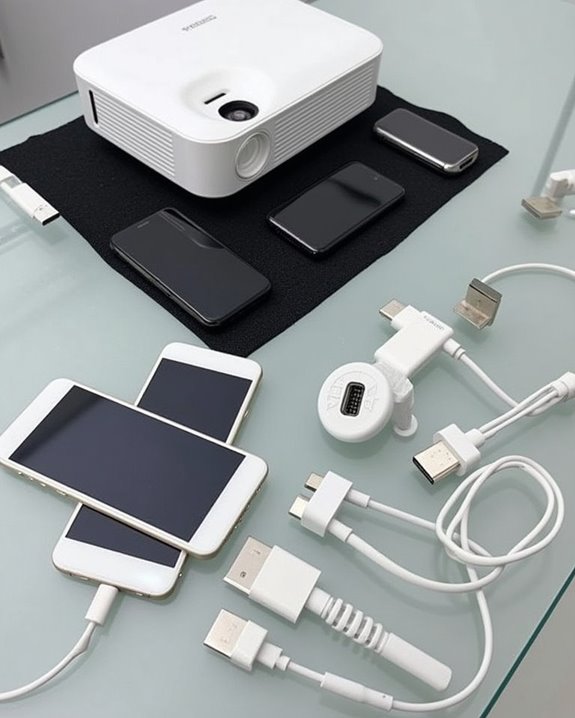
Depending on your phone model and projector specifications, you’ll need specific equipment to establish a successful USB connection between devices. Modern Android phones typically use USB-C ports, requiring either a USB-C to USB-A adapter for older projectors or a USB-C to HDMI adapter for most contemporary models. iPhone users will need Lightning to HDMI adapters, which Apple specifically designs for external display connectivity.
Cable types notably impact connection quality, with high-quality, shielded cables providing more stable video transmission than basic alternatives. Adapter compatibility varies across phone generations, so confirm your device supports video output before purchasing equipment. For maximum flexibility, consider investing in a multiport hub that accommodates multiple connection options, allowing you to connect peripherals while displaying your phone’s content on the projector.
To ensure optimal image clarity and signal reliability, always choose cables featuring gold-plated connectors and braided shielding.
Recommended Products

【4K UHD Visual Feast】This USB-C to HDMI cable supports up to 4K@60Hz resolution and is backward compatible with 1440P@60Hz and 1080P@120Hz. It can seamlessly transmit at 3840x2160 resolution, providing crystal-clear images and smooth video, suitable for high-definition monitors, TVs, and projectors, meeting the needs of various devices and use cases. 📌𝐍𝐨𝐭𝐞: 𝐔𝐒𝐁-𝐂 𝐩𝐨𝐫𝐭 𝐦𝐮𝐬𝐭 𝐬𝐮𝐩𝐩𝐨𝐫𝐭 "𝐃𝐢𝐬𝐩𝐥𝐚𝐲𝐏𝐨𝐫𝐭 𝐀𝐥𝐭𝐞𝐫𝐧𝐚𝐭𝐞 𝐌𝐨𝐝𝐞". 𝐍𝐎𝐓 𝐬𝐮𝐩𝐩𝐨𝐫𝐭 𝐏𝐨𝐫𝐭𝐚𝐛𝐥𝐞 𝐌𝐨𝐧𝐢𝐭𝐨𝐫 𝐨𝐫 𝐔𝐥𝐭𝐫𝐚 𝐖𝐢𝐝𝐞 𝐌𝐨𝐧𝐢𝐭𝐨𝐫.

[Effortless Plug & Play] Crystal-clear and vibrant 4K@60Hz resolution backward compatible for 1440P/2K@144Hz and 1080P@240Hz. Instantly mirror or extend UHD content from your Type-C phone, tablet, laptop, and desktop computer to larger displays like monitors, TVs, and projectors. Leave behind the worries of unstable WiFi and the hassle of drivers. HDCP compliance lets you enjoy media streaming without any limitations.𝗣𝗹𝗲𝗮𝘀𝗲 𝗡𝗼𝘁𝗲: 𝗧𝗵𝗶𝘀 𝗶𝘀 𝗮 𝗼𝗻𝗲-𝘄𝗮𝘆 𝗰𝗮𝗯𝗹𝗲, 𝗱𝗲𝘀𝗶𝗴𝗻𝗲𝗱 𝗲𝘅𝗰𝗹𝘂𝘀𝗶𝘃𝗲𝗹𝘆 𝗳𝗼𝗿 𝘁𝗿𝗮𝗻𝘀𝗺𝗶𝘀𝘀𝗶𝗼𝗻 𝗳𝗿𝗼𝗺 𝗨𝗦𝗕-𝗖 𝗵𝗼𝘀𝘁 𝗱𝗲𝘃𝗶𝗰𝗲𝘀 𝘁𝗼 𝗛𝗗𝗠𝗜 𝗱𝗶𝘀𝗽𝗹𝗮𝘆𝘀.

Compatibility & Functionality Overview: This durable USB-C to HDMI adapter is compatible with Windows, smartphones, and gaming consoles for video and audio streaming, but it requires DP Alt Mode support, is strictly for one-way video output, and does not support charging.
Step-by-Step Connection Process
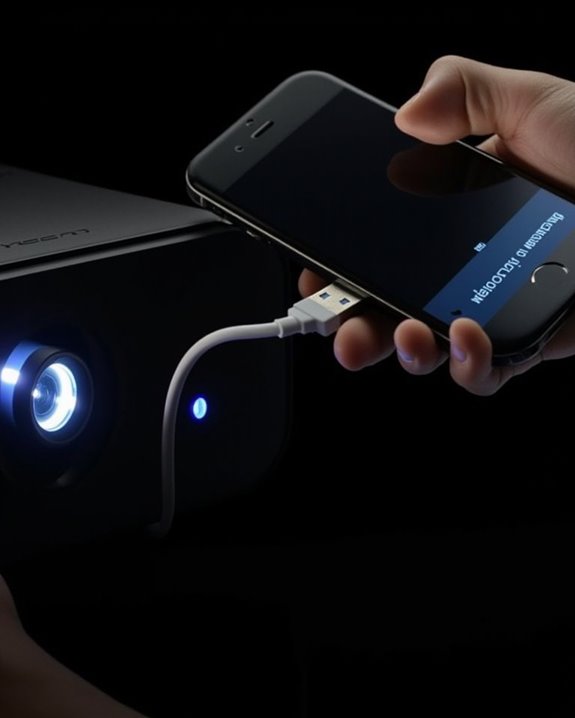
Connecting your phone to a projector via USB requires following a systematic process that guarantees proper signal transmission between devices. First, identify the ports on both your phone and projector, ensuring compatibility between USB types. For USB-C phones, connect directly to compatible projectors or use an appropriate adapter for HDMI/VGA inputs. Secure all connections firmly to prevent signal interruption, which can drain battery life unnecessarily.
Next, navigate to your phone’s display settings and enable screen mirroring or casting. Select the projector from available devices, adjusting screen resolution settings if the image appears distorted or unclear. Most modern phones automatically optimize resolution, but manual adjustment may be necessary for older projectors. Remember that higher screen resolution settings typically consume more power, so keep your phone charged during presentations to maintain performance.
Configuring Your Projector Settings for USB Input
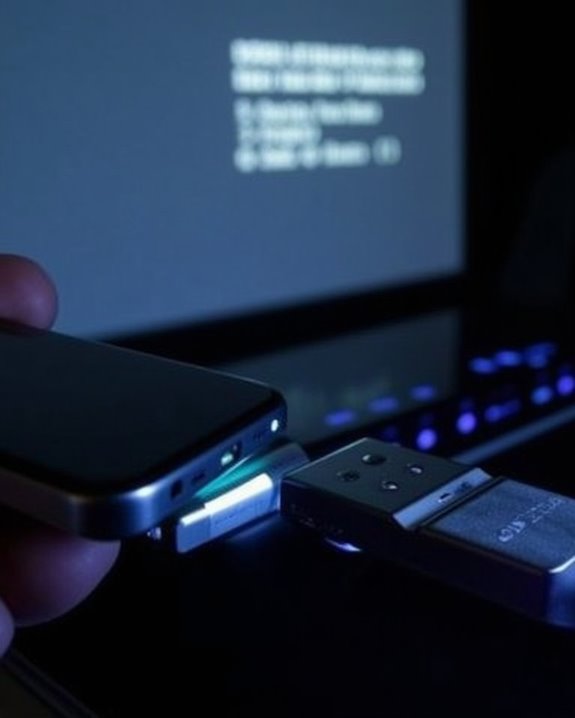
Once your phone is physically connected, you’ll need to properly configure your projector to recognize and display the USB input signal. Access your projector’s menu system, typically using the remote control, and navigate to the input source options. Different projector firmware versions organize these settings differently, but look for “Input Source,” “USB Display,” or similar options.
Select the appropriate USB port type from the available inputs, ensuring you choose the port where your phone is connected (USB-A or USB-B). Many projectors require specific USB display settings to be activated before recognizing mobile devices. If prompted, adjust display parameters like resolution and aspect ratio to optimize the image quality. Remember that some projectors may need updated firmware to properly support newer phone models.
Recommended Products
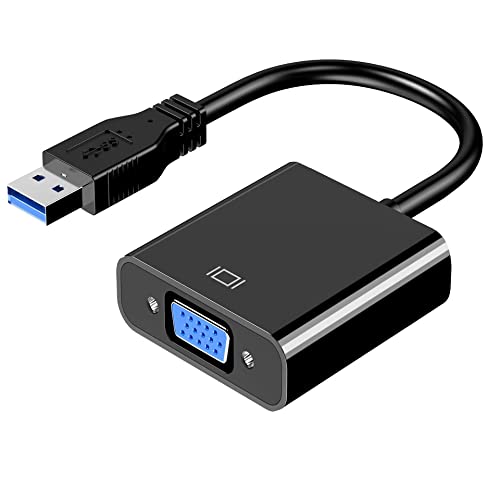
【Range Of Application】This USB 3.0 to VGA Adapter is used to connected a USB-enabled devices( such as laptop, desktop) with a VGA-enabled devices( such as monitor, projector, TV) for multi-monitor solution, extending working space with split-screen, mirroring display, etc
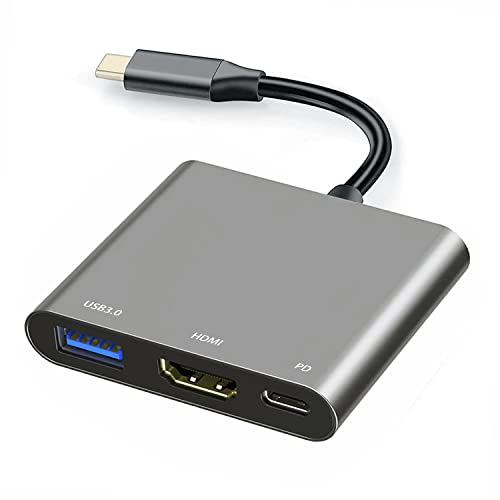
【Specification】Gray aluminum alloy shell LWH 60*55*10mm (2.3*2.1*0.4 inch), cable 130mm (0.5 inch), Mini size and multi-function.
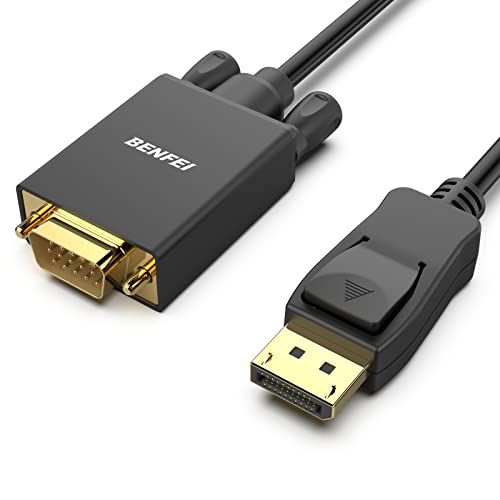
EXCELLENT TRANSMISSION: Benfei DisplayPort to VGA 1.8 Meter Cable utilizes better chip solution and professional multiple shielding for instaneous and accurate data streaming.
Troubleshooting Common Connection Problems
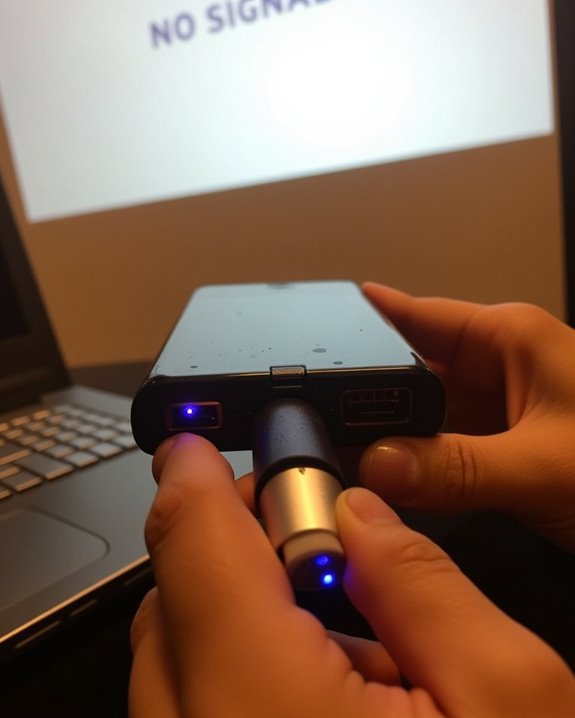
When you’ve followed all the connection steps but still don’t see your phone’s display on the projector, several common issues might be preventing a successful connection. First, verify that both devices actually support USB video transmission, as not all phones or projectors have this capability. Check that you’re using the correct adapter for your specific port types, ensuring it’s properly connected at both ends.
If the “No Signal” message appears, select the appropriate input source on your projector and confirm your cables aren’t damaged. For persistent issues, consider alternative wireless streaming options, which don’t rely on physical connections. Bluetooth pairing might enable audio transmission in some setups, though it won’t typically handle video. Remember that USB connections sometimes provide insufficient power, potentially causing your phone to disconnect unexpectedly during presentations.
Recommended Products

【iPhone 15 HDMI ADAPTER TO TV】- The 2-in-1 iPhone to HDMI adapter for tv helps iPhone15/16/iPad/MacBook expand a HDMI 4K@60Hz port and a charging port, enjoy crystal-clear audio and high-definition video experience, just share happiness with your family or friends. This apple HDMI to USB C adapter allows for faster charging, stable connections and high-definition output, which means you can enjoy home-theater, live streaming ,working report and playing while charging for your apple USB C to HDMI adapter.

Seamless HD Wireless Streaming: Experience crisp, high-definition visuals with our wireless HDMI display dongle adapter, supporting 4K and delivers an impressive 1080P/60Hz Full HD output.
![[Game-Changer] DOACE 500W Max 220V to 110V Converter, 50Hz to 60Hz Voltage Converter for European Travel, 100% Pure Sine Wave Voltage Converter US to Europe for CPAP Hair Straightener Laptop Phone](https://m.media-amazon.com/images/I/41SmvXL-LgL._SL500_.jpg)
💯[Choose DOACE Choose Safety] DOACE 500W voltage transformer is the Game-Changer – The ONLY 100% pure sine wave mini portable converter on the market. This means the power output from our voltage converter perfectly matches your device's waveform, especial for expensive medical and sensitive devices, ensuring no damage. In contrast, other modified sine wave converters can continuously harm your devices, leading to performance issues or a shorter lifespan.
Wireless Alternatives When USB Connection Fails
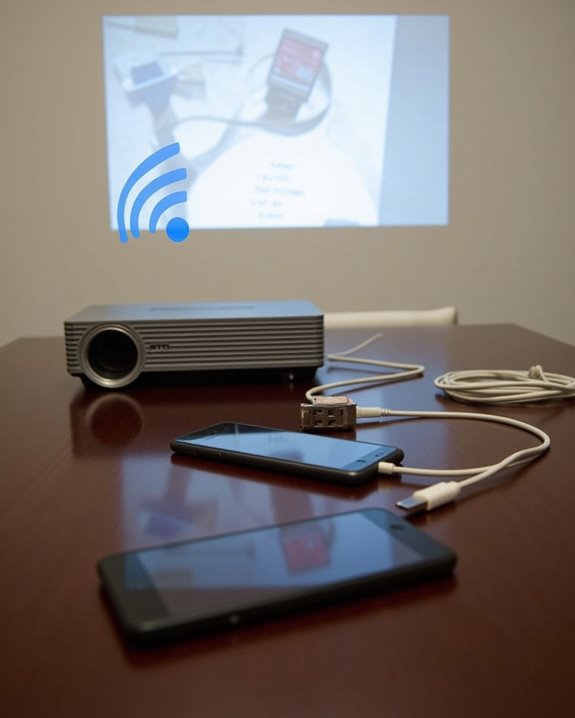
If USB connections prove unsuccessful, you’ll find several wireless options that can save your presentation. Wi-Fi and Bluetooth connections offer the most beneficial solution, requiring both devices to be on the same network for screen mirroring, while Bluetooth handles audio streaming with minimal setup.
For enhanced wireless streaming capabilities, consider using Chromecast by plugging it into the projector’s HDMI port, enabling high-quality content casting through the Google Home app. Miracast provides another viable alternative for Android users through Wi-Fi Direct, eliminating the need for shared networks. iPhone users can leverage AirPlay with compatible projectors or an Apple TV device, ensuring ideal device compatibility. When all else fails, dedicated wireless adapters from your projector’s manufacturer can create direct connections, bypassing network requirements entirely.
Recommended Products

328FT/100M Ultra-Long Range & 5G+2.4G Dual-Band Transmission:The FUTUREAGLE S8 Wireless HDMI Transmitter and Receiver delivers a powerful wireless range of up to 100 meters (328 feet), allowing you to break free from cable clutter and arrange your devices with flexibility. The advanced LDS technology significantly enhances signal penetration and reception, ensuring stable transmission even in large spaces like conference rooms, classrooms, or spacious living rooms. Furthermore, our versatile hdmi transmitter supports 5GHz & 2.4GHz dual-band transmission, providing strong anti-interference capability and reliable signal performance for both indoor and outdoor use.

Cut the Cord with HDMI Cables: This HDMI wireless transmitter truly supports plug-and-play functionality. It can establish a connection in just 3 seconds without any cables, Wi-Fi, apps, Bluetooth, or complicated setup. Whether you’re streaming movies at home, presenting PPTs in meetings, recording programs in theaters, playing courseware in classrooms, or monitoring your store, our Wireless HDMI Transmitter and Receiver delivers a free, clear, and smooth experience.

Plug and Play with ZeroDrop Tech: Wireless HDMI transmitter and receiver 4k offers true plug and play functionality—no messy cables, Wi-Fi, apps, Bluetooth, or complex settings required. Bluetooth hdmi connect devices effortlessly in under 10 seconds. ZeroDrop Technology ensures zero latency for smoother operation, keeping your workspace tidy while delivering seamless, high-quality streaming
Frequently Asked Questions
Can I Charge My Phone While It’s Connected to the Projector?
Like a power puzzle that needs all the right pieces, your charging compatibility depends on your projector’s Power Delivery options. You’ll need a USB-C port that supports both DisplayPort Alt Mode and Power Delivery for simultaneous charging.
Will My Phone’s Audio Play Through the Projector Speakers?
Typically your phone’s audio won’t play through USB alone due to compatibility issues. You’ll need separate audio cables or Bluetooth for sound transmission. Consider external speakers for better audio quality if available.
Can I Control My Phone With a Mouse When Connected?
Probably problematic: You can’t typically control your phone with a mouse when connected to a projector. Phone control via direct mouse compatibility is limited. You’ll need to navigate using your phone’s touchscreen instead.
How Much Battery Does USB Screen Mirroring Typically Consume?
USB screen mirroring can cause significant battery drain, typically consuming 15-30% more power than normal use. You’ll notice higher power consumption with higher resolutions and brightness levels. Consider using a charger during extended sessions.
Can I Project Specific Apps While Keeping Others Private?
Just when you thought privacy was impossible! You can project specific apps while keeping others private by adjusting privacy settings and app permissions, though screen mirroring typically shows everything on your display.